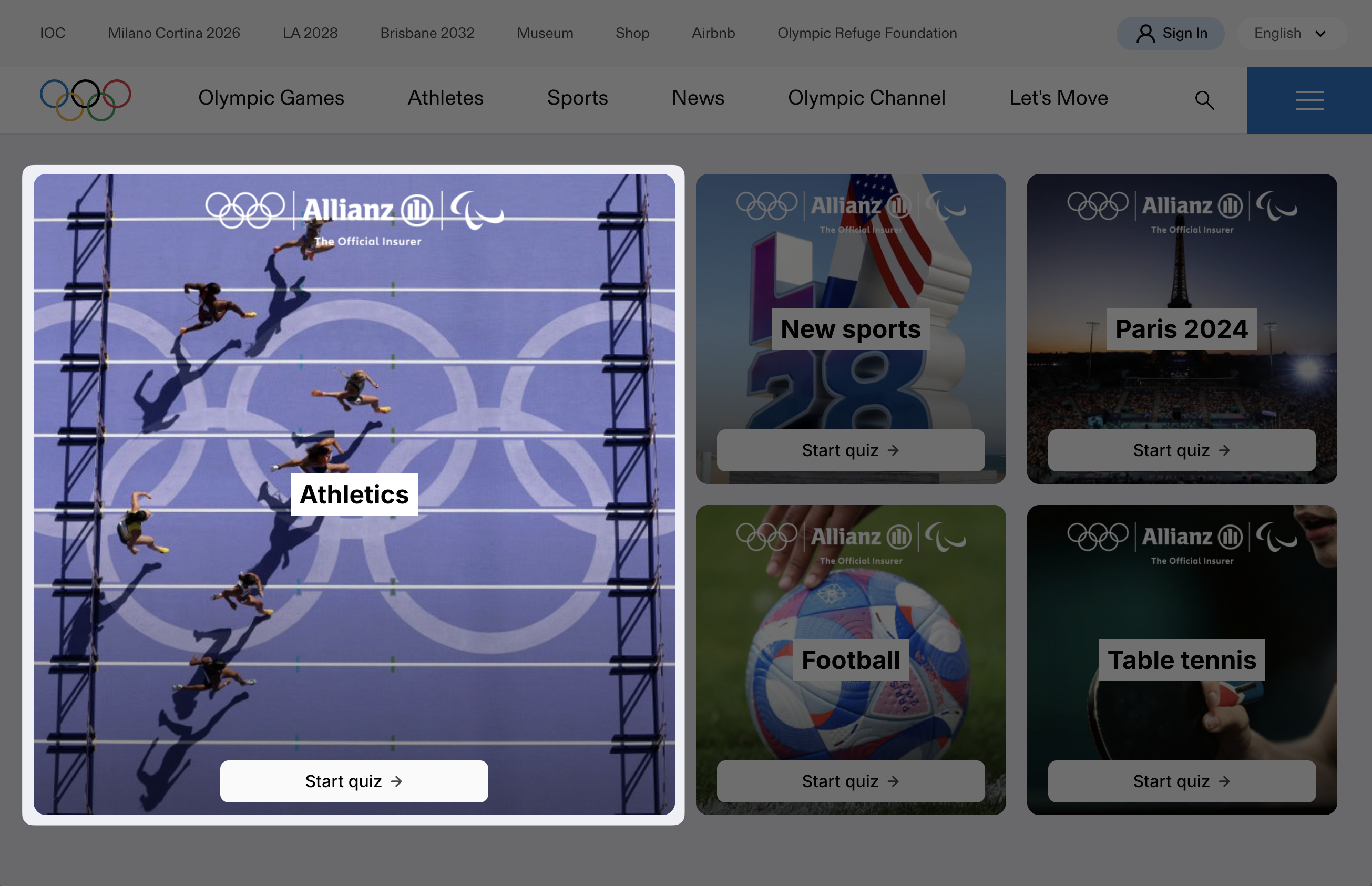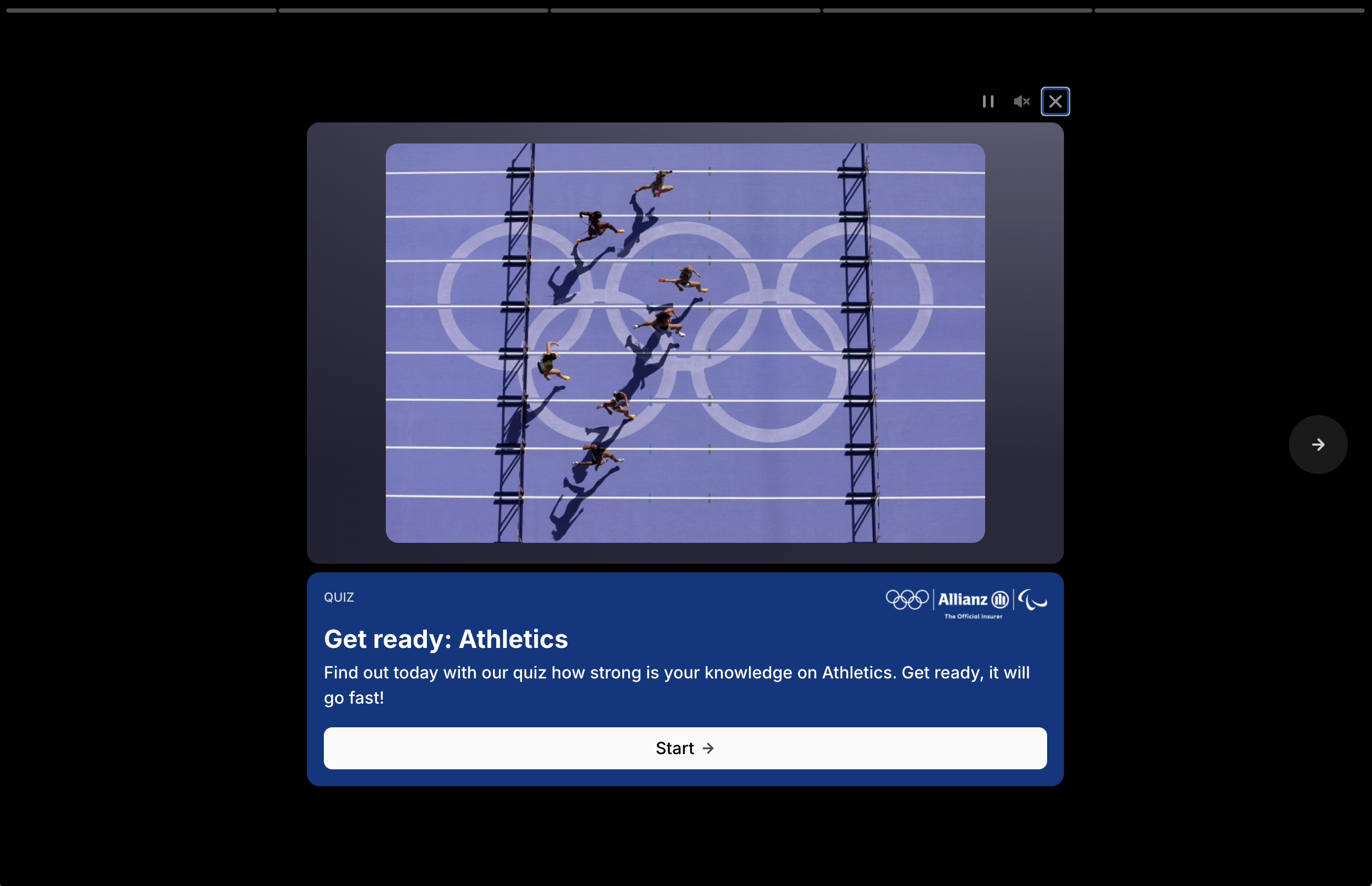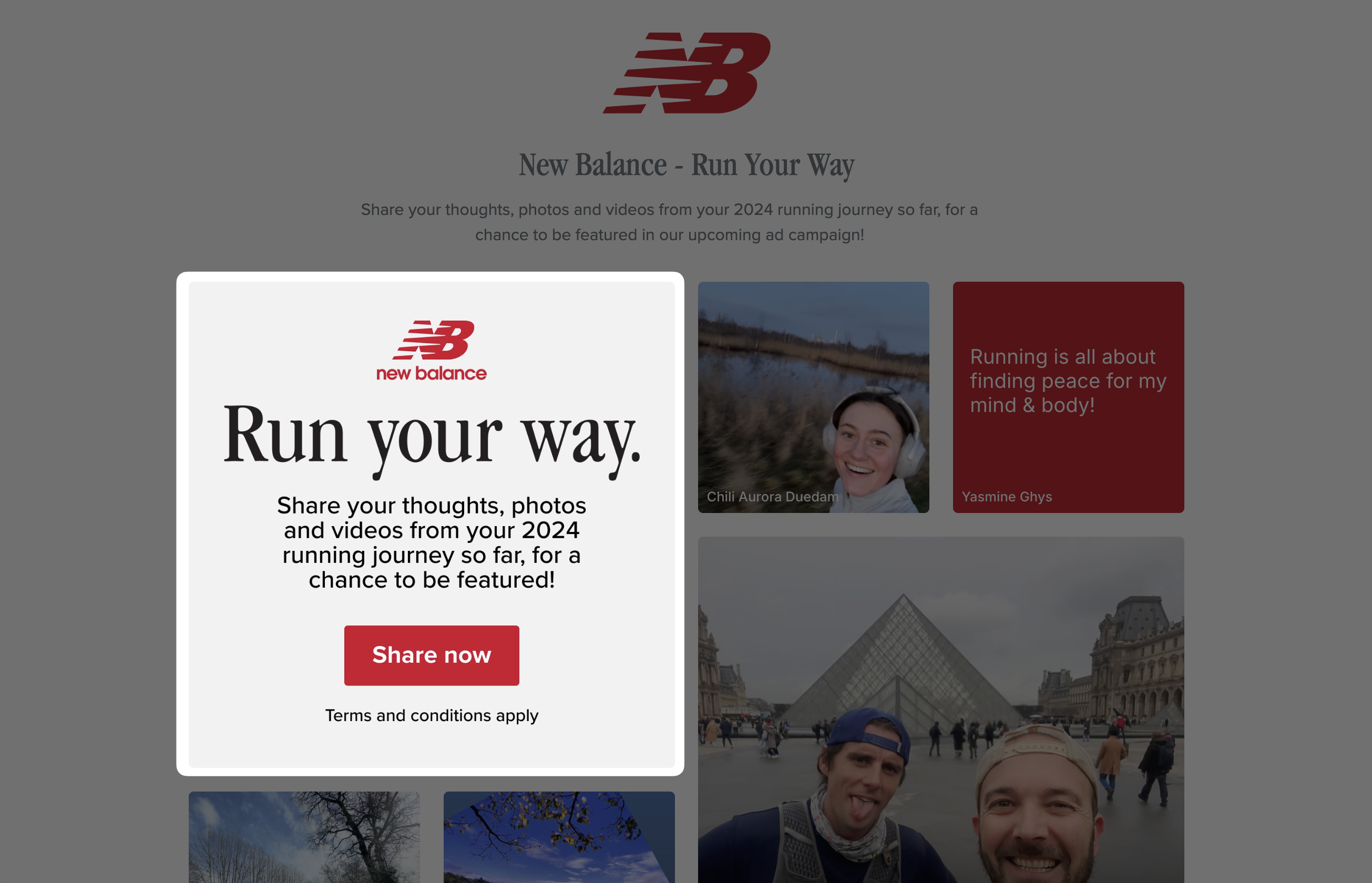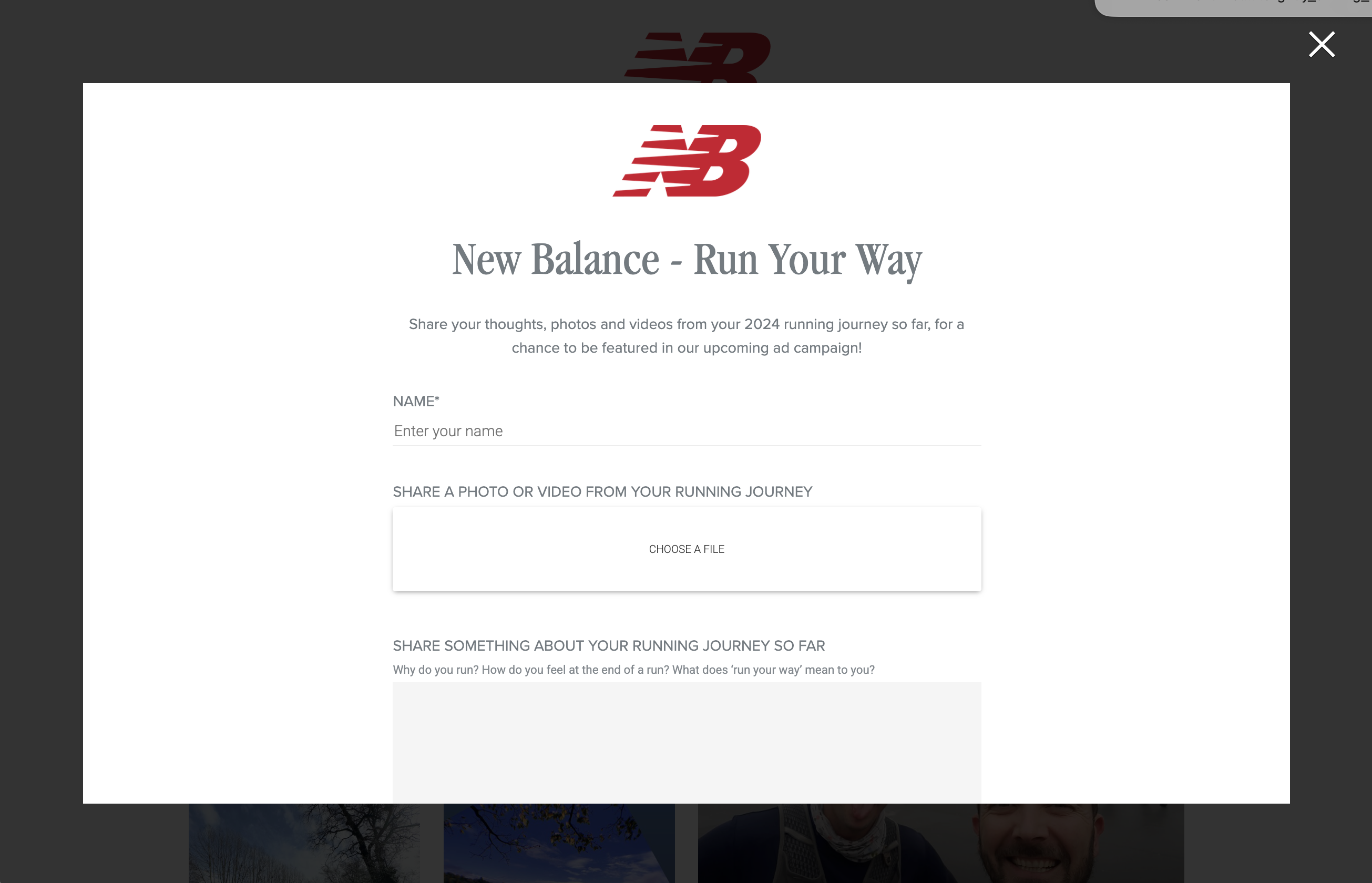
# Introduction

An introduction to Amondo, the audience engagement platform.

Amondo is the audience engagement platform that helps marketing, content and product teams activate digital experiences that capture attention and build stronger connections with their audiences.

Featuring a flexible set of tools, Amondo enables you to collect content from multiple sources, curate it into branded experiences, add interactive features and distribute it seamlessly across web, mobile and live displays.

Time to market and fragmented workflows often hold back innovation. Amondo brings everything together in one place with a single creator interface, a unified content model and expert support to help you deliver when it matters most.

For larger organisations, Amondo provides enterprise grade capabilities, compliance standards and managed services to ensure you get maximum value from the platform.

## Quick Navigation

<table data-view="cards"><thead><tr><th></th><th></th><th></th><th data-hidden data-card-cover data-type="files"></th><th data-hidden></th><th data-hidden data-card-target data-type="content-ref"></th></tr></thead><tbody><tr><td><i class="fa-chart-tree-map">:chart-tree-map:</i></td><td><strong>Core Platform Concepts</strong></td><td>An overview of the main building blocks including Tiles, Frames, Collections and Imprints.</td><td></td><td></td><td><a href="/pages/P0nBWiN9FDiDyEQgOPEU">/pages/P0nBWiN9FDiDyEQgOPEU</a></td></tr><tr><td><i class="fa-notebook">:notebook:</i></td><td><strong>Platform Guides</strong></td><td>Step by step guides for collecting content, curating experiences, building interactivity, launching activations and measuring performance.</td><td></td><td></td><td><a href="/pages/2Es5sEkGBAONyVyrrwu1">/pages/2Es5sEkGBAONyVyrrwu1</a></td></tr><tr><td><i class="fa-wand-magic-sparkles">:wand-magic-sparkles:</i></td><td><strong>Managed Delivery</strong></td><td>Information on Amondo's managed service including onboarding, briefing, moderation and reporting.</td><td></td><td></td><td><a href="/pages/o3UhegCrTnLl8kUTrcFa">/pages/o3UhegCrTnLl8kUTrcFa</a></td></tr><tr><td><i class="fa-robot">:robot:</i></td><td><strong>Developer Guides</strong></td><td>Technical documentation covering authentication, SDKs, integrations and the API Reference.</td><td></td><td></td><td><a href="/pages/idiIa9wJjtYNOHu8zs6Z">/pages/idiIa9wJjtYNOHu8zs6Z</a></td></tr><tr><td><i class="fa-shield-halved">:shield-halved:</i></td><td><strong>Trust &#x26; Compliance</strong></td><td>Details on security, data handling, usage rights and compliance with platform and developer policies.</td><td></td><td></td><td><a href="/pages/cOeeQr7m6qcngY6LupI2">/pages/cOeeQr7m6qcngY6LupI2</a></td></tr></tbody></table>

## Getting Help

If you need assistance with any of these guides or have questions about implementation, please refer to the specific sections or reach out to our [support team](mailto:support@amondo.com).


# Core Platform Concepts

Learn the core building blocks of the platform and how they fit together.

Amondo is built around a few core concepts that define how content is created, organised and displayed. Understanding these concepts is the foundation for working with the platform. Below you’ll find a short introduction to each.

<table data-view="cards"><thead><tr><th></th><th></th><th></th><th data-hidden data-card-target data-type="content-ref"></th></tr></thead><tbody><tr><td><i class="fa-square">:square:</i></td><td><strong>Tiles &#x26; Frames</strong></td><td>Tiles are the core building block of Amondo, ranging from simple content to interactive and data capture elements.</td><td><a href="/pages/7GsE0yLFr6U1bLZtUwZE">/pages/7GsE0yLFr6U1bLZtUwZE</a></td></tr><tr><td><i class="fa-folder-grid">:folder-grid:</i></td><td><strong>Collections</strong></td><td>Collections are where content is created, stored and managed, and they can be connected to one or more Imprints.</td><td><a href="/pages/dNN225CSSufFGAQwcSPc">/pages/dNN225CSSufFGAQwcSPc</a></td></tr><tr><td><i class="fa-objects-column">:objects-column:</i></td><td><strong>Imprints</strong></td><td>Imprints define how content is displayed, from grid based layouts like Gallery and Carousel to full screen formats like Stories and Display.</td><td><a href="/pages/2nsyTPo1JsKta1ygtYIt">/pages/2nsyTPo1JsKta1ygtYIt</a></td></tr></tbody></table>


# Tiles & Frames

Understand the role of tiles as the fundamental content unit in Amondo.

Content in Amondo can be displayed via Imprints in two different ways: as a **Tile** or as a **Frame**. The state depends on the format being used. Tiles are the default for grid-based layouts, while Frames are the default for full-screen layouts such as Stories. Both representations draw from the same underlying content.

### Tiles

Tiles are the default representation of content when displayed in grid-based formats such as **Gallery**, **Carousel** or **Display** (when Display is in grid mode).

Tiles are compact, visually consistent units designed to work together in a grid. They typically include media (image or video), text, and any interactive features like click-throughs or polls.

### Frames

Frames are the full-screen representation of content. They are the default in **Stories**, where each piece of content is displayed one at a time in an immersive, swipe-through experience.

Frames can also appear in other formats when content is expanded or highlighted, for example:

* Clicking on a Tile in a Gallery or Carousel will open it as a Frame.
* Display format can run in “hero mode” showing Frames one by one like a slideshow

### When to use Tiles vs Frames

* **Use Tiles** when presenting multiple pieces of content together in a grid.
* **Use Frames** when presenting content one at a time in full-screen or immersive mode.

The underlying content is the same: Tiles and Frames simply define how that content is rendered in different contexts.


# Collections

Discover how Collections group and organise content for publishing via Imprints.

A **Collection** is where content in Amondo's back-end is organised and managed. Every piece of content, whether created or sourced, is stored inside a Collection before it can be displayed in an Imprint. Collections act as the central workspace where teams can review, manage and prepare content for publishing.

### Purpose of Collections

Collections serve three main purposes:

1. **Storage** – they hold all content items that a team has created or imported.
2. **Organisation** – they provide a structured way to manage content, making it easier to curate and prepare for publishing.
3. **Connection** – they can be linked to one or more Imprints, allowing the same content to be reused across multiple experiences.

### Working with Collections

* Each Collection has its own name and appears in the Collections list for users with access.
* Collections can be connected to one or more Imprints, meaning content can be published in different formats without duplication.
* Collections can be created for different campaigns, projects or teams to keep content separate and manageable.

### Collections and Imprints

Imprints are the layouts or formats used to display content. Collections provide the source content that Imprints draw from. By connecting a Collection to an Imprint, you make its content available for use in galleries, carousels, stories or displays.

### Related

* [Imprints](/getting-started/core-platform-concepts/imprints-and-formats)
* [Tiles](/getting-started/core-platform-concepts/tiles)


# Imprints

Learn how Galleries, Carousels, Stories and Displays showcase content in different ways.

An **Imprint** is how content in Amondo is presented to an audience. While [Collections](/getting-started/core-platform-concepts/collections) hold the content itself, an Imprint defines the layout, design and overall experience of how that content is displayed.

Imprints transform raw content into structured, branded outputs that can be styled and customised for different use cases. They act as the bridge between content management (Collections) and audience-facing experiences.

### Purpose of Imprints

Imprints are designed to:

1. **Present content in beautiful formats** – normalising and standardising presentation no matter the source or original format.
2. **Drive deep audience engagement** – turning passive viewing into interactive experiences.
3. **Collect performance data and first party data** – providing insights that help measure success and inform future activations.

\[*Provide an image here of a pretty simple, straightforward Imprint - in the below pages we'll show different Imprint types]*

### Imprint Formats

Amondo offers four Imprint formats, each optimised for a different type of experience:

<table data-view="cards"><thead><tr><th></th><th></th><th></th><th data-hidden data-card-target data-type="content-ref"></th></tr></thead><tbody><tr><td><i class="fa-objects-column">:objects-column:</i></td><td><strong>Gallery</strong></td><td>A grid-based format that displays multiple pieces of content together, allowing audiences to browse at a glance.</td><td><a href="/pages/J9fmMMjry5Y3V79hRp1q">/pages/J9fmMMjry5Y3V79hRp1q</a></td></tr><tr><td><i class="fa-diagram-lean-canvas">:diagram-lean-canvas:</i></td><td><strong>Carousel</strong></td><td>A horizontal scrolling format that highlights a series of content items in a compact, swipeable strip.</td><td><a href="/pages/CDGJcbK4eK8RJoI2x9zS">/pages/CDGJcbK4eK8RJoI2x9zS</a></td></tr><tr><td><i class="fa-gallery-thumbnails">:gallery-thumbnails:</i></td><td><strong>Stories</strong></td><td>A mobile-optimised format inspired by social stories, presenting content one piece at a time in an immersive, swipe-through experience.</td><td><a href="/pages/DJVqRFWJqjxaS47PyW2T">/pages/DJVqRFWJqjxaS47PyW2T</a></td></tr><tr><td><i class="fa-screen-users">:screen-users:</i></td><td><strong>Display</strong></td><td>A large-scale format designed for live screens and broadcast environments, supporting both grid and full-screen “hero” modes.</td><td><a href="/pages/JQ59TUUzjHlEhHsT9wSa">/pages/JQ59TUUzjHlEhHsT9wSa</a></td></tr></tbody></table>

### Imprints and Collections

Each Imprint is connected to one or more [Collections](/getting-started/core-platform-concepts/collections). The Imprint determines *how* content from a Collection will appear, while the Collection determines *what* content is available.

This separation means the same Collection can power multiple Imprints, allowing teams to reuse content across different experiences without duplication.


# Gallery

The Gallery format presents a scrollable vertical feed of Tiles. It’s commonly used for embedding content hubs or digital campaigns within a website or mobile experience.

Gallery is designed for high-volume, mixed-format content, including media, interaction, and call-to-action Tiles, displayed in a clean, stacked layout.

### **Behaviour**

* [Tiles ](/getting-started/core-platform-concepts/tiles#tiles)are stacked vertically in a single-column feed
* The layout is responsive and optimised for web and mobile
* Users can optionally tap or click on a Tile to expand it into a full-screen [Frame](/getting-started/core-platform-concepts/tiles#frames)

### **Supported Tile Types**

Gallery supports all standard Tile types, including:

* Media Tiles – Image or video-based content
* [Clickthrough Tiles](/platform-guides/build/activation-tiles/clickthrough) – Link out to external URLs
* Brand Tiles – Highlight a partner or sponsor
* [Poll Tiles](/platform-guides/build/activation-tiles/polls) – Capture single-choice user votes
* [Quiz Tiles](/platform-guides/build/activation-tiles/quizzes) – Multi-question interactive tiles
* [Submission Tiles](/platform-guides/build/activation-tiles/submissions) – Allow users to upload content (e.g. photo or text)


# Carousel

The Carousel format displays a horizontal scrollable strip of Tiles. It’s designed for embedding compact, interactive content blocks where users can swipe or scroll through featured items one at a time.

Carousel is commonly used when screen space is limited or when highlighting a smaller, curated set of content.

## **Behaviour**

* [Tiles](/getting-started/core-platform-concepts/tiles#tiles) are displayed in a horizontal strip
* Users scroll or swipe to reveal additional Tiles
* Optionally, individual Tiles can open into full-screen [Frames](/getting-started/core-platform-concepts/tiles#frames)

## **Supported Tile Types**

Carousel supports all standard Tile types, including:

* Media Tiles – Image or video content
* [Clickthrough Tiles](/platform-guides/build/activation-tiles/clickthrough) – Link to external destinations
* Brand Tiles – Promote a partner or sponsor
* [Poll Tiles](/platform-guides/build/activation-tiles/polls) – Let users vote on a prompt
* [Quiz Tiles](/platform-guides/build/activation-tiles/quizzes) – Multi-question interactive formats
* [Submission Tiles](/platform-guides/build/activation-tiles/submissions) – Allow users to submit content directly

### Display Options:

Choose between one, two, or three rows for displaying carousels when setting up the Imprint. Select the option that best fits your needs.


# Stories

The Stories format displays one Tile at a time in a full-screen, tap-through layout. It’s designed for immersive, mobile-friendly content experiences where users move through a sequence of content in a focused, linear flow.

Stories are well-suited for campaigns that require narrative progression or high engagement across multiple frames.

### **Behaviour**

* Tiles are shown one at a time, full-screen
* Users tap or swipe to move forward/back
* Each [Tile](/getting-started/core-platform-concepts/tiles) is rendered as a [Frame](/getting-started/core-platform-concepts/tiles#frames)
* Navigation can be tap-based, swipe-based, or timed (auto-advance)

### **Supported Tile Types**

Stories support all standard Tile types, including:

* Media Tiles – Full-screen image or video content
* [Clickthrough Tiles](/platform-guides/build/activation-tiles/clickthrough) – Direct users to external links
* Brand Tiles – Include sponsor messaging or partner creative
* [Poll Tiles](/platform-guides/build/activation-tiles/polls) – Let users vote directly within a frame
* [Quiz Tiles](/platform-guides/build/activation-tiles/quizzes) – Step-by-step interactions across multiple questions
* [Submission Tiles](/platform-guides/build/activation-tiles/submissions) – Collect UGC within the story flow

### Display Options: Circles vs Cards

* **Circles (default):** Story icons are rendered as small circles containing the Story thumbnail. A ring surrounds each circle; its colour can be customised and changes when there is new or unseen content. Circles feel familiar to users of social‑media stories and take up minimal space in the rail.
* **Cards:** As an alternative, Stories can be presented as larger rectangles (cards). Cards provide more space for titles and preview imagery. They are useful when you want to highlight a particular Story or when you have fewer Stories and wish to maximise their visual impact.

Both formats support the same content and behaviour; choose the one that best suits your layout and design aesthetic.


# Display

The Display format renders Tiles in a full-screen layout optimised for **large-format environments** such as digital signage, event screens, stadiums, and retail installations. Content can appear as a **single Tile per screen** or as a **grid of multiple Tiles**, with elements animating in and out on a timed sequence.

Display is designed for **non-interactive environments** where the goal is to showcase content passively, continuously, and at scale.

### Behaviour

* Tiles are rendered in a full-screen canvas
* Layouts can show one Tile at a time or multiple Tiles in a grid
* Content transitions automatically on a timed loop
* Animations are handled via the SDK, with configurable timing and layout rules
* Designed for unattended screens with no user input
* Specific Tiles can be fixed into the layout

### Supported Tile Types

Display only supports the following Tile types:

* **Media Tiles** – Still or video content
* **Brand Tiles** – Display sponsor or campaign messaging


# Collect

**Collect** is where you gather content into your [Collection](/getting-started/core-platform-concepts/collections). This section covers the different ways to bring content into Amondo so you can organise, manage, and prepare your content.

After content is collected, it lives in your Collection where you can review, organise, and prepare it for display.\
\
From there, you can connect your Collection to one or more Imprints to publish your content in different formats.

There are many different ways to collect content for your Amondo Imprints. They are:

* [Pull in content from social media](/platform-guides/collect/content-from-social)
* [Create text tiles](/platform-guides/collect/creating-text-tiles)
* [Upload owned assets](/platform-guides/collect/upload-owned-assets)
* [Connecting your Instagram account](/platform-guides/collect/connect-instagram-business)


# Content from social

Amondo allows you to collect content from social channels and add it directly into your [Collections](/getting-started/core-platform-concepts/collections), where it can be activated across Imprints .

You can collect content using a variety of methods depending on the platform, including direct post URLs, hashtag searches, connected accounts and manual uploads. This makes it easy to bring together brand, creator and community content into a single, reusable content experience.

Use the guides below to learn how to collect content from each supported social platform:

<table data-view="cards"><thead><tr><th></th><th></th><th data-type="image"></th><th data-hidden data-card-target data-type="content-ref"></th></tr></thead><tbody><tr><td><strong>X (fomerly Twitter)</strong></td><td>Learn how to X posts to your Collections through X URLs.</td><td></td><td><a href="/pages/0SyyyIWQo8lsDADxevr8">/pages/0SyyyIWQo8lsDADxevr8</a></td></tr><tr><td><strong>Instagram</strong></td><td>Learn how to collect Instagram posts, Reels and Stories through your brand accounts, search and manual upload.</td><td></td><td><a href="/pages/u5yYOQY4pEFA2aHZs6HV">/pages/u5yYOQY4pEFA2aHZs6HV</a></td></tr><tr><td><strong>YouTube</strong></td><td>Learn how to add YouTube videos and Shorts using YouTube URLs.</td><td></td><td><a href="/pages/pOovsCC0ZKAE5196QYJk">/pages/pOovsCC0ZKAE5196QYJk</a></td></tr><tr><td><strong>Spotify</strong></td><td>Learn how to include Spotify tracks, podcasts, playlists and more using Spotify URLs.</td><td></td><td><a href="/pages/hZ0JaldBRnmfpAN1GL1s">/pages/hZ0JaldBRnmfpAN1GL1s</a></td></tr></tbody></table>


# X (formerly Twitter)

Learn how to collect posts from X (formerly Twitter) and add them to your Amondo Collection.

Amondo let's you collect content from X (formerly Twitter) and add posts into your [Collections](/getting-started/core-platform-concepts/collections), where they can be used across any connected [Imprint](/getting-started/core-platform-concepts/imprints-and-formats). X content is collected using direct post URLs.

### What you can do with X posts

* Add posts from your brand's X account
* Include posts from partners or influencers sharing content related to your activation
* Add user-generated content by searching X for brand hashtags or mentions and pasting relevant posts URLs into the platform

### Collecting content from X

{% stepper %}
{% step %}
Open the Collection you want to add the content to and click the **"Add Content"** button.
{% endstep %}

{% step %}
Select **"X"** from the list of available sources.
{% endstep %}

{% step %}
Paste the URL of the X post you want to collect into the URL field and click "**Retrieve"**. The post will load in both **Grid** and **Frame** preview formats.
{% endstep %}

{% step %}
Click **"Create Tile"** to add the post to your collection.
{% endstep %}
{% endstepper %}

Once created, the Tile is ready to be used in any Imprint connected to this Collection.


# Instagram

Learn how to add Instagram posts to your Collections

Amondo let's you collect content from Instagram and add posts, Reels and Stories directly into your [Collections](/getting-started/core-platform-concepts/collections), where they can be used across any connected Imprint. Instagram content is collected via a [hashtag search](#search), or through a [connected Instagram Business account](/platform-guides/collect/connect-instagram-business).

### What you can do with Instagram content

* Add posts, Reels and Stories from your connected Instagram Business account
* Include content from partners, creators, fans or influencers who are using your brand or campaign hashtag
* Add posts, Reels and Stories that your connected Instagram Business account has been tagged in

### How to collect content from Instagram

{% stepper %}
{% step %}
Open the Collection you want to add content to and click the "**Add content"** button
{% endstep %}

{% step %}
Select "**Instagram"** from the list of available sources
{% endstep %}

{% step %}
Choose how you want to collect content using one of the following options; "**Search", "Posts", "Stories", "Tags"** and **"Manual"**
{% endstep %}
{% endstepper %}

#### Search

The **Search** option allows you to collect hashtagged content related to a specific topic, campaign or brand. To collect the content:

1. Enter the hashtags you want to search for in the search bar. You can include up to **25 hashtags** in a single search
2. Click **"Search"**
3. Matching posts will appear in the feed. Use the **"Recent"** or **"Popular"** filter at the top to refine results
4. Hover over the posts you want and click **"Add to Collection"**

The selected posts will be added directly to the Collection

#### **Posts, Stories, Tags**

The **Posts, Stories** and **Tags** options allow you to collect content directly from your connected Instagram Business account.

{% hint style="success" %}
If you haven't already, connect your account following the steps on the "[Connect Instagram Account](/platform-guides/collect/connect-instagram-business)" page.
{% endhint %}

1. Use the account dropdown at the top of the section to select the Instagram Business account you want to collect content from. This is useful if you manage multiple accounts.
2. Click **"Get posts", "Get Stories"** or **"Get Tagged"** to load the relevant content
3. Hover over the content ot want and click **"Add to Collection"**

#### Manual

The **Manual** option allows you to upload Instagram content directly and define its source.

1. Choose **"Browse files"** to upload media from your device or **"Paste URL"** to add the content using a link
2. Share content details, including
   1. How the content crops in the **Grid** and [**Frame**](/getting-started/core-platform-concepts/tiles#frames) layouts
   2. The post caption
   3. Published date
   4. Avatar and username
   5. Original URL
   6. Whether the content is a Story
   7. Verification status
3. Click **"Create Tile"** to add the content to your Collection

### What happens next

Once added, Instagram content becomes part of your reusable Collection and can be used across any connected Imprint.


# YouTube

Learn how to add YouTube content (full videos and YouTube shorts) directly to your Collections.

### Collecting content from YouTube

Amondo let's you collect content from YouTube and add videos directly into your [Collections](/getting-started/core-platform-concepts/collections), where they can be used across any connected Imprint. YouTube content is collected using direct video URLs.

### What you can do with YouTube content

* Add videos from your brand's YouTube channel
* Include videos from partners, creators or influencers related to your activation
* Collect specific videos you want to activate inside Imprints and measure interaction from your audience

### How to collect content from YouTube

{% stepper %}
{% step %}
Open the collection you want to add content to and click the "**Add content**" button
{% endstep %}

{% step %}
Select "**YouTube**" from the list of available sources
{% endstep %}

{% step %}
Paste a URL of the YouTube video you want to collect into the URL field
{% endstep %}

{% step %}
Click "**Retrieve**" to pull the video into Amondo

The video will load in preview, showing you how it will appear as a [Tile](/getting-started/core-platform-concepts/tiles#tiles) and a [Frame](/getting-started/core-platform-concepts/tiles#frames) in the Collection
{% endstep %}

{% step %}
Click "**Create Tile**" to add the video to your Collection
{% endstep %}
{% endstepper %}

Once created, the YouTube content is ready to be used in any Imprint connected to this Collection.


# Spotify

Learn how to add Spotify content directly into Collections.

### Collecting Content from Spotify

Amondo lets you collect content from Spotify and add it directly into your [Collections](/getting-started/core-platform-concepts/collections), where it can be used across any connected Imprint. Spotify content is collected using direct Spotify URLs.

### What you can do with Spotify content

* Add podcast episodes from your brand’s or partner’s Spotify shows
* Include tracks or episodes from creators, talent or partners connected to your activation

### How to collect content from Spotify

{% stepper %}
{% step %}
Open the Collection you want to add content to and click the “**Add Content**” button.
{% endstep %}

{% step %}
Select **“Spotify”** from the list of available sources.
{% endstep %}

{% step %}
In Spotify, find the song, episode, album or artist you want to add content to your Collection from. Click the three dots for more options, click **"share"** and click **"Copy link to song".**
{% endstep %}

{% step %}
Paste the Spotify URL into the field in Amondo.
{% endstep %}

{% step %}
Click "**Retrieve**" to pull the content from Spotify into Amondo.

The content will load in preview, showing how it will appear inside the Imprint as a [Tile](/getting-started/core-platform-concepts/tiles#tiles) and in the [Frame](/getting-started/core-platform-concepts/tiles#frames) format.
{% endstep %}

{% step %}
Click "**Create Tile**" to add the content to your Collection
{% endstep %}
{% endstepper %}

Once created, the Spotify Tile is ready to be used in any Imprint connected to this Collection.


# Creating Text Tiles

Learn how to add Text Tiles to your Collections.

### Creating a Text Tile

Amondo lets you create Text Tiles to add messaging directly into your Collections. Text Tiles are useful for adding context, headlines, calls to action or supporting copy from your community or customers alongside photos and videos within your Imprint.

Once created, Text Tiles can be reused across any connected Imprint.

### What you can do with Text Tiles

* Add headlines, statements or contextual copy into an Imprint
* Introduce sections or themes within the content experience
* Include quotes or contributions from your community
* Embed text over images for a visual experience
* Introduce calls to action or explanatory text alongside photo and video Tiles

### How to create Text Tiles

{% stepper %}
{% step %}
Open the Collection you want to add content to and click the "**Add Content**" button
{% endstep %}

{% step %}
Select "**Text Tile**" from the list of available content types
{% endstep %}

{% step %}
Enter your text into the text field.

* Choose how the text appears in both Grid and Frame layouts
* Set text size, including fit-to-container sizing, alignment and background image
* Optionally assign a user to the text within the avatar
  {% endstep %}

{% step %}
Review the preview to confirm how the Tile will display
{% endstep %}

{% step %}
Click "**Create Tile**" to add the Text Tile to your Collection
{% endstep %}
{% endstepper %}

Once created, the Text Tile is ready to be used in any Imprint connected to your Collection.


# Upload owned assets

Learn how to upload your own brand images and videos for use alongside sourced content.

Amondo lets you upload your own brand or partner photos and videos as **Media Tiles** and add them directly to your [Collections](/getting-started/core-platform-concepts/collections). Once added, these assets can be reused across any connected Imprint.

Uploading owned assets gives you full control over how your content appears and behaves – while keeping it structured, reusable and consistent across experiences.

### **What you can do with Media Tiles and uploads**

**Media Tiles** allow you to upload and control your owned content in a flexible way:

* Upload your photos and videos in multiple formats, including **JPEG, PNG, WebP, MP4, MOV and AVIF**
* Upload high-resolution media; Cloudinary-backed uploads are capped at 4K ingest resolution before delivery variants are generated
* Add multiple files at once as a batch upload
* Add captions or supporting text to provide context to the Tiles
* Set custom dates for when content was created for accurate timelines
* Display author information with avatars and usernames
* Mark content as Instagram Stories when relevant
* Control how images are displayed, including cropped or full-width with borders

{% hint style="info" %}
Before uploading, review [**Tile specs and supported sizes here**](/platform-guides/build/activation-tiles/tile-specs) to make sure your content displays correctly.
{% endhint %}

### **Creating a Media Tile**

{% stepper %}
{% step %}
Open the Collection you want to add the content to and click the "**Add Content**" button.
{% endstep %}

{% step %}
Select "**Media Tile**" from the list of available sources.
{% endstep %}

{% step %}
Click "**Upload media**" and choose your photo or video. You can upload multiple files at once.
{% endstep %}

{% step %}
Click "**Create Tile**" to add the media to your collection.
{% endstep %}
{% endstepper %}

Once created, the Tile is ready to be used in any Imprint connected to this Collection.

### **Additional options**

When creating a Media Tile, you can further customise how it appears and behaves using the following optional settings:

* **Caption** – Add text or a description to accompany your media
* **Date** – Set a custom creation date for the content
* **Show author** – Optionally display author information, including avatar and username
* **Instagram Story** – Mark the Tile as content originally created for Instagram Stories
* **Non-interactive** - Make the Tile non-clickable within an Imprint
* **Fit cropping** - Choose whether the image is cropped to fit the tile or shown in full with borders

These options help you tailor how your own content is presented


# Connect Instagram Account

Connect your Instagram Business Account to Amondo via Facebook authorisation to manage and activate Instagram content in your dashboard.

Use this guide to link your Instagram Business Account to the Amondo Dashboard. This connection enables you to collect and use Instagram content directly in your projects. You’ll connect via Facebook to confirm your admin status and select the correct page.

{% hint style="info" %}
**Requirement:** You must be an **admin** of the Instagram Business Account you want to connect.
{% endhint %}

{% stepper %}
{% step %}

#### Open the Integrations tab

In the Amondo Dashboard sidebar, go to **Integrations**.
{% endstep %}

{% step %}

#### Click "Connect Instagram Account"

Select **Connect Instagram Account**.
{% endstep %}

{% step %}

#### Authorise with your personal Facebook login

Sign in with your **personal Facebook account** (this confirms your admin status for the Instagram Business Account).
{% endstep %}

{% step %}

#### Choose the Instagram page

From the list, select the **Instagram page** you want to connect.
{% endstep %}

{% step %}

#### Click "Connect Page"

Confirm by clicking **Connect Page**.
{% endstep %}

{% step %}

#### You're connected

Amondo will confirm the connection and the account will appear under **Integrations**.
{% endstep %}
{% endstepper %}

{% hint style="warning" %}
**90-day expiry:** The Instagram connection lasts for a maximum of **90 days**. When it expires, repeat these steps to reconnect.
{% endhint %}

Once connected, your Instagram account will appear under the **Integrations** tab in Amondo. You can now start sourcing and curating content from the connected account across your campaigns and activations.


# Sourcing Guidelines

Understand best practices for sourcing content safely and effectively.

## Bespoke Hashtags

Using a bespoke hashtag for your campaign serves an important purpose beyond simply filtering content. While all content is moderated before being included in an Imprint, a bespoke hashtag makes it clear to users that content is being submitted specifically for the campaign and may be used as part of it.

This acts as a **soft opt-in** mechanism, helping to establish that users understand their content may be featured in the campaign when they use the hashtag. This clarity benefits both creators and brands by setting clear expectations about how submitted content will be used.

When planning your campaign, consider:

* Creating a unique hashtag that's specific to your campaign or brand
* Promoting the hashtag clearly in campaign materials
* Ensuring users understand their content may be featured when using the hashtag


# Curate


# Content Curation

Learn how to review, moderate and prepare content for publishing.

How you curate content (the act of reviewing, moderating, and preparing collected content before publishing it to an Imprint) is a crucial step to making Amondo work for you. This step makes sure your published content meets quality standards and creates an engaging experience for your audience.

This process helps you to:

* Remove low-quality or inappropriate content
* Balance different content types and sources
* Arrange content in a way that engages viewers
* Make sure your Imprint represents your brand

### Reviewing content

As you curate, review each piece of content to make sure it meets your standards. Our recommendations are to:

* Remove blurry, duplicate, or low-quality items
* Check videos for appropriate content
* Make sure content aligns with your brand and campaign goals

### Creating balance

A well-curated Imprint includes a mix of content types – photos, videos, and text – from various sources. This variety creates visual interest and keeps your audience engaged.

Consider including content from:

* Official brand accounts
* Influencers or notable figures
* Professional creators
* Your community and customers

Each source adds something different to the story you're telling.

### Organising your content

The order of content in your Imprint matters. The first few items viewers see determine whether they'll explore further, so lead with your strongest, most engaging pieces.

Distribute your best content throughout the Imprint to maintain interest from top to bottom, and vary content types to create visual rhythm.

### Ready to publish

Once you've reviewed, balanced, and organised your content, it's ready to connect to an Imprint and share with your audience.


# Imprints & Formats

Discover how to use different Imprint formats to display content.


# Customisation

Learn how to apply styling, branding, and design options to your Imprints.

Amondo allows you to fully customise the visual appearance of your Imprints to match your brand identity. You can adjust colours, fonts, and UI elements to create a cohesive experience across all your content. While all Imprint types share common customisation options, Gallery, Carousel, and Story Imprints each have their own unique settings.

### **What you can customise**

* **Colours** – Set button colours, accent colours, and system background colours
* **Typography** – Choose fonts for headings, buttons, and secondary text
* **UI Elements** – Adjust roundness of tiles, popups, buttons, and links
* **Rendering mode** – Switch between Normal and Ads mode for enhanced tracking and display optimisations
* **Mobile Unit behaviour** – Configure mobile scroll direction for Units where the selected Imprint layout supports it
* **Imprint-specific settings** – Access unique customisation options depending on your Imprint type

***

### **Universal customisation options**

These settings are available for all Imprint types (Gallery, Carousel, and Story).

#### **General settings**

Access these by navigating to your Imprint, selecting the **Customisation** tab, and making sure **General** is selected.

**Rendering mode** – Choose how your Imprint content is displayed. Normal mode is suitable for standard use, while Ads mode enables enhanced tracking and display optimisations for advertisements.

**Button colour** – Set the colour for buttons throughout your Imprint, which will be applied to elements such as secondary buttons and interactive components.

**Accent colour** – Set the accent colour for your Imprint, which appears as a background colour in tools like the [Text Tile Generator](/platform-guides/collect/creating-text-tiles) and other highlighted areas.

**Font** – Choose the primary font for your Imprint. This font will be used for headings and button text throughout the experience.

**Roundness** – Set the corner roundness for main UI elements like tiles and popups. Choose from **None**, **Slight**, or **Fully** rounded corners.

**Secondary roundness** – Set the corner roundness for secondary UI elements like buttons and links. Choose from **None**, **Slight**, or **Fully** rounded corners.

#### **System settings**

Access these by navigating to your Imprint, selecting the **Customisation** tab, and clicking on "**System"**.

**System colour** – Sets the primary background color for your Imprint, which creates the overall colour scheme for the experience.

**System Font** – Choose the font for secondary text throughout your Imprint, such as subheadings, body copy, and supporting text.

{% tabs %}
{% tab title="Gallery customisation " %}
In a Gallery Imprint you have acess to General, System and Pagnation customisation.

#### **General settings**

To access general settings, navigate to your Carousel > click the "**Customisation"** tab > select "**General".** Here you can adjust:

* **Button colour** – Set the colour for buttons and interactive elements
* **Accent colour** – Set the accent colour that's used as the background in tools like the [Text Tile Generator](/platform-guides/collect/creating-text-tiles)
* **Font** – Choose the primary font for headings and button text
* **Roundness** – Set corner roundness for tiles and popups (choose between "**None**", "**Slight**", or "**Fully**")
* **Secondary roundness** – Set corner roundness for buttons and links ("**None**", "**Slight**", or "**Fully**")

#### **System settings**

To adjust these settings, navigate to your Carousel Imprint > click the "**Customisation"** tab > and select "**System"**. Here you can adjust:

* **System colour** – Set the primary background colour for your Imprint
* **System Font** – Choose the font for secondary text like subheadings and body copy

#### **Pagination**

To access pagination settings head to the "**Customisation"** tab and click on "**Pagination"**. Here you can adjust the following settings:

* **Style** – Choose between Default or Compact pagination styles
* **Position** – Set whether pagination appears at the Top or Bottom of your Imprint
* **Show pagination elements** – Toggle individual pagination elements on or off:
  * Title – Displays each page title
  * Page number – Show current page numbers
  * Arrows – Include navigation arrows
* **Allow loop** – Enable continuous scrolling where users return to the first page after the last page
* **Is right to left** – Switch pagination direction for right-to-left languages or layouts
* **Secondary button colour** – Set the colour for pagination buttons in their inactive state (for pages not currently selected)
  {% endtab %}

{% tab title="Carousel customisation" %}
Carousel Imprints have the same customisation options as Gallery Imprints.

#### **General settings**

To access general settings, navigate to your Carousel > click the "**Customisation"** tab > select "**General".** Here you can adjust:

* **Button colour** – Set the colour for buttons and interactive elements
* **Accent colour** – Set the accent colour that's used as the background in tools like the [Text Tile Generator](/platform-guides/collect/creating-text-tiles)
* **Font** – Choose the primary font for headings and button text
* **Roundness** – Set corner roundness for tiles and popups (choose between "**None**", "**Slight**", or "**Fully**")
* **Secondary roundness** – Set corner roundness for buttons and links ("**None**", "**Slight**", or "**Fully**")

#### **System settings**

To adjust these settings, navigate to your Carousel Imprint > click the "**Customisation"** tab > and select "**System"**. Here you can adjust:

* **System colour** – Set the primary background colour for your Imprint
* **System Font** – Choose the font for secondary text like subheadings and body copy
  {% endtab %}

{% tab title="Story customisation" %}
To access customisation settings for your Story Imprint, navigate to your Imprint and select the "**Customisation"** tab under the "**General"** section. Here you can customise:

* **Story type** – Choose between Highlight or Cover layout for your [Story](/getting-started/core-platform-concepts/imprints-and-formats/stories) Imprint. Highlight layout displays stories in a vertical scrolling format, while Cover layout presents them as cards experiences
* **Show ring around story** – Toggle whether to display a ring around your story content, just like on social media platforms
  {% endtab %}
  {% endtabs %}

### **Saving your changes**

After editing your customisation settings for any Imprint type, click "**Save"** to store your changes, or "**Save & Publish"** to make them live immediately on your Imprint.


# Preview & Publish

Understand how to preview your Imprints as you build, share drafts with your team and publish your finished Imprints live.

Amondo allows you to preview your Imprints and share them with others before publishing. Preview links let you see exactly how an Imprint will appear when live and make it eacy to gather feedback or approvals without making changes public.

Preview links are shareable and can be accessed by anyone – including people outside your organisation who don't have an Amondo account.

### **What you can do with preview links**

* View your Imprint exactly as it will appear when published
* Share draft versions with teammates, clients or external stakeholders
* Compare unpublished changes with current live versions
* Test layout, content and sequencing before publishing
* Get approval from reviewers who don't have Amondo access

### **Accessing the preview**

{% stepper %}
{% step %}
Navigate to the Imprint you want to preview
{% endstep %}

{% step %}
Click the "**Share preview**" button in the top-right corner
{% endstep %}

{% step %}
A preview modal will open showing two sharable links:

* **Current draft** - Displays the latest unpublished changes
* **Published version -** Displays the currently live Imprint
  {% endstep %}

{% step %}
Click the copy icon next to either link to copy it to your clipboard
{% endstep %}

{% step %}
Share the link with anyone you want to review the Imprint
{% endstep %}
{% endstepper %}

**Recipients can open the link directly in their browser – no login or Amondo account is required**

### **Understanding the preview**

* The **current draft** link updates automatically as you make changes
* The **published version** link remains stable and always reflects what is live
* Preview links are secure but shareable – anyone with the link can view the Imprint.

### **Making changes live**

Once you're happy with your preview, return to the Imprint dashbpard and click "**Publish".** Your changes will go live immediately, and the published version link will reflect the latest update.

***


# Build


# Activation Tiles

Learn how Activation Tiles enhance Imprints with interactivity, data capture and branded experiences.

### Overview

Imprints can be enhanced with a range of **Activation Tiles** that go beyond static content. These tiles introduce interactivity, capture audience data and create opportunities to motivate deeper engagement. They are the foundation of Amondo’s engagement capabilities.

Activation Tiles include:

* [Brand Tiles](#brand-tiles)
* [Clickthrough Tiles](#clickthrough-tiles)
* [Quiz Tiles](#quiz-tiles)
* [QR Code Tiles](#qr-code-tiles)
* [Form Tiles](#form-tiles)
* [Submission Tiles](#submission-tiles)

### Brand Tiles

Add **Brand Tiles** to feature logos, amplify messaging and showcase partnerships. They are a simple way to bring brand visibility into any Imprint.

**Supported formats:** Grid, Carousel, Stories, Screen

### Clickthrough Tiles

**Clickthrough Tiles** direct audience journeys and facilitate conversions. They can promote products, events or content and are fully customisable with calls to action.

**Supported formats:** Grid, Carousel, Stories

{% hint style="success" %}
Learn how to set up Clickthrough Tiles [here](#clickthrough-tiles)
{% endhint %}

<figure><img src="/files/T8fXUa0iAlajfPSCONmQ" alt=""><figcaption></figcaption></figure>

### Quiz Tiles

**Quiz Tiles** drive active engagement and capture first-party data. They can be customised with branding, synced to databases and exported for reporting.

**Supported formats:** Grid, Carousel, Stories

{% hint style="success" %}
Learn how to set up Quiz Tiles [here](/platform-guides/build/activation-tiles/quizzes).
{% endhint %}

<figure><img src="/files/3RwIDi3shz893rN7dbgL" alt=""><figcaption></figcaption></figure>

<figure><img src="/files/5g1kbrDJnbx5fx1FlwJC" alt=""><figcaption></figcaption></figure>

### QR Code Tiles

**QR Code Tiles** display a scannable QR code inside an Imprint. Use them to move viewers from a live display, screen or physical placement into a mobile web journey.

**Supported formats:** Grid, Carousel, Stories, Screen

### Form Tiles

**Form Tiles** capture structured data from your audience. Use them to generate leads, drive sign-ups or collect survey responses.

Form Tiles support text, email, multiple-choice and Yes/No inputs, so forms can capture both free-text responses and predefined answer selections inside the Imprint experience.

**Supported formats:** Grid, Carousel, Stories, Screen (via QR code linking to form on web/app)

{% hint style="success" %}
Learn how to set up Form Tiles [here](/platform-guides/build/activation-tiles/forms).
{% endhint %}

### Submission Tiles

**Submission Tiles** enable users to submit photos or videos. Submissions are moderated in the dashboard and include built-in rights and permissions capture.

**Supported formats:** Grid, Carousel, Stories, Screen (via QR code)

{% hint style="success" %}
Learn how to set up Submission Tiles [here](/platform-guides/build/activation-tiles/submissions).
{% endhint %}

<figure><img src="/files/fG1sZxadq7YZMiQMJEsA" alt=""><figcaption><p>Submission Tile in Imprint Gallery</p></figcaption></figure>

<figure><img src="/files/GJnVMODz4h25B3bMAChR" alt=""><figcaption><p>Submission Form in Frame</p></figcaption></figure>


# Tile Specs

Review technical requirements and specifications for each tile type.

#### Tile Ratios

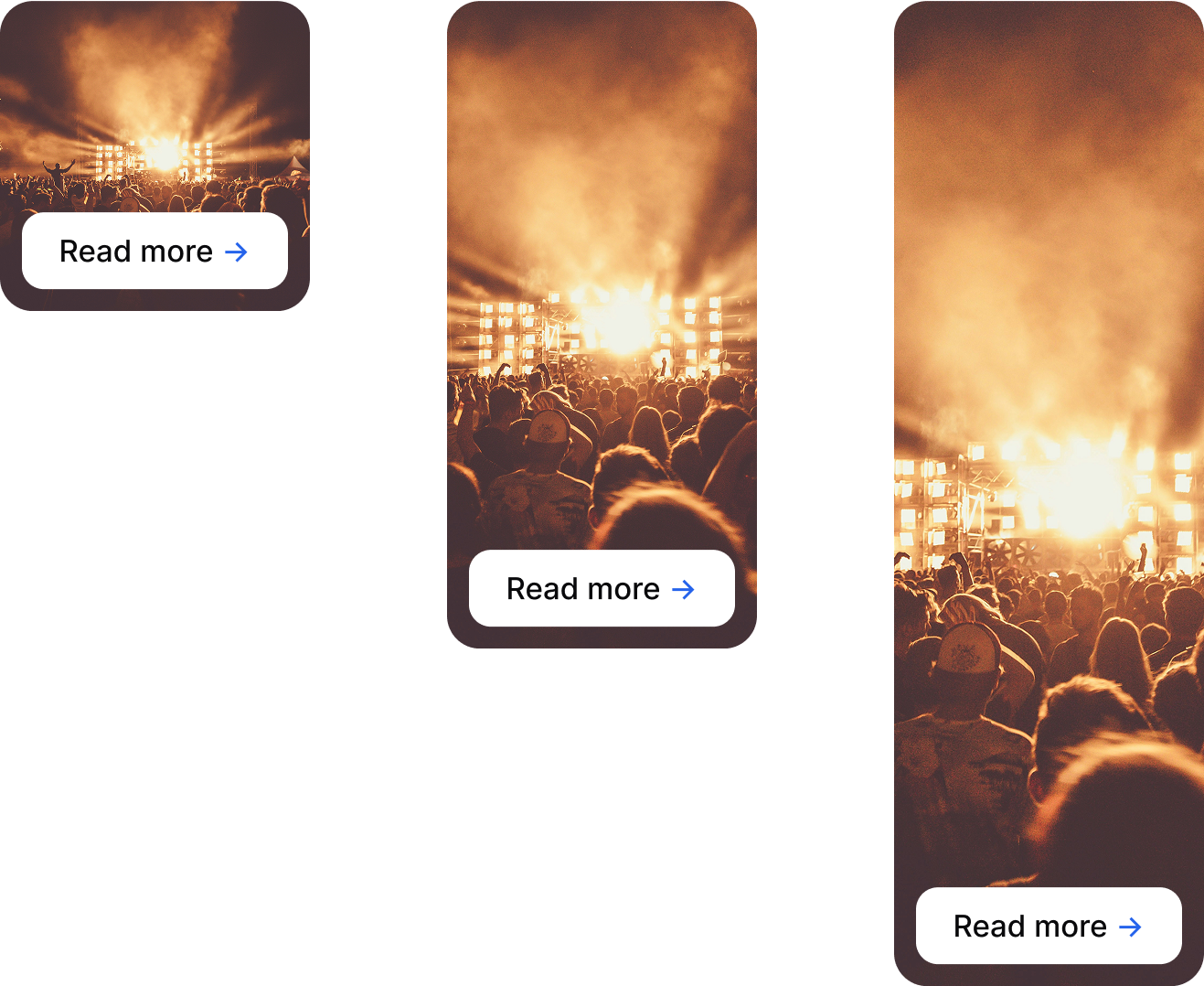
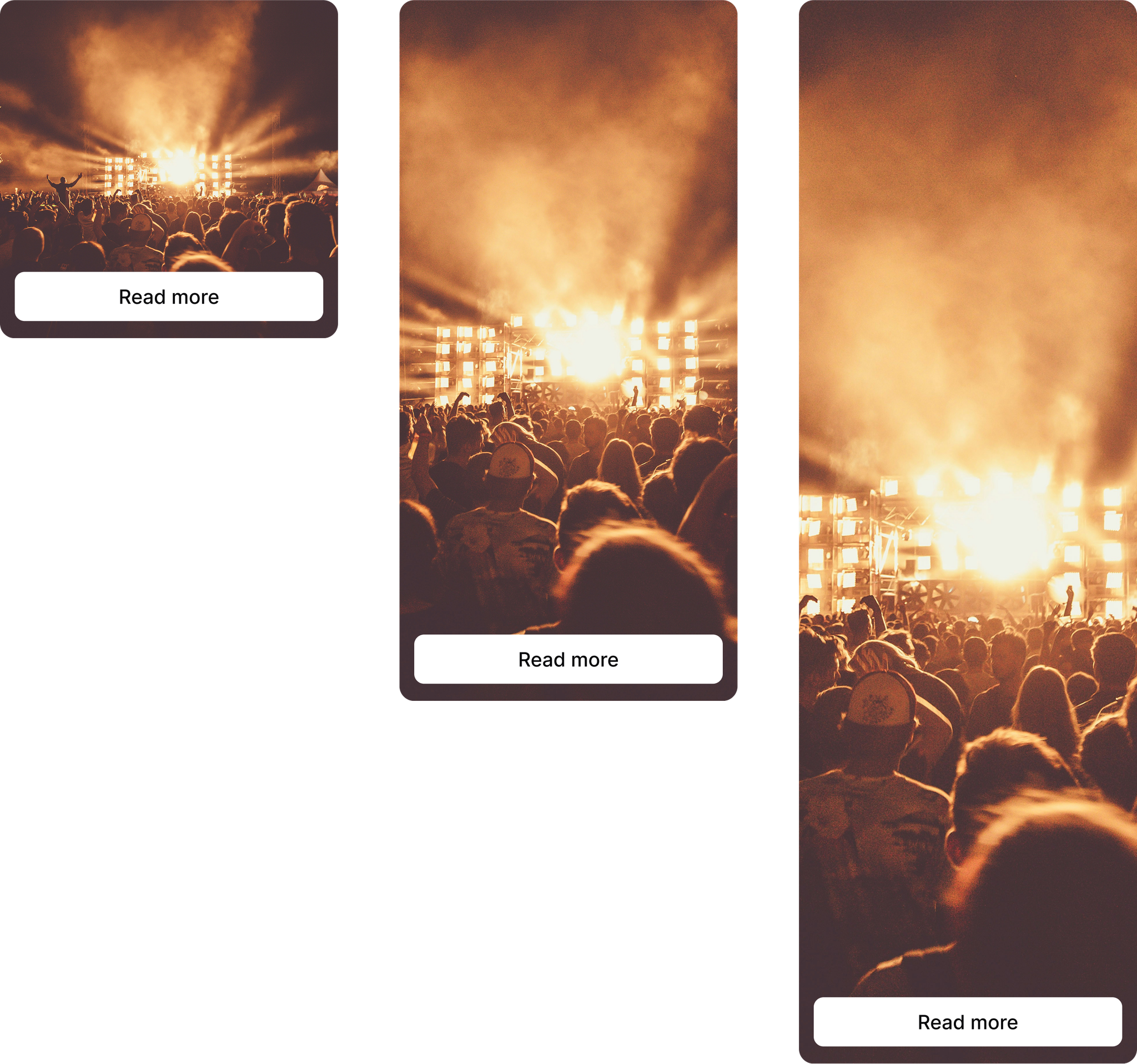
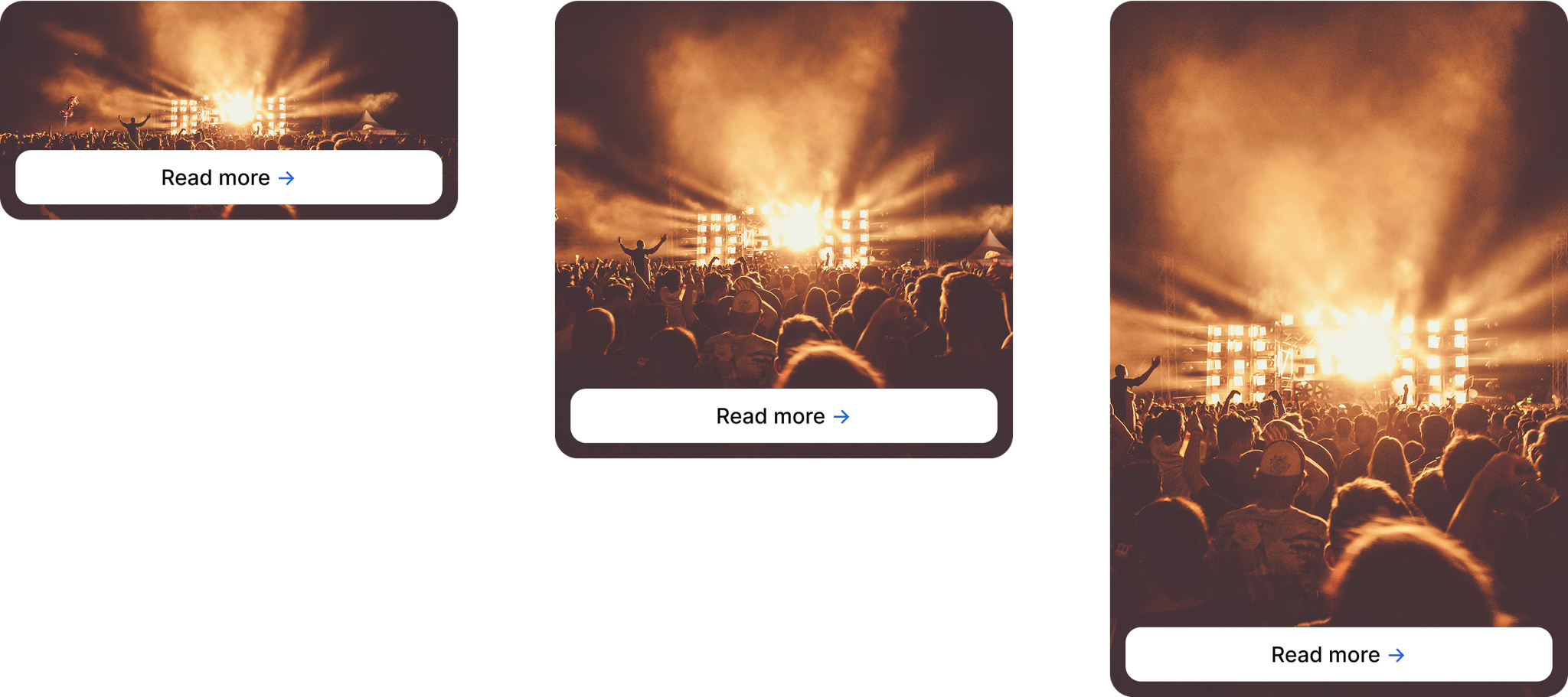
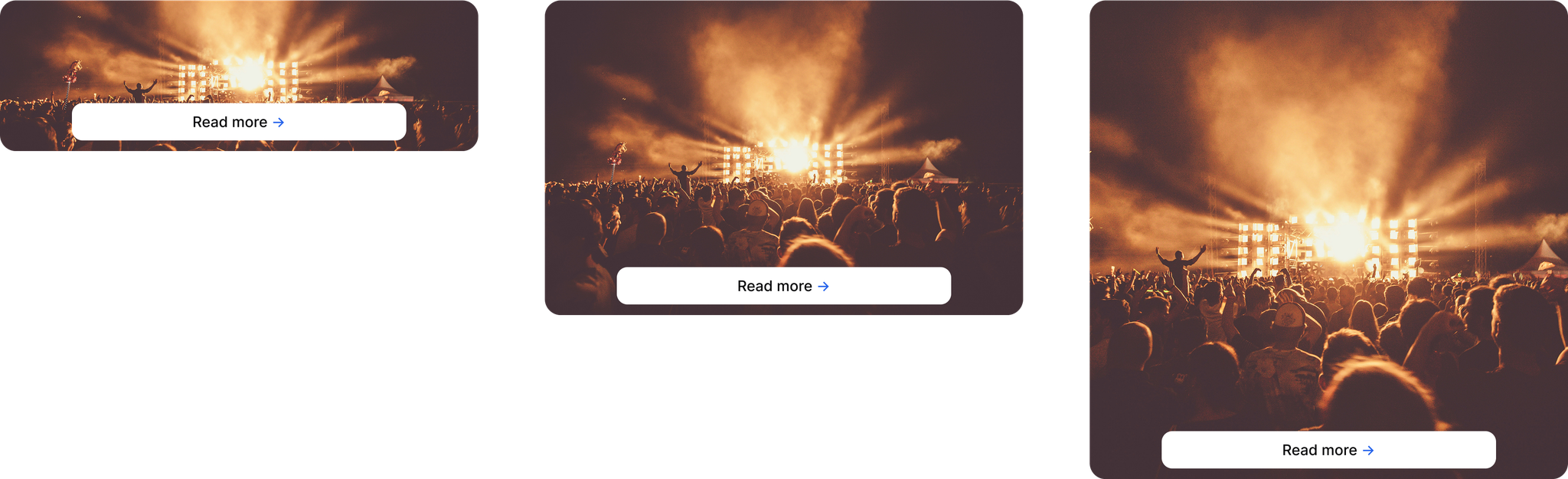
Amondo supports a flexible set of tile ratios that can be used across both desktop and mobile layouts. The ratios define how content is arranged visually, and each tile follows a specific aspect ratio.

**Supported tile ratios include:**

`1×1`, `1×2`, `1×3`, `2×1`, `2×2`, `2×3`, `3×1`, `3×2`, `3×3`

These define the shape and scale of each tile within the layout grid.

### `1×1`, `1×2`, `1×3`

#### **Mobile**

<figure><img src="/files/LcCco6pBB6HUeftzRQ8I" alt=""><figcaption></figcaption></figure>

#### **Desktop**

<figure><img src="/files/lqgJXW9qgxHXWtWuzdec" alt=""><figcaption></figcaption></figure>

### `2×1`, `2×2`, `2×3`

#### **Mobile**

<figure><img src="/files/3xpTrIpvuoRcV7vVWRNf" alt=""><figcaption></figcaption></figure>

**Desktop**

<figure><img src="/files/Fc09ZpJLDOlsgLuXKcOp" alt=""><figcaption></figcaption></figure>

### `3×1`, `3×2`, `3×3`

#### **Mobile**

<figure><img src="/files/3gBStyVqyNlWi8uWh3tw" alt=""><figcaption></figcaption></figure>

#### **Desktop**

<figure><img src="/files/7JFMQCR4hQOFfGU1S4k8" alt=""><figcaption></figcaption></figure>

### Asset requirements

You should provide image assets at **2× the desktop design resolution**. This makes sure content looks sharp on both standard and high-resolution screens, without adding unnecessary file size overhead.

Assets can be exported at higher resolutions if needed; as long as the **aspect ratio matches the intended tile size**, cropping will be handled automatically.

Cloudinary-backed uploads are capped at 4K ingest resolution. The Web SDK and public API delivery templates will not upscale images beyond the ingested source size.

Here’s a guide to the recommended resolutions for each tile ratio at 2×:

| Tile Ratio | Recommended 2× Resolution (px) |
| ---------- | ------------------------------ |
| 1×1        | 550 × 550                      |
| 1×2        | 550 × 1140                     |
| 1×3        | 550 × 1710                     |
| 2×1        | 1140 × 550                     |
| 2×2        | 1140 × 1140                    |
| 2×3        | 1140 × 1710                    |
| 3×1        | 1710 × 550                     |
| 3×2        | 1710 × 1140                    |
| 3×3        | 1710 × 1710                    |

### Button safe zones

The tile designs shown below in the [Figma file](https://www.figma.com/design/tUpvJjUpNwCXI067se3wTE/Amondo-Tile-Specs?node-id=0-1\&t=jIVdHNU3ftYyy9YR-1) illustrate **absolute sizing and button placement** for both desktop and mobile views.

Each tile layout includes a **safe zone**: an area where important content like logos, faces or text should be placed to avoid being cropped or overlapped by the action button.

When designing your assets, use these safe zones as a guide to ensure your key visuals remain clear and unobstructed across all layouts.

### Figma file

You can view the full layout designs and safe zone guides here: [View Figma File →](https://www.figma.com/design/tUpvJjUpNwCXI067se3wTE/Amondo-Tile-Specs?node-id=0-1\&t=jIVdHNU3ftYyy9YR-1)


# Clickthrough Tiles

Learn how to add interactive Clickthrough Tiles that drive users to external content.

A **Clickthrough Tile** is a custom content piece that directs viewers to a specific destination when clicked. It's ideal for driving traffic to product pages, articles, promotional content, or any external link you want to feature in your Imprint.

### What you can do with Clickthrough Tiles

Clickthrough Tiles give you flexible control over how you guide your audience:

**Upload your media**\
Add your own photos or videos to create eye catching tiles. We support a range of formats including JPEG, PNG, WebP, MP4, MOV, and AVIF, so you can work with the media that suits your needs.

**Set your destination**\
Choose exactly where you want to send viewers when they click your tile by entering any URL.

**Choose the click behaviour**\
Clickthrough Tiles can send viewers directly to the destination or open the Tile in Frame view first. Use the frame-first setting when you want viewers to see the expanded content before they follow the external link.

**Customise your call-to-action**\
Add a button label that clearly communicates what viewers will find when they click whether that's "Shop Now," "Learn More," "Read Article," or any message that fits your goal.

**Create multiple versions**\
Need to feature the same tile in different contexts? You can create up to 10 copies of a single Clickthrough Tile, making it easy to reuse effective content across your Imprint.

### Creating a Clickthrough Tile

Adding a Clickthrough Tile to your [Collection](/getting-started/core-platform-concepts/collections) is straightforward:

{% stepper %}
{% step %}
Open your Collection and click the "Add Content" button
{% endstep %}

{% step %}
Select "Clickthrough Tile" from the options
{% endstep %}

{% step %}
Click "Upload Media" and choose your photo or video
{% endstep %}

{% step %}
Enter your destination URL in the Destination URL field
{% endstep %}

{% step %}
Add your call-to-action text in the Button Label field
{% endstep %}

{% step %}
Choose whether the Tile should open in Frame view before the destination is opened
{% endstep %}

{% step %}
Click "Create Tile" to add it to your Collection
{% endstep %}
{% endstepper %}

Once created, your Clickthrough Tile is ready to be included in any Imprint connected to this Collection, giving you a powerful way to guide your audience exactly where you want them to go.


# Submission Tiles

See how to create Submission Tiles to gather user-generated content from you community and customers to contribute to your Imprints.

A **Submission Tile** is a form embedded directly into your Imprint that allows visitors to submit content, data, or personal information without leaving the experience.

Submission Tiles are typically used to collect **user-generated content (UGC)** and **first-party audience data,** including marketing permissions, regulations or competition entries. They are designed to make submission simple for users while ensuring brands capture structured, permissioned data.

### **What you can do with Submission Tiles**

* Collect user-generated photos and videos with explicit permission for marketing use
* Capture event registrations and attendee information
* Run competitions or giveaways directly inside your Imprint
* Collect email addresses and consent for future marketing communications
* Display submission forms as QR codes for fast mobile access in physical spaces

### **Submission Tiles at live events**

A common use case for Submission Tiles are during live events, where attendees are invited to submit photos or videos via a QR code. Submissions can be moderated, approved and displayed on screens – while simutaneously you capture permission to reuse the content across marketing channels during and after the event.

***

### **Setting up a Submission Tile**

Submission Tiles are currently available as part of Amondo's [**managed service**](/managed-delivery/overview)**.** Our team builds and configures Submission Tiles to make sure data, permissions and delivery are handled directly.

To get started, contact our support team at **<support@amondo.com>**.

#### **What we'll need from you**

To build your Submission Tile, we'll ask you for the following information:

**Brand assets**

* Tile cover image
* Logo
* Brand colours
* Fonts

**Copy and messaging**

* Form title and instructions
* Field labels and questions
* Thank-you or post-submission messaging
* Any legal terms, consent language or policy links

**Functional requirements**

* Where the form will be hosted (embedded in an Imprint, microsite, QR code or your website)
* What type of data you're collecting (text, photos, videos, email addresses, etc.)
* Required vs optional fields

**Data and privacy**

* How you want to receive submissions (spreadsheet, CRM, SFTP, email delivery)
* Any specific data handling, privacy or compliance requirements

#### **What we'll deliver**

Once we receive your brief, we will:

1. Build the first version of your Submission Tile with all required fields, styling, and logic
2. Share a preview link for testing and review
3. Make any necessary refinements based on your feedback (typically 1-2 rounds)

Your Submission Tile can be delivered as:

* An embedded tile within your Imprint
* A microsite with a custom URL
* A QR code use on screens, signage or out-of-home placements

#### **Content moderation**

Submitted photos and videos can be routed into a dedicated Collection. Content is **not automatically published** and can be reviewed or moderated before being used in an Imprint or displayed publicly.

#### **Data delivery options**

Submission data can be accessed in several ways:

* **Real time visibility** - Live-updating shared spreadsheet
* **CRM integration** - Direct sync to your CRM system
* **Secure transfer** - File delivery via SFTP
* **Email delivery** - Password-protected CSV or Excel file

#### **Using Submission Tiles with QR codes**

Submission Tiles can be displayed as QR codes at events, retail locations or out-of-home activations. Visitors scan the code with their mobile device and are taken directly to the submission form, making it easy to collect consent data on the go.

***


# Quiz Tiles

Learn how to build Quiz Tiles to engage audiences with interactive questions.

A **Quiz Tile** transforms your Imprint into an interactive experience. Instead of simply viewing content, your audience can test their knowledge and receive personalised results based on their performance. Quiz Tiles turn passive scrolling into active engagement, creating memorable moments that keep people coming back and sharing their results.

Whether you're challenging fans to test their event knowledge, creating a fun brand quiz, or adding an element of competition to your content, Quiz Tiles give you the power to engage your audience in entirely new ways.

### How quiz tiles work?

A Quiz Tile guides participants through five distinct stages, each designed to create an engaging, personalised experience:

#### Tile

The entry point to your quiz. This is what viewers see in your Imprint before they begin. You can add eye-catching media, a compelling title, optional background styling, and a call-to-action button to invite participation.

#### Intro

Before the questions begin, welcome participants with context. The intro page sets expectations with media, a title, a description, and a customisable button that launches the quiz experience.

#### Questions

The heart of your quiz. Create up to 10 questions, each with accompanying media and 2 or 4 answer options. You can also add optional explanations that appear after a participant responds, helping them learn as they go. You have complete control over question order and navigation button labels.

#### Score and leaderboard

Results are delivered through customisable buckets – different outcomes based on performance ranges. Create up to five buckets, each with unique media, messaging, and percentage thresholds. For added engagement, optionally display a leaderboard showing participants how they rank compared to others – turning individual achievement into friendly competition.

#### Call-to-action

The final page presents two customisable buttons that can restart the quiz, share results, or direct participants to any URL you choose. This gives you the power to extend engagement beyond the quiz itself.

***

### Creating your Quiz Tile

Here's a step-by-step process to set up each component of your Quiz Tile:

#### Getting started

{% stepper %}
{% step %}
Open your Collection and click **"Add Content"**
{% endstep %}

{% step %}
Select **"Quiz Tile"** from the content options
{% endstep %}

{% step %}
Upload your Tile media (JPEG, PNG, WebP, MP4, MOV, or AVIF)
{% endstep %}

{% step %}
Add a title for your quiz tile
{% endstep %}

{% step %}
Choose whether to show a title background
{% endstep %}

{% step %}
Optionally enable a button with custom label text
{% endstep %}
{% endstepper %}

#### Setting up the intro

{% stepper %}
{% step %}
Navigate to the **"Intro"** section
{% endstep %}

{% step %}
Upload media for your welcome page
{% endstep %}

{% step %}
Write a title that introduces the quiz
{% endstep %}

{% step %}
Add a caption describing what participants can expect
{% endstep %}

{% step %}
Customise the button label (e.g., "Start Quiz" or "Let's Begin")
{% endstep %}
{% endstepper %}

#### Adding questions

{% stepper %}
{% step %}
Go to the **"Questions"** section
{% endstep %}

{% step %}
Open Question 1
{% endstep %}

{% step %}
Upload media to accompany your question
{% endstep %}

{% step %}
Write your question text
{% endstep %}

{% step %}
Choose 2 or 4 answer options
{% endstep %}

{% step %}
Fill in each answer and mark which answer is correct

Optionally add a caption that explains the answer
{% endstep %}

{% step %}
Repeat this process for additional questions (you can add, delete, duplicate, or reorder as needed)
{% endstep %}

{% step %}
Customise navigation button labels if desired (defaults are "Next Question" and "Finish Quiz")
{% endstep %}
{% endstepper %}

#### Configuring results

{% stepper %}
{% step %}
Navigate to the **Final** section
{% endstep %}

{% step %}
Open Bucket 1
{% endstep %}

{% step %}
Set the percentage range (first bucket starts at 0%)
{% endstep %}

{% step %}
Upload media for this result tier
{% endstep %}

{% step %}
Write a title and description appropriate to this performance level
{% endstep %}

{% step %}
Add additional buckets if desired, ensuring the last one ends at 100%
{% endstep %}

{% step %}
Optionally enable **Show Leaderboard** to display percentile rankings
{% endstep %}

{% step %}
If using the leaderboard, incorporate `{result}` in your title to show the dynamic percentile
{% endstep %}

{% step %}
Configure your two action buttons choose between Try Again, Share Result, or Custom URL
{% endstep %}

{% step %}
Customise button labels to match your messaging
{% endstep %}
{% endstepper %}

#### Adding final touches

If you want to add any final touches, navigate to **Advanced** settings > Optionally upload a logo (JPEG, PNG, WebP, or AVIF) > Select which pages should display the logo (Tile, Intro, Questions, and/or Final).

Once created, your Quiz Tile is ready to be featured in any Imprint connected to this Collection. Participants can now engage with your content in an interactive, personalised way that drives deeper connection with your audience


# Poll Tiles

See how to create Poll Tiles for live voting and audience participation.

A **Poll Tile** invites your audience to weigh in with a single tap. It's the simplest way to capture opinions, spark conversation, and give your community a voice within the Amondo experience. Whether you're gauging sentiment, crowdsourcing decisions, or simply creating a moment of interaction, Poll Tiles transform viewers into active participants with minimal friction.

Perfect for quick engagement, polls let you ask one question and receive instant feedback, turning passive content consumption into a two-way conversation that makes your audience feel heard and involved.

***

### How Poll Tiles work

Poll Tiles are designed for simplicity and immediate engagement:

#### Question and options

At the heart of every poll is a single question with multiple answer choices. Your audience selects their preferred option with one tap, making participation effortless.

#### Visual support

Add media to provide context, set the tone, or make your poll more visually compelling. Media can help clarify the question or simply make the poll more engaging within your Imprint.

#### Display results

You control when and whether participants see voting results. Choose to display real-time results as votes come in, or keep results hidden to avoid influencing responses. This flexibility lets you tailor the experience to your specific goals.

#### Analytics and insights

Behind the scenes, you'll have access to comprehensive voting data including total vote counts, option breakdowns, and participation rates. All votes are anonymous, analytics show aggregate patterns only, protecting individual privacy while giving you valuable audience insights.

#### Participation rules

Each user can vote once per session, maintaining fair results while keeping the experience simple. There's no login required and no complex verification, just straightforward, frictionless engagement.

***

### Creating your Poll Tile

Setting up a Poll Tile is quick and straightforward:

#### Building your poll

{% stepper %}
{% step %}
Open your Collection and click **"Add Content"**
{% endstep %}

{% step %}
Select **"Poll Tile"** from the content options
{% endstep %}

{% step %}
Write your poll question, keep it clear and concise
{% endstep %}

{% step %}
Add an image tile
{% endstep %}

{% step %}
Add your answer options
{% endstep %}

{% step %}
Upload supporting media for each option (JPEG, PNG, WebP, MP4, MOV, or AVIF)
{% endstep %}

{% step %}
Choose whether to show results after voting
{% endstep %}

{% step %}
Click **"Create Tile"** to add your poll to the Collection
{% endstep %}
{% endstepper %}

Once created, your Poll Tile is ready to be featured in any Imprint connected to this Collection.

***

### Why use Poll Tiles?

Poll Tiles create meaningful engagement opportunities that benefit both you and your audience:

**Capture opinions**\
Gauge sentiment before, during, or after events, understanding what your audience thinks in real time.

**Drive decisions**\
Let fans vote for their favourite moment, product, artist, or feature – giving them ownership in your content choices.

**Collect feedback**\
Gather lightweight insights that inform campaign optimisation without requiring lengthy surveys or forms.

**Encourage interaction**\
Transform passive viewing into active participation, increasing time spent with your content and creating memorable touch points.

**Build community**\
Show your audience their voice matters by incorporating their input into your decisions and content strategy.

Whether embedded in a live experience or featured in a curated Imprint, Poll Tiles give you a powerful tool for understanding your audience while making them feel valued and heard


# Form Tiles

Learn how to add Forms for capturing audience data and feedback.

Form Tiles capture structured audience responses inside an Imprint. They are used for lead capture, sign-ups, surveys, competitions and other data collection flows.

Form Tiles render in embedded Web SDK Imprints when they are included in the published layout. The form appears in the same Imprint or Frame experience as other activation Tiles, so no additional integration code is required beyond the standard Web SDK embed.

The Web SDK uses the public form page renderer for Form Tiles. Standalone hosted form links are available only when a standalone form page has been published.

### What you can do with Form Tiles

**Collect structured responses**\
Use fields to capture the data needed for the activation, such as contact details, preferences or survey answers. Form fields can include short text, email, multiple-choice and Yes/No inputs.

**Keep the journey inside the Imprint**\
Embedded Web SDK rendering lets audiences complete the form without leaving the host page.

**Combine with other activation Tiles**\
Use Form Tiles alongside Clickthrough, Quiz, Poll and Reveal Tiles in the same Collection and Imprint.

### Supported inputs

| Input type      | Use for                                                            |
| --------------- | ------------------------------------------------------------------ |
| Short text      | Names, handles, brief answers or free-text feedback                |
| Email           | Contact details for sign-ups, registrations or follow-up           |
| Multiple choice | Surveys, preferences, qualification questions or segmented opt-ins |
| Yes/No buttons  | Binary consent, opt-in, qualification or preference questions      |

Multiple-choice fields should use clear, mutually exclusive answer options. Use the Yes/No button variant for binary questions, and keep option labels short so they remain easy to scan on mobile.

### Web SDK behaviour

* Form Tiles are rendered from the published Imprint layout.
* No extra Web SDK configuration is required.
* Embedded Form Tiles use the public form page renderer; standalone hosted form links depend on a standalone page being published.
* Client-side validation runs per field and before submission.
* When a submission cutoff has passed, the form blocks submission and shows the configured closed-state messaging.
* Final CTA links only navigate when the URL uses a safe protocol. Unsafe-protocol final CTA links are stripped.
* Form Tiles emit canonical funnel events on embedded and standalone surfaces, including `form_viewed`, `form_started`, `field_filled`, `form_submitted` and `form_completed`.

See [Web SDK](/developer-guides/websdk) for embed setup and [Web SDK Events](/developer-guides/websdk-events) for analytics events.


# Launch


# Embed in Web Page

Learn how to embed Amondo activations in a web page using the Web SDK.


# Embed in Native App

Learn how to integrate Amondo into native mobile apps with the SDK.


# Live Displays & Broadcast

See how to launch activations on large digital displays or live broadcasts.

The Display format renders Tiles in a full-screen layout optimised for **large-format environments** such as digital signage, event screens, stadiums, and retail installations. Content can appear as a **single Tile per screen** or as a **grid of multiple Tiles**, with elements animating in and out on a timed sequence.

Display is designed for **non-interactive environments** where the goal is to showcase content passively, continuously, and at scale.

### Behaviour

* Tiles are rendered in a full-screen canvas
* Layouts can show one Tile at a time or multiple Tiles in a grid
* Content transitions automatically on a timed loop
* Designed for unattended screens with no user input

### Supported Tile Types

Display only supports the following Tile types:

* **Media Tiles** – Still or video content
* **Brand Tiles** – Display sponsor or campaign messaging

### **Setup and Embedding**

Display format setup is currently managed by the Amondo team. If you need Display format for your next event or installation, please contact your Amondo associate to begin the setup process.

For technical requirements and implementation details, your associate will provide guidance specific to your venue and use case.


# Custom Integrations (API)

Learn how to use Amondo’s API to create custom integrations.


# Measure


# Analytics Overview

Get an overview of how analytics work across Amondo activations.

Amondo tracks engagement automatically when an Imprint is embedded with the Web SDK. The analytics stream covers Imprint visibility, format navigation, Tile exposure, Frame activity, CTA clicks and activation Tile interactions.

Use this page for the measurement model. For the exact event contract emitted by the Web SDK, see [Web SDK Events](/developer-guides/websdk-events).

## What Is Tracked

| Area               | Examples                                                                 |
| ------------------ | ------------------------------------------------------------------------ |
| Imprint visibility | Imprint viewed, qualified view, time in view, page leave.                |
| Format navigation  | Gallery page changes, Carousel slide changes, Stories opened and viewed. |
| Tile engagement    | Tile viewed, Tile left, Tile clicked, source clicks.                     |
| Frame engagement   | Frame viewed, changed and closed, with active dwell time.                |
| Activation Tiles   | Quiz, Poll and Reveal interactions.                                      |
| Commercial intent  | CTA clicks and share actions where supported.                            |

## Event Reference

[Web SDK Events](/developer-guides/websdk-events) is the canonical event reference for embedded Imprints.

The older analytics event reference pages remain available for existing links, but should be treated as secondary until they are rebuilt from the Web SDK event reference.


# Metrics

Understand the key metrics tracked at both Imprint and Tile level.


# Data Exports

Learn how to export data for further reporting and analysis.


# Admin

This section covers administrative tasks and ongoing management for your Amondo platform implementation.

## Topics

* [User Management](/platform-guides/admin/user-management) - Inviting users, setting permissions, and managing team access

## Workflow position

The **Admin** section fits into the platform workflow after **Launch** and alongside **Measure**:

**Build** → **Collect** → **Curate** → **Launch** → **Admin** → **Measure**

While **Launch** focuses on getting your implementation live, **Admin** covers the ongoing administrative tasks needed to maintain and operate your platform effectively.


# User Management

Amondo uses roles and permissions to help teams work well together, ensuring clarity, security, and transparency.

Access in Amondo operates on two levels.

* **Teams**: a user can belong to one or multiple teams.
* **Roles**: roles define what a user can see and do within each team. Each role is built on a set of specific permissions, ensuring that every user has access only to what they need in order to do their job effectively.

#### Admin

Admins have complete control of the platform, managing teams, integrations, and content. This role is ideal for account owners or key decision-makers responsible for setup, access, and governance.

#### Social Manager

Social Managers focus on integrations. They can create and manage integrations and view information elsewhere without making changes. This role suits those handling social feeds or data connections.

#### Editor

Editors focus on content. They handle imprints, collections, customisations, and integrations but can't change team settings. This role suits content managers and curators who decide what users see.

#### Viewer

Viewers have read-only access across the platform. They can see all relevant information but cannot make changes. This role is typically used for stakeholders who need visibility without operational involvement.

***

Amondo curators and team members have extra access to help with customer accounts. They use admin permissions when needed but aren't shown as part of customer teams. This means Amondo can support and curate without changing customer team setups. Customers see no difference, their team stays the same.

The Amondo dashboard is permission aware. Actions a user can't do are hidden or disabled for clarity. If an action is clickable, the user has the permission to do it.


# Overview

Analytics overview and performance tracking

Amondo tracks a wide range of user interactions and performance metrics across all content rendered via the platform. These insights help teams understand how audiences engage with content and which elements are driving attention and outcomes.

### What Amondo Tracks

The platform captures three core types of metrics:

* **Imprint-level metrics**

  High-level engagement with the overall display: e.g. views, completions, time spent.
* **Tile-level metrics**

  Interactions with individual content tiles: e.g. clicks, submissions, quiz answers.
* **Frame-level metrics**

  Slide-by-slide tracking for formats like **Stories** or **Display**, showing exactly how users navigate through an experience.

All events are tracked automatically via the Amondo JavaScript SDK when an Imprint is embedded.

### Explore the Data

* [Event Reference](/analytics/event-reference)

  Browse all tracked events and see what each one captures.
* [Metrics by Imprint Format](https://github.com/Amondo/amondo-docs/tree/main/analytics/metrics-by-imprint-format.md)

  See how engagement varies across Imprint formats like Gallery, Carousel, or Display.
* [Metrics by Tile Type](/analytics/metrics-by-tile-type)

  Understand how different tile types perform, from simple media tiles to polls and quizzes.

#### Quick links

[Event Reference](/analytics/event-reference)

[**Metrics by Imprint Format**](https://github.com/Amondo/amondo-docs/tree/main/analytics/metrics-by-imprint-format.md)

[**Metrics by Tile Type**](/analytics/metrics-by-tile-type)


# Event Reference

Event reference and tracking documentation

The canonical runtime reference for embedded Imprints is [Web SDK Events](/developer-guides/websdk-events).

Each event represents a specific user interaction: viewing content, navigating a format, opening a Frame, clicking a CTA, voting in a poll or completing a quiz.

Use the Web SDK event reference for current event names, trigger conditions and payload fields. The pages below remain available for existing links, but may not include every current Web SDK event.

Current Web SDK visibility tracking includes `imprint_viewed`, `imprint_qualified`, `imprint_left`, `$pageview` and `$pageleave`. Page view and page leave tracking runs across supported rendering modes, including `ADS`. Stories tracking includes `story_viewed`, `story_clicked`, `story_opened` and `story_left`.

Form Tiles render in embedded Imprints, including Yes/No and multiple-choice inputs. Embedded and standalone Form Tiles emit the same form funnel events, including `form_viewed`, `form_started`, `field_filled`, `form_submitted` and `form_completed`. See [Web SDK Events](/developer-guides/websdk-events#form-tile-events) and [Form Tile metrics](/analytics/metrics-by-tile-type/form-tile) for the full event contract.

Selected click and tap events include container-relative heat-map coordinates: `imprint_click_x_px` and `imprint_click_y_px`.

Media URL properties reflect the URL selected by the Web SDK. For Cloudinary-hosted media, this is the selected delivery URL when available, with `publicUrl` or `secureUrl` as the fallback.

#### Imprint-level events

High-level engagement across the entire display or layout.

→ [See Imprint-Level Events](/analytics/event-reference/imprint-level-events)

#### Tile-level events

Direct interactions with individual content tiles (e.g. views, clicks), including those rendered as [Frames](https://github.com/Amondo/amondo-docs/tree/main/key-components/frames.md).

→ [See Tile-Level Events](/analytics/event-reference/tile-level-events)


# Event Properties

Event properties and data structure

This page outlines all the properties commonly attached to analytics events triggered within Amondo. Each property includes a description, data type, and example value to help with implementation, debugging, and analysis. These properties apply across different Imprint formats and Tile types, depending on the specific event being tracked.

| **Property**             | **Type** | **Description**                                                                                                                                                                            | **Example**                                |
| ------------------------ | -------- | ------------------------------------------------------------------------------------------------------------------------------------------------------------------------------------------ | ------------------------------------------ |
| `imprint_id`             | String   | Unique identifier for the Imprint                                                                                                                                                          | `c7ea455f-5074-4968-bf72-3e2e899122c0`     |
| `imprint_mode`           | String   | Format of the Imprint, for example `GALLERY`, `CAROUSEL` or `STORIES`                                                                                                                      | `GALLERY`                                  |
| `rendering_mode`         | String   | Rendering mode used by the Web SDK, for example `NORMAL` or `ADS`                                                                                                                          | `NORMAL`                                   |
| `sdk_version`            | String   | Version of the SDK being used                                                                                                                                                              | `4.6.3`                                    |
| `viewport_w`             | Numeric  | Page viewport width in CSS pixels, host-provided or SDK-measured                                                                                                                           | `390`                                      |
| `viewport_h`             | Numeric  | Page viewport height in CSS pixels, host-provided or SDK-measured                                                                                                                          | `844`                                      |
| `scroll_y`               | Numeric  | Page scroll offset in CSS pixels, host-provided or SDK-measured                                                                                                                            | `2400`                                     |
| `viewport_source`        | String   | Viewport measurement source: `host_provided`, `sdk_measured` or `unavailable`                                                                                                              | `host_provided`                            |
| `slide_id`               | String   | Unique identifier for a slide in Carousel or Stories                                                                                                                                       | `374ea8ff-f0e6-40b0-b739-ecfc6c73e09c`     |
| `slide_index`            | Numeric  | Index of the current slide                                                                                                                                                                 | `0`                                        |
| `direction`              | String   | Direction of navigation (e.g. `next`, `previous`)                                                                                                                                          | `next`                                     |
| `subsequent_slide_id`    | String   | ID of the next slide navigated to                                                                                                                                                          | `da36e970-9954-4ceb-8a56-b9c0e5625010`     |
| `subsequent_slide_index` | Numeric  | Index of the next slide                                                                                                                                                                    | `1`                                        |
| `page_id`                | String   | Identifier for a page view                                                                                                                                                                 | `-`                                        |
| `page_index`             | Numeric  | Index of the page in sequence                                                                                                                                                              | `-`                                        |
| `scrolled_percentage`    | Numeric  | Percentage of vertical scroll completion                                                                                                                                                   | `98.2`                                     |
| `story_title`            | String   | Title of the story-based Imprint                                                                                                                                                           | `IOC - Samsung Victory Selfie Lookback`    |
| `story_id`               | String   | Unique ID for a story                                                                                                                                                                      | `d546cfd4-5319-48d1-8d8b-b6f08a77de64`     |
| `story_index`            | Numeric  | Index of the story being viewed                                                                                                                                                            | `2`                                        |
| `opened_from_url`        | Boolean  | Was content opened directly via a URL                                                                                                                                                      | `TRUE`                                     |
| `by_link`                | Boolean  | Was frame opened via a link click                                                                                                                                                          | `FALSE`                                    |
| `tile_id`                | String   | Unique identifier of the Tile                                                                                                                                                              | `e22abe91-30fd-4c22-bddd-92aa998e3a07`     |
| `tile_source`            | String   | Source of the Tile content                                                                                                                                                                 | `INSTAGRAM`                                |
| `tile_type`              | String   | Type of Tile (e.g. `MediaTile`, `ClickthroughTile`)                                                                                                                                        | `MediaTile`                                |
| `media_url`              | String   | SDK-selected Tile media URL. For Cloudinary-hosted media, this uses the selected delivery URL when available and falls back to `publicUrl` or `secureUrl`.                                 | `https://example.com/tile.jpg`             |
| `media_type`             | String   | Tile media type                                                                                                                                                                            | `IMAGE`                                    |
| `destination_url`        | String   | Destination URL from a Clickthrough Tile or CTA                                                                                                                                            | `https://www.olympics.com/en/play/trivia/` |
| `reveal_type`            | String   | Reveal interaction type                                                                                                                                                                    | `SCRATCH`                                  |
| `outcome_id`             | String   | Identifier of the selected Reveal Tile outcome                                                                                                                                             | `outcome-1`                                |
| `outcome_media_url`      | String   | SDK-selected media URL for the selected Reveal Tile outcome. For Cloudinary-hosted media, this uses the selected delivery URL when available and falls back to `publicUrl` or `secureUrl`. | `https://example.com/outcome.jpg`          |
| `outcome_media_type`     | String   | Media type for the selected Reveal Tile outcome                                                                                                                                            | `IMAGE`                                    |
| `scratch_milestone`      | String   | Scratch progress milestone reached                                                                                                                                                         | `50_percent`                               |
| `scratch_percentage`     | Numeric  | Measured scratch coverage percentage                                                                                                                                                       | `50`                                       |
| `time_to_reveal_ms`      | Numeric  | Time taken to reveal an outcome, in milliseconds                                                                                                                                           | `455`                                      |
| `imprint_time_ms`        | Numeric  | Time elapsed since the Imprint loaded, in milliseconds                                                                                                                                     | `1275`                                     |
| `tile_tag_analytics`     | String   | Optional analytics tag configured on the Tile                                                                                                                                              | `scratch-campaign`                         |
| `imprint_click_x_px`     | Numeric  | Click or tap x-coordinate in pixels, relative to the SDK container                                                                                                                         | `90`                                       |
| `imprint_click_y_px`     | Numeric  | Click or tap y-coordinate in pixels, relative to the SDK container                                                                                                                         | `79`                                       |
| `question_index`         | Numeric  | Index of the quiz question                                                                                                                                                                 | `2`                                        |
| `option_id`              | String   | Identifier of the selected option in a poll                                                                                                                                                | `0726f717-11e5-49fd-9429-eba253cccb95`     |
| `ph_keyword`             | String   | Placeholder keyword for tracking                                                                                                                                                           | `-`                                        |
| `form_surface`           | String   | Surface that rendered a Form Tile, `embed` or `standalone`                                                                                                                                 | `embed`                                    |
| `form_slug`              | String   | Public page slug for a standalone form (standalone only)                                                                                                                                   | `summer-signup`                            |
| `form_tag_analytics`     | String   | Optional analytics tag set on a Form Tile                                                                                                                                                  | `summer-campaign`                          |
| `field_id`               | String   | Identifier of a form field (`field_filled`)                                                                                                                                                | `3a3c1c63-84bd-4d60-a84a-c0ee909a7397`     |
| `field_type`             | String   | Form field type, for example `text`, `email`, `date`, `checkbox`, `choice` or `media`                                                                                                      | `email`                                    |
| `field_label`            | String   | Author-defined label of a form field                                                                                                                                                       | `Email address`                            |
| `field_required`         | Boolean  | Whether a form field is required                                                                                                                                                           | `TRUE`                                     |
| `field_position`         | Numeric  | Index/position of a form field                                                                                                                                                             | `2`                                        |
| `reason`                 | String   | Why a form submit was blocked client-side, one of `missing_required`, `invalid_email`, `media_uploading` or `empty_form`                                                                   | `missing_required`                         |


# Imprint-Level Events

Imprint-level event tracking and properties

*(These relate to the overall experience, layout, or session flow.)*

| Event Name          | Description                                                    |
| ------------------- | -------------------------------------------------------------- |
| `imprint_viewed`    | An Imprint was rendered and displayed                          |
| `imprint_qualified` | An Imprint stayed sufficiently visible for 1 continuous second |
| `imprint_left`      | An Imprint left the viewport after being viewed                |
| `story_viewed`      | A Stories-format section appeared in the viewport              |
| `story_clicked`     | A Stories-format Imprint was entered                           |
| `story_opened`      | A Stories-format section opened in Frame view                  |
| `story_left`        | A Stories-format section left the viewport after being viewed  |
| `slide_viewed`      | A slide (e.g. in Carousel) was viewed                          |
| `slide_changed`     | User navigated between slides                                  |
| `$pageview`         | Web SDK analytics initialised across supported rendering modes |
| `$pageleave`        | User left or hid the page containing the Imprint               |

#### Event: `imprint_viewed`

**Description:**

An Imprint was rendered and displayed.

**Properties:**

| Property              | Type    | Example                                |
| --------------------- | ------- | -------------------------------------- |
| `imprint_id`          | String  | `c7ea455f-5074-4968-bf72-3e2e899122c0` |
| `imprint_mode`        | String  | `STORY`                                |
| `sdk_version`         | String  | `dev`                                  |
| `slide_id`            | String  | `-`                                    |
| `slide_index`         | Numeric | `-`                                    |
| `page_id`             | String  | `-`                                    |
| `page_index`          | Numeric | `-`                                    |
| `scrolled_percentage` | Numeric | `-`                                    |

#### Event: `imprint_qualified`

**Description:**

The Imprint stayed sufficiently visible for 1 continuous second. It can fire again after the Imprint leaves and re-enters view.

**Properties:**

| Property          | Type    | Example                                |
| ----------------- | ------- | -------------------------------------- |
| `imprint_id`      | String  | `c7ea455f-5074-4968-bf72-3e2e899122c0` |
| `imprint_mode`    | String  | `GALLERY`                              |
| `sdk_version`     | String  | `4.20.0`                               |
| `imprint_time_ms` | Numeric | `1275`                                 |

#### Event: `imprint_left`

**Description:**

The Imprint left the viewport after being viewed.

**Properties:**

| Property              | Type    | Example                                |
| --------------------- | ------- | -------------------------------------- |
| `imprint_id`          | String  | `c7ea455f-5074-4968-bf72-3e2e899122c0` |
| `imprint_mode`        | String  | `GALLERY`                              |
| `sdk_version`         | String  | `4.20.0`                               |
| `scrolled_percentage` | Numeric | `98.2`                                 |
| `imprint_time_ms`     | Numeric | `4820`                                 |

#### Event: `story_clicked`

**Description:**

A Stories-format Imprint was entered.

**Properties:**

| Property             | Type    | Example                                 |
| -------------------- | ------- | --------------------------------------- |
| `imprint_id`         | String  | `c7ea455f-5074-4968-bf72-3e2e899122c0`  |
| `imprint_mode`       | String  | `STORY`                                 |
| `story_title`        | String  | `IOC - Samsung Victory Selfie Lookback` |
| `story_id`           | String  | `d546cfd4-5319-48d1-8d8b-b6f08a77de64`  |
| `story_index`        | Numeric | `2`                                     |
| `sdk_version`        | String  | `dev`                                   |
| `imprint_click_x_px` | Numeric | `90`                                    |
| `imprint_click_y_px` | Numeric | `79`                                    |

#### Event: `story_left`

**Description:**

A Stories-format section left the viewport after being viewed.

**Properties:**

| Property       | Type    | Example                                 |
| -------------- | ------- | --------------------------------------- |
| `imprint_id`   | String  | `c7ea455f-5074-4968-bf72-3e2e899122c0`  |
| `imprint_mode` | String  | `STORIES`                               |
| `story_title`  | String  | `IOC - Samsung Victory Selfie Lookback` |
| `story_id`     | String  | `d546cfd4-5319-48d1-8d8b-b6f08a77de64`  |
| `story_index`  | Numeric | `2`                                     |
| `story_state`  | String  | `PARTIAL`                               |
| `sdk_version`  | String  | `4.27.0`                                |

#### Event: `slide_viewed`

**Description:**

A slide (e.g. in Carousel) was viewed.

**Properties:**

| Property              | Type    | Example                                |
| --------------------- | ------- | -------------------------------------- |
| `imprint_id`          | String  | `573b1d18-6b5f-45e4-aa5f-10471ddf96d3` |
| `imprint_mode`        | String  | `CAROUSEL`                             |
| `scrolled_percentage` | Numeric | `-`                                    |
| `sdk_version`         | String  | `4.6.3`                                |
| `slide_index`         | Numeric | `0`                                    |

#### Event: `slide_changed`

**Description:**

User navigated between slides (e.g. in a Carousel Imprint).

**Properties:**

| Property                 | Type    | Example                                |
| ------------------------ | ------- | -------------------------------------- |
| `imprint_id`             | String  | `14a996b2-3ae2-4b71-bac2-078a2b11aedd` |
| `imprint_mode`           | String  | `CAROUSEL`                             |
| `sdk_version`            | String  | `dev`                                  |
| `direction`              | String  | `next`                                 |
| `slide_id`               | String  | `374ea8ff-f0e6-40b0-b739-ecfc6c73e09c` |
| `slide_index`            | Numeric | `0`                                    |
| `subsequent_slide_id`    | String  | `da36e970-9954-4ceb-8a56-b9c0e5625010` |
| `subsequent_slide_index` | Numeric | `1`                                    |

#### Event: `$pageview`

**Description:**

Web SDK analytics initialised for the page containing the Imprint. This event is emitted across supported rendering modes, including `ADS`.

**Properties:**

| Property       | Type   | Example                     |
| -------------- | ------ | --------------------------- |
| `imprint_id`   | String | `-`                         |
| `imprint_mode` | String | `-`                         |
| `sdk_version`  | String | `-`                         |
| `title`        | String | `Amondo Curation Dashboard` |

#### Event: `$pageleave`

**Description:**

The user navigated away from the page containing the Imprint.

**Properties:**

| Property              | Type    | Example                                |
| --------------------- | ------- | -------------------------------------- |
| `imprint_id`          | String  | `a84122b6-5f45-4546-bd90-535db6c0d54c` |
| `imprint_mode`        | String  | `GRID`                                 |
| `page_id`             | String  | `-`                                    |
| `page_index`          | Numeric | `-`                                    |
| `scrolled_percentage` | Numeric | `100`                                  |
| `imprint_time_ms`     | Numeric | `6240`                                 |


# Tile-Level Events

Tile-level event tracking and properties

*(These relate to interactions with or visibility of individual content Tiles.)*

| Event Name            | Formats                      | Tile Types                       | Notes                                            |
| --------------------- | ---------------------------- | -------------------------------- | ------------------------------------------------ |
| `tile_viewed`         | All                          | All                              | Tile entered viewport                            |
| `tile_clicked`        | All                          | All                              | User tapped/clicked a Tile                       |
| `reveal_started`      | All                          | Reveal                           | Reveal interaction started                       |
| `tile_scratched`      | All                          | Reveal (Scratch)                 | Scratch milestone reached                        |
| `reveal_completed`    | All                          | Reveal                           | Reveal interaction completed                     |
| `frame_viewed`        | Gallery, Carousel, Stories   | All                              | Full-view (Frame) opened                         |
| `frame_closed`        | Gallery, Carousel, Stories   | All                              | Frame closed or dismissed                        |
| `cta_clicked`         | All                          | Clickthrough, Quiz, Poll, Reveal | CTA or activation link tapped                    |
| `source_clicked`      | All                          | Media, Submission                | e.g. user clicks @source                         |
| `quiz_started`        | All (esp. Gallery, Carousel) | Quiz                             | Quiz interaction started                         |
| `question_finished`   | All                          | Quiz                             | Individual question completed                    |
| `quiz_finished`       | All                          | Quiz                             | Quiz completed                                   |
| `quiz_retried`        | All                          | Quiz                             | Quiz restarted                                   |
| `quiz_shared`         | All                          | Quiz                             | Result shared                                    |
| `poll_voted`          | All                          | Poll                             | Poll option selected                             |
| `poll_shared`         | All                          | Poll                             | Poll result shared                               |
| `form_intro_viewed`   | All + Standalone             | Form                             | Form intro screen rendered                       |
| `form_viewed`         | All + Standalone             | Form                             | Form fields screen rendered (funnel denominator) |
| `form_started`        | All + Standalone             | Form                             | First field lost focus                           |
| `field_filled`        | All + Standalone             | Form                             | A field was completed                            |
| `form_submit_blocked` | All + Standalone             | Form                             | Submit blocked client-side                       |
| `form_submitted`      | All + Standalone             | Form                             | Submit succeeded                                 |
| `form_submit_failed`  | All + Standalone             | Form                             | Submit failed (server/network)                   |
| `form_completed`      | All + Standalone             | Form                             | Confirmation screen rendered                     |
| `form_resubmitted`    | All + Standalone             | Form                             | Visitor started a second pass                    |

#### Event: `tile_viewed`

**Description:**

A Tile appeared in the viewport (i.e. was seen by the user).

**Properties:**

| Property              | Type    | Example                                |
| --------------------- | ------- | -------------------------------------- |
| `imprint_id`          | String  | `1ba8afe7-04dc-4156-b35a-05be5206f99f` |
| `imprint_mode`        | String  | `GRID`                                 |
| `ph_keyword`          | String  | `-`                                    |
| `scrolled_percentage` | Numeric | `29.5462899431484`                     |
| `sdk_version`         | String  | `4.6.3`                                |
| `tile_id`             | String  | `e22abe91-30fd-4c22-bddd-92aa998e3a07` |
| `tile_source`         | String  | `AMONDO`                               |
| `tile_type`           | String  | `MediaTile`                            |

#### Event: `tile_clicked`

**Description:**

A Tile was clicked or tapped by the user (may open a Frame or trigger other interactions).

**Properties:**

| Property             | Type    | Example                                |
| -------------------- | ------- | -------------------------------------- |
| `imprint_id`         | String  | `14a996b2-3ae2-4b71-bac2-078a2b11aedd` |
| `imprint_mode`       | String  | `CAROUSEL`                             |
| `sdk_version`        | String  | `dev`                                  |
| `slide_id`           | String  | `374ea8ff-f0e6-40b0-b739-ecfc6c73e09c` |
| `slide_index`        | Numeric | `0`                                    |
| `tile_id`            | String  | `fd0da17c-52e9-488f-a3fa-d3f166f3d262` |
| `tile_source`        | String  | `AMONDO`                               |
| `tile_type`          | String  | `MediaTile`                            |
| `imprint_click_x_px` | Numeric | `32`                                   |
| `imprint_click_y_px` | Numeric | `46`                                   |

#### Event: `reveal_started`

**Description:**

A user started a Reveal Tile interaction.

**Properties:**

| Property             | Type    | Example                                |
| -------------------- | ------- | -------------------------------------- |
| `imprint_id`         | String  | `14a996b2-3ae2-4b71-bac2-078a2b11aedd` |
| `imprint_mode`       | String  | `CAROUSEL`                             |
| `sdk_version`        | String  | `dev`                                  |
| `tile_id`            | String  | `fd0da17c-52e9-488f-a3fa-d3f166f3d262` |
| `reveal_type`        | String  | `SCRATCH`                              |
| `outcome_id`         | String  | `outcome-1`                            |
| `outcome_media_url`  | String  | `https://example.com/outcome.jpg`      |
| `outcome_media_type` | String  | `IMAGE`                                |
| `tile_tag_analytics` | String  | `scratch-campaign`                     |
| `imprint_time_ms`    | Numeric | `820`                                  |
| `imprint_click_x_px` | Numeric | `37`                                   |
| `imprint_click_y_px` | Numeric | `52`                                   |

#### Event: `tile_scratched`

**Description:**

A user scratched a Scratch Reveal Tile and reached a tracked progress milestone. The event fires once per milestone per Tile: `10_percent`, `50_percent` and `done`.

Broken-cover auto-reveal does not emit `tile_scratched`.

**Properties:**

| Property             | Type    | Example                                |
| -------------------- | ------- | -------------------------------------- |
| `imprint_id`         | String  | `14a996b2-3ae2-4b71-bac2-078a2b11aedd` |
| `imprint_mode`       | String  | `CAROUSEL`                             |
| `sdk_version`        | String  | `dev`                                  |
| `tile_id`            | String  | `fd0da17c-52e9-488f-a3fa-d3f166f3d262` |
| `reveal_type`        | String  | `SCRATCH`                              |
| `outcome_id`         | String  | `outcome-1`                            |
| `outcome_media_url`  | String  | `https://example.com/outcome.jpg`      |
| `outcome_media_type` | String  | `IMAGE`                                |
| `scratch_milestone`  | String  | `50_percent`                           |
| `scratch_percentage` | Numeric | `50`                                   |
| `tile_tag_analytics` | String  | `scratch-campaign`                     |
| `imprint_time_ms`    | Numeric | `1275`                                 |

#### Event: `reveal_completed`

**Description:**

A user completed a Reveal Tile interaction and the outcome was revealed.

**Properties:**

| Property             | Type    | Example                                |
| -------------------- | ------- | -------------------------------------- |
| `imprint_id`         | String  | `14a996b2-3ae2-4b71-bac2-078a2b11aedd` |
| `imprint_mode`       | String  | `CAROUSEL`                             |
| `sdk_version`        | String  | `dev`                                  |
| `tile_id`            | String  | `fd0da17c-52e9-488f-a3fa-d3f166f3d262` |
| `reveal_type`        | String  | `SCRATCH`                              |
| `outcome_id`         | String  | `outcome-1`                            |
| `outcome_media_url`  | String  | `https://example.com/outcome.jpg`      |
| `outcome_media_type` | String  | `IMAGE`                                |
| `time_to_reveal_ms`  | Numeric | `455`                                  |
| `scratch_percentage` | Numeric | `65`                                   |
| `tile_tag_analytics` | String  | `scratch-campaign`                     |
| `imprint_time_ms`    | Numeric | `1275`                                 |

#### Event: `frame_viewed`

**Description:**

A Tile was opened in Frame view: a full-screen or expanded content view (used in Gallery, Carousel and Stories).

**Properties:**

| Property          | Type    | Example                                |
| ----------------- | ------- | -------------------------------------- |
| `imprint_id`      | String  | `14a996b2-3ae2-4b71-bac2-078a2b11aedd` |
| `by_link`         | Boolean | `-`                                    |
| `imprint_mode`    | String  | `CAROUSEL`                             |
| `opened_from_url` | Boolean | `-`                                    |
| `sdk_version`     | String  | `dev`                                  |
| `slide_id`        | String  | `374ea8ff-f0e6-40b0-b739-ecfc6c73e09c` |
| `slide_index`     | Numeric | `0`                                    |
| `tile_id`         | String  | `9d3a0967-bc5d-415f-a45b-964c19d59429` |
| `tile_source`     | String  | `AMONDO`                               |
| `tile_type`       | String  | `MediaTile`                            |

#### Event: `frame_closed`

**Description:**

A Frame view (fullscreen or expanded view of a Tile) was exited or dismissed by the user. Common in Gallery, Carousel, and Stories formats.

**Properties:**

| Property       | Type    | Example                                |
| -------------- | ------- | -------------------------------------- |
| `imprint_id`   | String  | `14a996b2-3ae2-4b71-bac2-078a2b11aedd` |
| `imprint_mode` | String  | `CAROUSEL`                             |
| `sdk_version`  | String  | `dev`                                  |
| `slide_id`     | String  | `374ea8ff-f0e6-40b0-b739-ecfc6c73e09c` |
| `slide_index`  | Numeric | `0`                                    |
| `tile_id`      | String  | `9d3a0967-bc5d-415f-a45b-964c19d59429` |
| `tile_source`  | String  | `AMONDO`                               |
| `tile_type`    | String  | `MediaTile`                            |

#### Event: `cta_clicked`

**Description:**

A CTA inside a Clickthrough, Quiz, Poll or Reveal Tile was clicked.

**Properties:**

| Property             | Type    | Example                                     |
| -------------------- | ------- | ------------------------------------------- |
| `imprint_id`         | String  | `61230f17-7270-4c3d-9b61-ce7eb34fc3a3`      |
| `imprint_mode`       | String  | `GALLERY`                                   |
| `destination_url`    | String  | `https://milanocortina2026.olympics.com/en` |
| `cta_label`          | String  | `Learn More`                                |
| `sdk_version`        | String  | `4.20.0`                                    |
| `tile_id`            | String  | `f1eb9c2b-18a1-4662-99db-2257eb04a93e`      |
| `tile_tag_analytics` | String  | `summer-campaign`                           |
| `imprint_time_ms`    | Numeric | `1275`                                      |
| `imprint_click_x_px` | Numeric | `65`                                        |
| `imprint_click_y_px` | Numeric | `75`                                        |

#### Event: `source_clicked`

**Description:**

A source label (e.g. @handle or label) was clicked inside a Tile.

**Properties:**

| Property             | Type    | Example                                    |
| -------------------- | ------- | ------------------------------------------ |
| `imprint_id`         | String  | `14a996b2-3ae2-4b71-bac2-078a2b11aedd`     |
| `imprint_mode`       | String  | `CAROUSEL`                                 |
| `sdk_version`        | String  | `dev`                                      |
| `slide_id`           | String  | `374ea8ff-f0e6-40b0-b739-ecfc6c73e09c`     |
| `slide_index`        | Numeric | `0`                                        |
| `destination_url`    | String  | `https://www.olympics.com/en/play/trivia/` |
| `tile_id`            | String  | `77cb757a-8375-4e35-86f2-6654e8f6c7f6`     |
| `tile_source`        | String  | `AMONDO`                                   |
| `tile_type`          | String  | `ClickthroughTile`                         |
| `imprint_click_x_px` | Numeric | `42`                                       |
| `imprint_click_y_px` | Numeric | `51`                                       |

#### Event: `quiz_started`

**Description:**

A user started interacting with a Quiz Tile.

**Properties:**

| Property             | Type    | Example                              |
| -------------------- | ------- | ------------------------------------ |
| imprint\_id          | String  | 61230f17-7270-4c3d-9b61-ce7eb34fc3a3 |
| imprint\_mode        | String  | GRID                                 |
| scrolled\_percentage | Numeric | -                                    |
| sdk\_version         | String  | 4.6.3                                |
| tile\_id             | String  | f1eb9c2b-18a1-4662-99db-2257eb04a93e |

#### Event: `question_finished`

**Description:**

A question in a Quiz Tile was completed.

**Properties:**

| Property              | Type    | Example                              |
| --------------------- | ------- | ------------------------------------ |
| `imprint_id`          | String  | 8946efc7-9aa6-4d26-9e79-c97a879e9974 |
| `imprint_mode`        | String  | GRID                                 |
| `question_index`      | Numeric | 2                                    |
| `scrolled_percentage` | Numeric | -                                    |
| `sdk_version`         | String  | 4.6.3                                |
| `tile_id`             | String  | 1c588420-3923-478a-9110-8a1512d15096 |

#### Event: `quiz_finished`

**Description:**

The user completed the full quiz (i.e. all questions answered and result reached).

**Properties:**

| Property             | Type    | Example                              |
| -------------------- | ------- | ------------------------------------ |
| imprint\_id          | String  | 8946efc7-9aa6-4d26-9e79-c97a879e9974 |
| imprint\_mode        | String  | GRID                                 |
| scrolled\_percentage | Numeric | -                                    |
| sdk\_version         | String  | 4.6.3                                |
| tile\_id             | String  | 1c588420-3923-478a-9110-8a1512d15096 |

#### Event: `quiz_retried`

**Description:**

The user restarted the quiz after previously completing it.

**Properties:**

| Property             | Type    | Example                              |
| -------------------- | ------- | ------------------------------------ |
| imprint\_id          | String  | dd462b1c-b418-4546-8a4e-6b4009630cc3 |
| imprint\_mode        | String  | GRID                                 |
| scrolled\_percentage | Numeric | -                                    |
| sdk\_version         | String  | dev                                  |
| tile\_id             | String  | 3a3c1c63-84bd-4d60-a84a-c0ee909a7397 |

#### Event: `quiz_shared`

**Description:**

The user shared their result from a Quiz Tile.

**Properties:**

| Property             | Type    | Example                              |
| -------------------- | ------- | ------------------------------------ |
| imprint\_id          | String  | dd462b1c-b418-4546-8a4e-6b4009630cc3 |
| imprint\_mode        | String  | GRID                                 |
| scrolled\_percentage | Numeric | -                                    |
| sdk\_version         | String  | dev                                  |
| tile\_id             | String  | 3a3c1c63-84bd-4d60-a84a-c0ee909a7397 |

#### Event: `poll_voted`

**Description:**

A user voted in a Poll Tile.

**Properties:**

| Property             | Type    | Example                              |
| -------------------- | ------- | ------------------------------------ |
| imprint\_id          | String  | 843d86d1-a3a1-42f7-ae3c-87a4b3071882 |
| imprint\_mode        | String  | STORY                                |
| option\_id           | String  | 0726f717-11e5-49fd-9429-eba253cccb95 |
| scrolled\_percentage | Numeric | -                                    |
| sdk\_version         | String  | 4.6.3                                |
| tile\_id             | String  | 575d052e-92c2-4b88-a453-7e262881c9e1 |

#### Event: `poll_shared`

**Description:**

A user shared the results of a Poll Tile.

**Properties:**

| Property             | Type    | Example                              |
| -------------------- | ------- | ------------------------------------ |
| imprint\_id          | String  | 843d86d1-a3a1-42f7-ae3c-87a4b3071882 |
| imprint\_mode        | String  | STORY                                |
| scrolled\_percentage | Numeric | -                                    |
| sdk\_version         | String  | 4.6.3                                |
| tile\_id             | String  | 575d052e-92c2-4b88-a453-7e262881c9e1 |

#### Form Tile events

Form Tiles emit a drop-off funnel (`form_intro_viewed`, `form_viewed`, `form_started`, `field_filled`, `form_submit_blocked`, `form_submitted`, `form_submit_failed`, `form_completed` and `form_resubmitted`). Unlike the other Tile events above, these fire on two surfaces — the Web SDK **embed** and the **standalone** public form page — and use a surface-aware property set keyed by `tile_id` and `form_surface` rather than the SDK Imprint properties. See the [Form Tile](/analytics/metrics-by-tile-type/form-tile) page for fire conditions, frequency and the full property contract.


# Metrics by Tile Type

Analytics metrics by Tile type

Each Tile type includes its own interaction model, which determines what performance data is captured. This section outlines the metrics available for each supported Tile type:

* [**Media Tile**](https://github.com/Amondo/amondo-docs/tree/main/analytics/metrics-by-tile-type/media-tile.md): Standard content display (photo or video)
* [**Text Tile**](https://github.com/Amondo/amondo-docs/tree/main/analytics/metrics-by-tile-type/text-tile.md): Standalone text content from social posts or custom copy
* [**Clickthrough Tile**](https://github.com/Amondo/amondo-docs/tree/main/analytics/metrics-by-tile-type/clickthrough-tile.md): Interactive tile linking to external content
* [**Reveal Tile**](https://github.com/Amondo/amondo-docs/tree/main/analytics/metrics-by-tile-type/reveal-tile.md): Interactive tile that reveals an outcome after a click or scratch interaction
* [**Quiz Tile**](https://github.com/Amondo/amondo-docs/tree/main/analytics/metrics-by-tile-type/quiz-tile.md): Multiple-choice quiz to drive engagement
* [**Poll Tile**](https://github.com/Amondo/amondo-docs/tree/main/analytics/metrics-by-tile-type/poll-tile.md): Quick opinion-based voting interaction
* [**Submission Tile**](https://github.com/Amondo/amondo-docs/tree/main/analytics/metrics-by-tile-type/submission-tile.md): User-generated content submission form
* [**Form Tile**](/analytics/metrics-by-tile-type/form-tile): Author-defined form with a drop-off funnel

While all Tiles track baseline metrics (like views and clicks), interaction-specific Tiles capture additional events such as clicks, answers, votes, submissions or form completions, depending on the functionality.


# Form Tile

Analytics metrics and events for Form Tiles

Form Tiles render an author-defined form and emit a drop-off funnel to product analytics. They render on two surfaces and emit the **same events on both**:

* **Embed** — the form embedded in an Imprint via the Web SDK.
* **Standalone** — the form rendered as a dedicated public page.

Every form event carries a `form_surface` property (`embed` or `standalone`) so the two surfaces can be segmented. A form moves through up to three screens — intro (optional), content (the fields) and final (confirmation) — and the events map onto those transitions plus the submit outcomes. All events fire client-side only.

### Common properties

These properties appear on every form event:

| **Property**         | **Type** | **Notes**                                                   |
| -------------------- | -------- | ----------------------------------------------------------- |
| `tile_id`            | String   | The Form Tile id. Primary per-form identifier.              |
| `form_surface`       | String   | `embed` or `standalone`.                                    |
| `form_tag_analytics` | String   | Present only when the Tile has an author-set analytics tag. |

Surface-specific additions:

* **Embed** events also inherit the Imprint super-properties on the Web SDK client, including `imprint_id` and `team_id` (`team_id` is embed-only).
* **Standalone** events also carry `form_slug` (the public page slug), and the page emits `$pageview` and `$pageleave`.

<mark style="background-color:yellow;">No user-entered values are ever sent. Payloads are a fixed allowlist of field metadata only — never field contents, including no answer values.</mark>

### Events captured

| **Event Name**        | **Definition**                                                                                                   | **Frequency**  |
| --------------------- | ---------------------------------------------------------------------------------------------------------------- | -------------- |
| `form_intro_viewed`   | Intro screen renders. Only emitted if the form has an intro screen.                                              | Once per visit |
| `form_viewed`         | Content/fields screen renders. The funnel denominator — fires for both intro and intro-less forms.               | Once per visit |
| `form_started`        | First field loses focus, regardless of whether a value was entered.                                              | Once per visit |
| `field_filled`        | A field is completed: text/email/date on blur with a value; checkbox/choice on change; media on upload complete. | Once per field |
| `form_submit_blocked` | Submit is blocked client-side before any mutation runs. Carries `reason`.                                        | Per attempt    |
| `form_submitted`      | Submit mutation resolves successfully.                                                                           | Per success    |
| `form_submit_failed`  | Submit mutation rejects (server or network error).                                                               | Per failure    |
| `form_completed`      | Final/confirmation screen renders. Roughly 1:1 with `form_submitted` on the happy path.                          | Once per visit |
| `form_resubmitted`    | Visitor starts a second pass via the resubmit action. The once-per-visit view events do not re-fire.             | Per resubmit   |

### Event-specific properties

`field_filled` adds, in addition to the common properties:

| **Property**     | **Type** | **Notes**                                                             |
| ---------------- | -------- | --------------------------------------------------------------------- |
| `field_id`       | String   | The field id.                                                         |
| `field_type`     | String   | For example `text`, `email`, `date`, `checkbox`, `choice` or `media`. |
| `field_label`    | String   | The field's author-defined label.                                     |
| `field_required` | Boolean  | Whether the field is required.                                        |
| `field_position` | Numeric  | The field's index/position in the form.                               |

`form_submit_blocked` adds:

| **Property** | **Type** | **Allowed values**                                                     |
| ------------ | -------- | ---------------------------------------------------------------------- |
| `reason`     | String   | `missing_required`, `invalid_email`, `media_uploading` or `empty_form` |

### Reading the funnel

The primary drop-off funnel is:

```
form_viewed → form_started → field_filled (per field) → form_submitted
```

Segment by `form_surface`, `tile_id` or `form_slug`, and `form_tag_analytics`. Submit failures, client-side blocks and silent abandonment are distinguishable through `form_submit_failed`, `form_submit_blocked` and the absence of `form_submitted`.

**Measurement caveats:**

* `form_started` and `field_filled` rely on blur, so autofill or Enter-to-submit without a blur can under-count.
* The funnel localizes drop-off to the last *completed* field, not the last *reached* field — a focused-but-empty field emits nothing.
* An embed Frame reopen (remount) re-fires the once-per-visit events; dedupe is in-memory per mount.

### Example event: `field_filled`

```jsx
{
  "event": "field_filled",
  "properties": {
    "tile_id": "f1eb9c2b-18a1-4662-99db-2257eb04a93e",
    "form_surface": "embed",
    "form_tag_analytics": "summer-campaign",
    "field_id": "3a3c1c63-84bd-4d60-a84a-c0ee909a7397",
    "field_type": "email",
    "field_label": "Email address",
    "field_required": true,
    "field_position": 2,
    "imprint_id": "61230f17-7270-4c3d-9b61-ce7eb34fc3a3",
    "team_id": "0726f717-11e5-49fd-9429-eba253cccb95"
  }
}
```


# Overview

Learn what Managed Delivery is and how it supports your campaigns.

## Overview

Managed Delivery is Amondo’s full-service content delivery offering. It combines human expertise with platform automation to source, curate, moderate and report on campaign content. The Amondo team handles every stage of the process to make sure all published material meets creative, legal and brand standards.

Managed Delivery is ideal for brands, agencies and partners who want to activate campaigns quickly and confidently without managing daily moderation or analytics in-house.

## What’s included

Amondo’s team manages the full content lifecycle:

* Content sourcing and curation
* Manual moderation, consent permissions and approvals
* Campaign setup and integration
* Custom analytics and reporting

Each campaign follows a structured workflow designed to maintain consistency, transparency and quality control.

## The managed delivery workflow

Managed Delivery follows four key stages:

<table data-view="cards"><thead><tr><th></th><th></th><th></th><th data-hidden data-card-target data-type="content-ref"></th></tr></thead><tbody><tr><td><i class="fa-ramp-loading">:ramp-loading:</i></td><td><strong>Onboarding</strong></td><td>Covers campaign setup, integration, access and initial alignment between Amondo and the client.</td><td><a href="/pages/GbsaTuVH4ygV2FoeJT6w">/pages/GbsaTuVH4ygV2FoeJT6w</a></td></tr><tr><td><i class="fa-memo">:memo:</i></td><td><strong>Briefing</strong></td><td>Defines campaign goals, parameters and creative direction through the Content Brief, which guides all moderation and reporting.</td><td><a href="/pages/OqcZvPcwuUlblvfShyHl">/pages/OqcZvPcwuUlblvfShyHl</a></td></tr><tr><td><i class="fa-pen-circle">:pen-circle:</i></td><td><strong>Moderation &#x26; Approvals</strong></td><td>Explains how Amondo’s team manually reviews, selects and approves content in line with the Content Brief.</td><td><a href="/pages/5sqT3Jf772DNryXTnOXT">/pages/5sqT3Jf772DNryXTnOXT</a></td></tr><tr><td><i class="fa-file-chart-pie">:file-chart-pie:</i></td><td><strong>Reporting</strong></td><td>Details how campaign performance is measured, analysed and shared through custom reports and data exports.</td><td><a href="/pages/KWr7ClG7uJ7z9ktcCecc">/pages/KWr7ClG7uJ7z9ktcCecc</a></td></tr></tbody></table>

## Roles and communication

Each project is managed by an Amondo account manager or client success lead, supported by a dedicated moderation and reporting team. A shared communication channel, typically Slack, WhatsApp or email, is created during onboarding and remains active throughout the campaign to streamline collaboration.

## Timelines

A typical Managed Delivery project moves from onboarding to first publication within 1–2 weeks depending on the number of channels and integrations. Reporting cadence and moderation frequency are agreed during setup and can be adjusted at any time.


# Onboarding

Understand the onboarding process when working with the Amondo delivery team.

## Overview

The onboarding process establishes everything needed to deliver a Managed Delivery campaign. It covers setup, access, integrations, and alignment on timelines, cadence, and deliverables. Amondo’s account manager or client success lead coordinates this process, making sure all systems and materials are ready before content moderation begins.

## Objectives

The goal of onboarding is to:

* Confirm campaign scope, objectives, and reporting requirements
* Collect all brand and creative assets
* Establish access and integrations across channels
* Agree on delivery cadence and communication preferences

Once onboarding is complete, the project moves into the briefing and moderation stages.

## Roles and contacts

Amondo’s account manager or client success lead oversees onboarding. On the client side, the following contacts are typically involved:

* **Social media manager:** connects the relevant social accounts (e.g. Instagram)
* **Web or app team:** handles Amondo embed or SDK integration
* **Media or display team:** supports screen-based or live activations

## Timeline

Onboarding usually takes **1–2 weeks** from initial kick-off to completion, depending on the number of channels and integrations required. This stage concludes when integrations are verified and live content can be displayed or tested.

## Information and assets

Before onboarding begins, Amondo shares the **Project Master**, a central tracker for project details and deliverables. During the onboarding call, information is gathered via a structured form and shared spreadsheet.

Clients should provide:

* Brand guidelines
* Logos and creative assets
* Campaign objectives and target platforms
* Content Brief (or draft, if still in progress)
* Scheduling or frequency of updates

## Communication and collaboration

A shared communication channel is created for each project, typically on Slack, WhatsApp, or email based on client preference. Shared files and references are stored in **Google Drive**, ensuring both teams can access the latest information.

## Integrations and testing

Technical integration (web, app, or screen displays) is completed during onboarding with support from the client’s technical teams. Amondo provides **preview links, test sandboxes, and demo environments** to confirm integration and design.

Onboarding is considered complete once all integrations are verified and the project is ready for active moderation and delivery.

## Next steps

After onboarding, the project moves into the [**Briefing**](/managed-delivery/briefing) phase, where the Content Brief is finalised and the moderation schedule begins.

## Related topics

* [Briefing](/managed-delivery/briefing)
* [Moderation & Approvals](/managed-delivery/moderation-and-approvals)
* [Reporting](/managed-delivery/reporting)


# Briefing

Learn how to submit campaign briefs and what information is required.

## Overview

The Content Brief defines the direction, parameters, and goals for each Managed Delivery campaign. It is the foundation of all moderation and reporting work. It makes sure that every piece of content curated by Amondo aligns with brand objectives, tone, and compliance requirements.

Once onboarding is complete, Amondo and the client create or confirm the Content Brief together. This document can be updated at any time and serves as the single source of truth for campaign delivery.

## Purpose

The Content Brief provides clear guidance on what to include, what to avoid, and how content should appear across Imprints. It allows Amondo’s moderation team to make informed, consistent curation decisions without additional approvals or revisions.

A clear brief helps reduce turnaround time, maintain content quality, and ensure that all output meets brand and platform standards.

## What to include

A Content Brief typically includes:

* Hashtags, accounts, or keywords to include or avoid
* Approved sources, such as URLs, news feeds, or cloud storage folders
* Tone and visual direction, with examples of preferred content
* Scheduling or frequency of updates
* Guidance on sensitive or restricted content (e.g. age gates, embargoed posts, competitor exclusions)
* Languages and regions, if applicable

Amondo will provide a Content Brief template to simplify setup and ensure consistency across campaigns.

{% hint style="success" %}
An example of a completed Content Brief can be viewed here: [Example Content Brief](https://amo.lt/2X7p0dz)
{% endhint %}

## Updates

The Content Brief is a live document. Clients can update it at any time, provided changes are communicated to Amondo and confirmed before the next curation cycle. Updates may include new hashtags, updated creative direction, or modified publishing schedules.

## Communication

A shared communication channel typically Slack, WhatsApp, or email is created during onboarding and remains active throughout delivery. All updates to the Content Brief, feedback, and content direction are shared and confirmed in this channel.

## Connection to moderation

Once the Content Brief is agreed, Amondo’s moderation team uses it as the operational guide for content selection and approvals. For more on this process, see [Moderation & Approvals](/managed-delivery/moderation-and-approvals).


# Moderation & Approvals

See how the delivery team handles content moderation and approvals.

## Overview

Amondo provides a managed curation and moderation service, where all content sourcing, review and selection is handled by our in-house team. The process means that every piece of content displayed within an Imprint aligns with the agreed campaign brief, brand guidelines and platform standards.

Clients can define how hands-on they wish to be in the review and approval stages. All selected content is human-moderated to maintain accuracy, relevance and suitability for publication.

## Moderation process

All content displayed through managed delivery is manually reviewed and curated by Amondo’s team, following the Imprint Brief provided by the client. The process includes:

* Reviewing posts, captions and videos in full before selection
* Applying inclusion and exclusion rules as defined in the Brief (e.g. approved hashtags, accounts or topics)
* Excluding negative, inappropriate or off-brand content by default
* Reviewing any age-gated, sensitive or competitor-related material in line with client instructions
* Making sure all selected content complies with the source platform’s terms and Amondo’s usage rights policies

Moderated content is always opt-in; nothing is automatically published. Each piece is evaluated individually by a curator before being approved for inclusion.

When explicit consent is required before using creator or user-generated content, Amondo can handle this as part of the moderation workflow. See [Getting Explicit Consent to Use Content](/trust-and-compliance/usage-rights/permissions-and-rights/getting-explicit-consent-to-use-content) for guidance on how consent is requested and recorded.

## Briefing

Each Imprint or campaign begins with a live **Content Brief**, which outlines curation rules and objectives. This document can be updated at any time and acts as the single source of truth for all moderation activity. For details on creating and managing a brief, see [Briefing](/managed-delivery/briefing).

A Brief may include:

* Hashtags, accounts or keywords to include or avoid
* Content sources (e.g. websites, folders or feeds)
* Tone and visual direction
* Scheduling or frequency of updates
* Any special considerations (e.g. embargoed content, partnership launches)

Clients can update or create new briefs at any time, provided this is communicated and confirmed with Amondo.

## Approvals and previews

Before publication, curated content can be previewed through a private, shareable web link. Clients may review and approve content at any stage of the process. No content is made public without the client’s consent unless otherwise agreed.

Example preview: <https://dashboard.amondo.com/preview/6c43be99-561>

## Communication

A dedicated communication channel (typically WhatsApp or Slack) is created for each live project. This channel connects the client and Amondo's curation team, allowing for real-time discussion, clarification and feedback during the moderation process.

## Languages and time zones

Amondo's moderation team operates globally and can deliver managed services in any language and time zone. Clients may choose a moderation cadence (e.g. real-time, daily, weekly or one-off updates) to suit campaign requirements.


# Reporting

Understand how reporting works when using Managed Delivery.

## Overview

Amondo provides detailed performance reporting as part of the Managed Delivery service. Reports combine quantitative analytics with qualitative insights, offering a clear view of how curated content is performing across channels.

Clients using self-service tools can access a simplified analytics overview within the platform. Managed Delivery reports are more detailed, combining multiple data views and analysis tailored to campaign objectives.

## Scope

Reports can be produced at both the **Imprint** and **Tile** level, covering owned, sourced, and user-generated content. They summarise overall performance and provide deeper insight into content effectiveness and audience engagement.

Each report can include:

* Dwell time
* Impressions
* Clicks and interactions
* Conversions or call-to-action completions
* Content volume and moderation outcomes

All metrics are drawn from Amondo’s native analytics tools and presented in an aggregated, anonymised format. No personally identifiable data is included.

## Report types

Amondo offers a range of report formats that can be combined or customised to meet client requirements. Examples include:

* Campaign performance summaries
* Content effectiveness reports
* Platform or placement breakdowns
* Moderation and approvals summaries

These reports can be adapted to suit the cadence, scope, and focus of each campaign.

## Delivery

Reports are manually prepared by the Amondo team and shared as:

* Secure URLs
* PDF summaries
* Google Sheets or XLS exports

Reports are typically generated on request, though an agreed cadence can be established (weekly, monthly, quarterly, or at campaign end). Clients retain persistent access to all reports provided.

## Compliance

All reporting data is aggregated and anonymised. Data collection and processing are managed through Amondo’s analytics systems, in compliance with GDPR and the company’s internal data protection controls.

For more information on data handling, see [Data Residency](/trust-and-compliance/data-residency) and [Controls & GDPR](/trust-and-compliance/controls-and-gdpr).


# Overview

Learn how developers can work with Amondo using SDKs, APIs and integration options.

Amondo provides a set of developer tools that make it easy to embed, customise and extend activations. Whether you are adding an Imprint to a website, styling it to match your brand or integrating with your own systems, the developer guides will show you how.

<table data-view="cards"><thead><tr><th></th><th></th><th></th></tr></thead><tbody><tr><td><i class="fa-rectangle-terminal">:rectangle-terminal:</i></td><td><strong>Web SDK</strong></td><td>Embed an Amondo Imprint into any website or app, configure analytics, handle events and control how content is displayed.</td></tr><tr><td><i class="fa-brackets-curly">:brackets-curly:</i></td><td><strong>CSS Variables</strong></td><td>Customise the look and feel of Imprints by adjusting colours, typography and layout to match your brand guidelines.</td></tr><tr><td><i class="fa-gear-complex">:gear-complex:</i></td><td><strong>API Reference</strong></td><td>Access Amondo’s GraphQL API to work with Imprints, Collections and Tiles, build custom integrations and automate workflows.</td></tr></tbody></table>


# Web SDK

Learn how to embed an Amondo Imprint on your website using the Web SDK.

## Overview

The Amondo Web SDK allows you to embed Imprints directly into your website or web application.\
It provides options for configuration, analytics, and event handling so you can fully control the integration.

Use the Web SDK if you want to:

* Display a published Imprint on your website
* Configure analytics and cookie consent
* Capture and respond to Amondo events

The SDK renders the published Imprint layout from Amondo, including supported activation Tiles such as Clickthrough, Quiz, Poll, Reveal, QR Code and Form Tiles. QR Code Tiles and Form Tiles with multiple-choice and Yes/No inputs do not require additional integration configuration.

Form Tiles use the public form page renderer inside embedded Imprints. They support client-side cutoff handling, per-field validation and closed-state messaging when a submission deadline has passed. Standalone hosted form links are available only when a standalone form page has been published.

## Installation

Include the SDK by adding the following script to your page:

```javascript
<script async defer src="https://static.amondo.com/web-sdk/4/amondo-web-sdk.js" onload="amondo_init()"></script>
```

The script will always load the latest version 4 of the SDK.\
If you need a specific version, see [Using a Specific Version](#using-a-specific-version).

## Options

When creating an Imprint, you can pass the following options:

```javascript
{
  id: "UUID",                    // required
  isCookieConsentGiven: boolean, // optional
  isAnalyticsEnabled: boolean,   // optional
  analytics: {                   // optional
    userId: string,              // optional
    options: Record<string, any>, // optional
    viewport: {                  // optional
      width: number,             // optional
      height: number,            // optional
      scrollY: number            // optional
    },
    imprintViewedThresholdPercent: number // optional
  }
}
```

### General options

`id`\
The unique Imprint identifier. Required.

`isCookieConsentGiven`\
Boolean value indicating whether cookies may be set. Default: false.

`isAnalyticsEnabled`\
Boolean value enabling or disabling analytics tracking. Default: true.

Unit-level mobile scroll direction is read from the published Imprint layout. The Web SDK applies that mobile behaviour automatically and does not expose a separate integration option for it.

### Media delivery

For Cloudinary-hosted media, the Web SDK uses server-built delivery URL templates from the published Imprint response. The SDK selects an appropriate sized image, video or poster URL for the rendered layout, uses automatic format and quality negotiation, and does not upscale images beyond their original size.

### Analytics options

`analytics.userId`\
Custom user identifier for analytics tracking.

`analytics.options`\
Additional properties sent alongside each analytics event.

`analytics.viewport.width` and `analytics.viewport.height`\
Host-provided page viewport dimensions in CSS pixels. Provide both values together. When both are valid positive numbers, the SDK sends them on events as `viewport_w` and `viewport_h`, and sets `viewport_source` to `host_provided`.

`analytics.viewport.scrollY`\
Host-provided page scroll offset in CSS pixels. When supplied as a finite number, the SDK sends it on events as `scroll_y`.

If `analytics.viewport` is omitted or incomplete, the SDK measures the viewport from `visualViewport` or `window.innerWidth`/`window.innerHeight` and sets `viewport_source` to `sdk_measured`. If a usable pair of dimensions is unavailable, dimensions may be `null` and `viewport_source` is `unavailable`.

`analytics.imprintViewedThresholdPercent`\
Percentage of the Imprint that must be visible before `imprint_viewed` fires. Default: `0`.

## Basic usage

Add a container element and initialise the SDK:

```html
<div id="amondo-container"></div>

<script>
  function amondo_init() {
    var container = document.querySelector("#amondo-container");
    amo.imprint.create(container, {
      id: "00000000-0000-0000-0000-000000000000",
      isCookieConsentGiven: false,
      isAnalyticsEnabled: false
    });
  }
</script>
```

## Using a specific version

The default link always points to the latest SDK in version 4:

```javascript
https://static.amondo.com/web-sdk/4/amondo-web-sdk.js
```

If needed, you can lock to a specific version by editing the URL, for example:

```javascript
https://static.amondo.com/web-sdk/4.2.1/amondo-web-sdk.js
```

## Advanced configuration (optional)

* Styling with CSS variables
* Embedding multiple Imprints on one page
* Lazy loading / dynamic embedding

## Intercepting Analytics Events

The SDK dispatches all analytics events as `CustomEvent` on `window` with event name `amondoEvent`. Use this for debugging or custom analytics pipelines.

### Listening for Events

```javascript
window.addEventListener('amondoEvent', (event) => {
  console.log(event.detail.event)  // event name: "imprint_viewed", "tile_clicked", etc.
  console.log(event.detail)        // full payload with properties
})
```

### Event Structure

Each event contains:

* `event` - event name, for example `imprint_viewed`, `imprint_qualified`, `tile_clicked` or `cta_clicked`
* Additional properties depending on event type, such as `imprint_id`, `tile_id`, `destination_url`, `viewport_w`, `viewport_h`, `scroll_y`, `viewport_source` and `imprint_time_ms`
* Media URL properties, such as `media_url` and `outcome_media_url`, use the SDK-selected media URL. For Cloudinary-hosted media, this is the selected delivery URL when available, with `publicUrl` or `secureUrl` as the fallback.
* Click and tap events such as `tile_clicked`, `source_clicked`, `cta_clicked`, `reveal_started` and `story_clicked` can include container-relative heat-map coordinates: `imprint_click_x_px` and `imprint_click_y_px`.

See [Web SDK Events](/developer-guides/websdk-events) for the full runtime event reference.

Form Tiles emit a form funnel across embedded and standalone surfaces. Events include `form_viewed`, `form_started`, `field_filled`, `form_submitted` and `form_completed`.

## Troubleshooting

Common issues when using the Web SDK:

* **Imprint not loading** → Check the `id` value is correct and from the production environment.
* **Analytics not working** → Ensure `isAnalyticsEnabled` is set to true and cookie consent is given.

## Related pages

* [CSS Variables](/developer-guides/css-variables)
* [Web SDK Events](/developer-guides/websdk-events)
* [Media Delivery](/developer-guides/media-delivery)
* [Analytics Overview](/platform-guides/measure/analytics-overview)
* [API Reference](/developer-guides/api-reference)


# Web SDK Events

Runtime analytics events emitted by the Amondo Web SDK.

The Web SDK emits analytics events automatically when an Imprint is embedded on a page. Events are sent to Amondo analytics when analytics is enabled, and are also dispatched on `window` as `amondoEvent` for debugging or custom analytics pipelines.

```javascript
window.addEventListener('amondoEvent', (event) => {
  console.log(event.detail.event)
  console.log(event.detail)
})
```

Each dispatched event has an `event` field containing the event name. The remaining fields depend on the event type and the current Imprint, format, Tile and Frame context.

## Common Properties

These properties are registered for the Web SDK session and appear on most events.

| Property                 | Description                                                                                                                                         |
| ------------------------ | --------------------------------------------------------------------------------------------------------------------------------------------------- |
| `sdk_version`            | Web SDK version.                                                                                                                                    |
| `imprint_id`             | Published Imprint identifier.                                                                                                                       |
| `imprint_title`          | Imprint title.                                                                                                                                      |
| `imprint_mode`           | Imprint format, for example `GALLERY`, `CAROUSEL` or `STORY`.                                                                                       |
| `team_id`                | Team identifier for the Imprint.                                                                                                                    |
| `rendering_mode`         | `NORMAL` or `ADS`.                                                                                                                                  |
| `tiles_total`            | Total number of Tiles in the Imprint, when available.                                                                                               |
| `imprint_tag_analytics`  | Optional Imprint analytics tag.                                                                                                                     |
| `amo_user_id`            | Optional user identifier passed through `analytics.userId`.                                                                                         |
| `connection_type`        | Browser network effective connection type, when available.                                                                                          |
| `browser_language`       | Browser language.                                                                                                                                   |
| `$device_type`           | Device type inferred by PostHog.                                                                                                                    |
| `prefers_dark_mode`      | Browser colour scheme preference.                                                                                                                   |
| `prefers_reduced_motion` | Browser reduced-motion preference.                                                                                                                  |
| `viewport_w`             | Page viewport width in CSS pixels. Uses `analytics.viewport.width` when a valid host viewport is provided; otherwise SDK-measured when available.   |
| `viewport_h`             | Page viewport height in CSS pixels. Uses `analytics.viewport.height` when a valid host viewport is provided; otherwise SDK-measured when available. |
| `scroll_y`               | Page scroll offset in CSS pixels. Uses `analytics.viewport.scrollY` when supplied; otherwise SDK-measured when available.                           |
| `viewport_source`        | Viewport measurement source: `host_provided`, `sdk_measured` or `unavailable`.                                                                      |

Custom values passed in `analytics.options` are added to the session and sent with Web SDK events. Viewport properties are registered after `analytics.options`, so SDK viewport fields take precedence over custom values with the same names.

`media_url` and `outcome_media_url` contain the media URL used by the SDK for the Tile or Reveal outcome. For Cloudinary-hosted media, the SDK uses the selected delivery URL when available and falls back to `publicUrl` or `secureUrl`.

Click and tap analytics can include container-relative interaction coordinates for heat-map analysis. `imprint_click_x_px` and `imprint_click_y_px` are measured in pixels from the top-left of the SDK container, rounded and clamped to the container bounds. Keyboard-generated clicks do not include these properties.

## Timing Properties

`imprint_time_ms` is added to captured events. It measures accumulated time while the Imprint is considered in view. The timer pauses when the Imprint leaves view or the page becomes hidden. `$pageleave` also receives `imprint_time_ms` before the event is sent.

The default Imprint viewed threshold is 0%. Integrations can set `analytics.imprintViewedThresholdPercent` to require a higher visible percentage before `imprint_viewed` fires.

`tile_time_ms` is only added to `tile_left`. It measures wall-clock time from the qualified `tile_viewed` event to leave or cleanup.

`time_spent_ms` appears on Frame events that measure active Frame dwell time.

## Page and Imprint Events

| Event               | Runs when                                                                                                            | Key properties                                                              |
| ------------------- | -------------------------------------------------------------------------------------------------------------------- | --------------------------------------------------------------------------- |
| `$pageview`         | Web SDK analytics initialises. Emitted across supported rendering modes, including `ADS`.                            | Common properties, `imprint_time_ms`.                                       |
| `$pageleave`        | The browser page is left or hidden. Emitted once per SDK instance across supported rendering modes, including `ADS`. | Common properties, current page, slide or story context, `imprint_time_ms`. |
| `imprint_viewed`    | The Imprint reaches the configured viewed threshold.                                                                 | Common properties, `imprint_time_ms`.                                       |
| `imprint_qualified` | The Imprint stays sufficiently visible for 1 continuous second. Can fire again after leaving and re-entering view.   | Common properties, `imprint_time_ms`.                                       |
| `imprint_left`      | The Imprint leaves the viewport after being viewed.                                                                  | Common properties, `scrolled_percentage`, `imprint_time_ms`.                |
| `imprint_scrolled`  | A Gallery Imprint scroll percentage changes.                                                                         | Common properties, `scrolled_percentage`, `imprint_time_ms`.                |

## Format Events

| Event           | Format   | Runs when                                                 | Key properties                                                                                                          |
| --------------- | -------- | --------------------------------------------------------- | ----------------------------------------------------------------------------------------------------------------------- |
| `page_changed`  | Gallery  | User changes Gallery page.                                | `page_id`, `page_index`, `opened_from_url`, `changed_from_frame`, `imprint_time_ms`.                                    |
| `slide_viewed`  | Carousel | Carousel slide is viewed, including initial active slide. | `slide_id`, `slide_index`, `imprint_time_ms`.                                                                           |
| `slide_changed` | Carousel | User navigates to another slide by arrow or swipe.        | `slide_id`, `slide_index`, `subsequent_slide_id`, `subsequent_slide_index`, `direction`, `imprint_time_ms`.             |
| `story_viewed`  | Stories  | Story section appears in the viewport.                    | `story_id`, `story_title`, `story_index`, `story_state`, `imprint_time_ms`.                                             |
| `story_clicked` | Stories  | User clicks a story cover or highlight.                   | `story_id`, `story_title`, `story_index`, `story_state`, `imprint_click_x_px`, `imprint_click_y_px`, `imprint_time_ms`. |
| `story_opened`  | Stories  | Story opens in Frame view.                                | `story_id`, `story_title`, `story_index`, `story_state`, `imprint_time_ms`.                                             |
| `story_left`    | Stories  | Story section leaves the viewport after being viewed.     | `story_id`, `story_title`, `story_index`, `story_state`, `imprint_time_ms`.                                             |

## Tile and Frame Events

| Event                 | Runs when                                                                                      | Key properties                                                                                                                                                                                                       |
| --------------------- | ---------------------------------------------------------------------------------------------- | -------------------------------------------------------------------------------------------------------------------------------------------------------------------------------------------------------------------- |
| `tile_viewed`         | A Tile is at least 50% visible after the scroll-stable delay. Default delay is 300ms.          | `tile_id`, `tile_type`, `tile_source`, `media_url`, `media_type`, `tile_tag_analytics`, `imprint_time_ms`.                                                                                                           |
| `tile_left`           | A previously viewed Tile leaves view or unmounts.                                              | `tile_id`, `tile_type`, `tile_source`, `media_url`, `media_type`, `tile_tag_analytics`, `tile_time_ms`, `imprint_time_ms`.                                                                                           |
| `tile_clicked`        | User clicks or taps a Tile.                                                                    | `tile_id`, `tile_type`, `tile_source`, `media_url`, `media_type`, `tile_tag_analytics`, `imprint_click_x_px`, `imprint_click_y_px`, `imprint_time_ms`.                                                               |
| `frame_viewed`        | Frame opens or Frame navigation lands on a new Tile.                                           | `tile_id`, `tile_type`, `tile_source`, `opened_from_url`, `media_url`, `media_type`, `tile_tag_analytics`, `imprint_time_ms`.                                                                                        |
| `frame_changed`       | User or autoplay moves to another Tile in Frame view. Navigation is cooldown-limited to 200ms. | `tile_id`, `subsequent_tile_id`, `direction`, `changed_method`, `time_spent_ms`, `media_url`, `media_type`, `tile_tag_analytics`, `imprint_time_ms`.                                                                 |
| `frame_closed`        | Frame closes or is dismissed.                                                                  | `tile_id`, `tile_type`, `tile_source`, `time_spent_ms`, `media_url`, `media_type`, `tile_tag_analytics`, `imprint_time_ms`.                                                                                          |
| `frame_story_changed` | Frame navigation crosses from one story section to another.                                    | `prev_story_id`, `new_story_id`, `direction`, `story_state`, `imprint_time_ms`.                                                                                                                                      |
| `source_clicked`      | User clicks a source or attribution link.                                                      | `tile_id`, `tile_type`, `tile_source`, `destination_url`, `tile_tag_analytics`, `imprint_click_x_px`, `imprint_click_y_px`, `imprint_time_ms`.                                                                       |
| `cta_clicked`         | User clicks a Clickthrough, Quiz, Poll or Reveal CTA.                                          | `tile_id`, `tile_type`, `tile_source`, `destination_url`, `cta_label`, `outcome_id`, `outcome_media_url`, `outcome_media_type`, `tile_tag_analytics`, `imprint_click_x_px`, `imprint_click_y_px`, `imprint_time_ms`. |

## Video Events

| Event                    | Runs when                                                                                   | Key properties                                                                       |
| ------------------------ | ------------------------------------------------------------------------------------------- | ------------------------------------------------------------------------------------ |
| `video_played`           | A video crosses a tracked progress point. The `duration` value is `0`, `50`, `90` or `100`. | `tile_id`, `media_url`, `duration`, `loop`, `tile_tag_analytics`, `imprint_time_ms`. |
| `video_midpoint_reached` | First play of a video reaches 50%. This fires once for loop `0`.                            | `tile_id`, `media_url`, `tile_tag_analytics`, `imprint_time_ms`.                     |

## Activation Tile Events

| Event               | Tile type | Runs when                                                                    | Key properties                                                                                                                                                          |
| ------------------- | --------- | ---------------------------------------------------------------------------- | ----------------------------------------------------------------------------------------------------------------------------------------------------------------------- |
| `quiz_started`      | Quiz      | User starts a Quiz Tile.                                                     | `tile_id`, `tile_tag_analytics`, `imprint_time_ms`.                                                                                                                     |
| `question_answered` | Quiz      | User selects an answer.                                                      | `tile_id`, `question_index`, `answer_index`, `is_correct`, `tile_tag_analytics`, `imprint_time_ms`.                                                                     |
| `question_finished` | Quiz      | User advances from a non-final question.                                     | `tile_id`, `question_index`, `tile_tag_analytics`, `imprint_time_ms`.                                                                                                   |
| `quiz_finished`     | Quiz      | User completes all quiz questions.                                           | `tile_id`, `tile_tag_analytics`, `imprint_time_ms`.                                                                                                                     |
| `quiz_retried`      | Quiz      | User restarts a completed quiz.                                              | `tile_id`, `tile_tag_analytics`, `imprint_time_ms`.                                                                                                                     |
| `quiz_shared`       | Quiz      | User shares the quiz result.                                                 | `tile_id`, `tile_tag_analytics`, `imprint_time_ms`.                                                                                                                     |
| `poll_voted`        | Poll      | Vote submission succeeds and results are returned.                           | `tile_id`, `option_id`, `tile_tag_analytics`, `imprint_time_ms`.                                                                                                        |
| `poll_shared`       | Poll      | User shares poll results.                                                    | `tile_id`, `tile_tag_analytics`, `imprint_time_ms`.                                                                                                                     |
| `reveal_started`    | Reveal    | User first interacts with a Reveal Tile. Fires once per Tile instance.       | `tile_id`, `reveal_type`, `outcome_id`, `outcome_media_url`, `outcome_media_type`, `tile_tag_analytics`, `imprint_click_x_px`, `imprint_click_y_px`, `imprint_time_ms`. |
| `tile_scratched`    | Reveal    | Scratch Reveal progress milestone is reached. Fires once for each milestone. | `tile_id`, `reveal_type`, `outcome_id`, `outcome_media_url`, `outcome_media_type`, `scratch_milestone`, `scratch_percentage`, `tile_tag_analytics`, `imprint_time_ms`.  |
| `reveal_completed`  | Reveal    | Reveal outcome is shown.                                                     | `tile_id`, `reveal_type`, `outcome_id`, `outcome_media_url`, `outcome_media_type`, `time_to_reveal_ms`, `scratch_percentage`, `tile_tag_analytics`, `imprint_time_ms`.  |

`tile_scratched` is emitted only for Scratch Reveal Tiles. The tracked milestones are `10_percent`, `50_percent` and `done`. Broken-cover auto-reveal does not emit `tile_scratched`.

## Form Tile Events

Form Tiles emit a drop-off funnel. The same events fire on two surfaces: the Web SDK **embed** (a Form Tile rendered inside an Imprint) and the **standalone** public form page. Every form event carries `form_surface` (`embed` or `standalone`) so the two surfaces can be segmented. Form events fire client-side only.

A form moves through up to three screens — intro (optional), content (the fields) and final (confirmation) — and the events map onto those transitions plus the submit outcomes.

| Event                 | Runs when                                                                                                               | Frequency      |
| --------------------- | ----------------------------------------------------------------------------------------------------------------------- | -------------- |
| `form_intro_viewed`   | The intro screen renders. Only emitted when the form has an intro screen.                                               | Once per visit |
| `form_viewed`         | The content/fields screen renders. This is the funnel denominator and fires for both intro and intro-less forms.        | Once per visit |
| `form_started`        | The first field loses focus, regardless of whether a value was entered.                                                 | Once per visit |
| `field_filled`        | A field is completed: text, email or date on blur with a value; checkbox or choice on change; media on upload complete. | Once per field |
| `form_submit_blocked` | Submit is blocked client-side before any mutation runs. Carries `reason`.                                               | Per attempt    |
| `form_submitted`      | The submit mutation resolves successfully.                                                                              | Per success    |
| `form_submit_failed`  | The submit mutation rejects from a server or network error.                                                             | Per failure    |
| `form_completed`      | The final/confirmation screen renders. Roughly 1:1 with `form_submitted` on the happy path.                             | Once per visit |
| `form_resubmitted`    | The visitor starts a second pass via the resubmit action. The once-per-visit view events do not re-fire.                | Per resubmit   |

### Form event properties

Every form event carries:

| Property             | Type   | Notes                                                       |
| -------------------- | ------ | ----------------------------------------------------------- |
| `tile_id`            | String | The Form Tile id. Primary per-form identifier.              |
| `form_surface`       | String | `embed` or `standalone`.                                    |
| `form_tag_analytics` | String | Present only when the Tile has an author-set analytics tag. |

On the **embed** surface, form events also inherit the Web SDK session [common properties](#common-properties), including `imprint_id` and `team_id` (`team_id` is embed-only). On the **standalone** surface, form events also carry `form_slug` (the public page slug), and the page emits `$pageview` and `$pageleave`.

`field_filled` adds:

| Property         | Type    | Notes                                                                 |
| ---------------- | ------- | --------------------------------------------------------------------- |
| `field_id`       | String  | The field id.                                                         |
| `field_type`     | String  | For example `text`, `email`, `date`, `checkbox`, `choice` or `media`. |
| `field_label`    | String  | The field's author-defined label.                                     |
| `field_required` | Boolean | Whether the field is required.                                        |
| `field_position` | Numeric | The field's index in the form.                                        |

`form_submit_blocked` adds `reason`, one of `missing_required`, `invalid_email`, `media_uploading` or `empty_form`.

No user-entered values are ever sent. Form event payloads are a fixed allowlist of field metadata only — never field contents, including no answer values.

### Reading the funnel

The primary drop-off funnel is:

`form_viewed` → `form_started` → `field_filled` (per field) → `form_submitted`

Segment by `form_surface`, `tile_id` or `form_slug`, and `form_tag_analytics`. Submit failures, client-side blocks and silent abandonment are distinguishable through `form_submit_failed`, `form_submit_blocked` and the absence of `form_submitted`.

Measurement caveats:

* `form_started` and `field_filled` rely on blur, so autofill or Enter-to-submit without a blur can under-count.
* The funnel localizes drop-off to the last *completed* field, not the last *reached* field. A focused-but-empty field emits nothing.
* An embed Frame reopen (remount) re-fires the once-per-visit events. Dedupe is in-memory per mount.

## Events Not Currently Emitted

The Web SDK does not currently emit canonical events for `ugc_upload`, `competition_entry` or a generic `share`. Share behaviour is currently represented by `quiz_shared` and `poll_shared`. Form funnel events are documented under [Form Tile Events](#form-tile-events).

Do not add `tile_dwell_3s` or `tile_dwell_10s` as separate events. Derive dwell thresholds from `tile_left.tile_time_ms`.


# CSS Variables

Amondo exposes a wide range of CSS custom properties via the SDK, giving you full control over how Imprints look and feel within your digital environment. You can override layout, colours, typography and styling for specific components using your own stylesheet, all without modifying the SDK itself.

Use this guide to understand which variables are available and how to apply them.

#### How to use

To customise an Imprint:

1. Add the desired CSS variables to your global stylesheet or inline styles.
2. Apply them to the container wrapping the Amondo Imprint embed.
3. Variables will automatically be applied by the SDK.

```css
/* Example */
:root .amondo-sdk-container {
  --amo-font-size-base: 18px;
  --amo-carousel-arrow-background-color: #ffffff;
}
```

To customise multiple SDK on the page independently, use custom class `.amondo-sdk-container-${imprintId}`

```css
:root .amondo-sdk-container-1a6baa8f-f78b-4429-a8c3-470b5a98d153 {
  --amo-font-size-base: 18px;
  --amo-carousel-arrow-background-color: #ffffff;
}

:root .amondo-sdk-container-bc719aca-88a9-4b41-8185-dc713f2ebf93 {
  --amo-font-size-base: 24px;
  --amo-carousel-arrow-background-color: #000000;
}
```

#### Base variables

| Variable                            | Default                        | Description                                  |
| ----------------------------------- | ------------------------------ | -------------------------------------------- |
| `--amo-font-size-base`              | `16px`                         | Base font size                               |
| `--amo-mobile-popup-gradient-color` | `var(--amo-color-black)`       | Gradient background colour for mobile popups |
| `--amo-primary-roundness`           | `12px`                         |                                              |
| `--amo-secondary-roundness`         | `8px`                          |                                              |
| `--amo-color-button`                | `var(--amo-color-white)`       |                                              |
| `--amo-color-button-text`           | `var(--amo-color-black)`       |                                              |
| `--amo-color-button-icon`           | `var(--amo-color-button-text)` |                                              |

### Imprint formats

#### Layout

| Variable                     | Default                       | Description             |
| ---------------------------- | ----------------------------- | ----------------------- |
| `--amo-grid-spacing-desktop` | `var(--amo-grid-gap-desktop)` | Grid spacing on desktop |
| `--amo-grid-spacing-mobile`  | `var(--amo-grid-gap-mobile)`  | Grid spacing on mobile  |

#### Carousel

| Variable                                 | Default                                     | Description                 |
| ---------------------------------------- | ------------------------------------------- | --------------------------- |
| `--amo-carousel-arrow-border-radius`     | `50%`                                       | Border radius of arrows     |
| `--amo-carousel-arrow-background-color`  | `transparent`                               | Background colour of arrows |
| `--amo-carousel-progress-active-color`   | `var(--amo-color-accent, --amo-color-blue)` | Progress indicator (active) |
| `--amo-carousel-max-width`               | `1200px`                                    | Max width of carousel       |
| `--amo-carousel-arrow-border-color`      | no default value                            |                             |
| `--amo-carousel-arrow-color`             | no default value                            |                             |
| `--amo-carousel-progress-inactive-color` | no default value                            |                             |

#### Stories

| Variable                       | Default                                       | Description             |
| ------------------------------ | --------------------------------------------- | ----------------------- |
| `--amo-story-inner-ring-color` | `var(--amo-color-white)`                      | Inner ring colour       |
| `--amo-story-outer-ring-color` | `var(--amo-color-accent)`                     | Outer ring colour       |
| `--amo-story-border-radius`    | `50%`                                         | Shape of story items    |
| `--amo-story-background-color` | `var(--amo-color-accent)`                     | Background colour       |
| `--amo-story-size-mobile`      | `60px`                                        | Size on mobile          |
| `--amo-story-size-desktop`     | `90px`                                        | Size on desktop         |
| `--amo-story-spacing`          | `16px`                                        | Spacing between stories |
| `--amo-story-title-font`       | `var(--amo-system-font, 'Inter, sans-serif')` | Font for story titles   |
| `--amo-story-title-color`      | `var(--amo-color-black)`                      | Colour of story titles  |
| `--amo-story-title-size`       | `0.75em`                                      | Size of story titles    |

#### Gallery

| Variable                                                     | Default                                       | Description |
| ------------------------------------------------------------ | --------------------------------------------- | ----------- |
| `--amo-pagination-bar-background`                            | `var(--amo-color-system-background)`          |             |
| `--amo-pagination-bar-border-radius`                         | `var(--amo-secondary-roundness)`              |             |
| `--amo-pagination-bar-font`                                  | `var(--amo-system-font, 'Inter, sans-serif')` |             |
| `--amo-pagination-bar-button-border-radius`                  | `var(--amo-secondary-roundness)`              |             |
| `--amo-pagination-bar-button-background`                     | `var(--amo-color-system-background)`          |             |
| `--amo-pagination-bar-button-text-hover-color`               | `unset`                                       |             |
| `--amo-pagination-bar-button-text-color`                     | `var(--amo-color-details-text-secondary)`     |             |
| `--amo-pagination-bar-selected-page-button-background-color` | `var(--amo-color-accent)`                     |             |
| `--amo-pagination-bar-selected-page-button-text-color`       | `var(--amo-color-tile-text-primary)`          |             |
| `--amo-pagination-scroll-top-offset`                         | `200px`                                       |             |

### Tiles

#### General

| Variable                      | Default                        | Description                  |
| ----------------------------- | ------------------------------ | ---------------------------- |
| `--amo-tile-border-radius`    | `var(--amo-primary-roundness)` | Tile shape                   |
| `--amo-tile-background-color` | `var(--amo-color-accent)`      | Background colour            |
| `--amo-mobile-author-color`   | `var(--amo-color-white)`       | Author text colour on mobile |

#### Frame

| Variable                                    | Default                          | Description                         |
| ------------------------------------------- | -------------------------------- | ----------------------------------- |
| `--amo-frame-background-color`              | `var(--amo-color-black)`         | Frame background                    |
| `--amo-frame-font`                          | `Inter, sans-serif`              | Default font                        |
| `--amo-frame-arrow-background-color`        | `rgba(255, 255, 255, 0.1)`       | Arrow background (default)          |
| `--amo-frame-arrow-active-background-color` | `rgba(255, 255, 255, 0.2)`       | Arrow background (active)           |
| `--amo-frame-arrow-border-color`            | `rgba(255, 255, 255, 0.1)`       | Border colour                       |
| `--amo-frame-arrow-border-radius`           | `50%`                            | Shape of arrows                     |
| `--amo-frame-avatar-border-radius`          | `50%`                            | Avatar shape                        |
| `--amo-frame-button-border-radius`          | `var(--amo-secondary-roundness)` | Button shape                        |
| `--amo-frame-button-font`                   | `Inter, sans-serif`              | Button font                         |
| `--amo-frame-button-color`                  | `var(--amo-color-button-text)`   | Button text                         |
| `--amo-frame-button-background-color`       | `var(--amo-color-button)`        | Button background                   |
| `--amo-frame-icon-color`                    | `var(--amo-color-white)`         | Icon colour                         |
| `--amo-frame-mobile-padding`                | `100px`                          | Bottom padding for the mobile frame |

#### Frame details

| Variable                                            | Default                                     | Description             |
| --------------------------------------------------- | ------------------------------------------- | ----------------------- |
| `--amo-frame-details-background-color`              | `var(--amo-color-system-background)`        | Base details background |
| `--amo-frame-details-background-color-media`        | `var(--amo-frame-details-background-color)` | Media tile              |
| `--amo-frame-details-background-color-text`         | `var(--amo-frame-details-background-color)` | Text tile               |
| `--amo-frame-details-background-color-submission`   | `var(--amo-frame-details-background-color)` | Submission tile         |
| `--amo-frame-details-background-color-tiktok`       | `var(--amo-frame-details-background-color)` | TikTok tile             |
| `--amo-frame-details-background-color-article`      | `var(--amo-frame-details-background-color)` | Article tile            |
| `--amo-frame-details-background-color-quiz`         | `var(--amo-frame-details-background-color)` | Quiz tile               |
| `--amo-frame-details-background-color-poll`         | `var(--amo-frame-details-background-color)` | Poll tile               |
| `--amo-frame-details-background-color-spotify`      | `var(--amo-frame-details-background-color)` | Spotify tile            |
| `--amo-frame-details-background-color-youtube`      | `var(--amo-frame-details-background-color)` | YouTube tile            |
| `--amo-frame-details-background-color-clickthrough` | `var(--amo-frame-details-background-color)` | Clickthrough tile       |

#### Media tile

| Variable                      | Default                     | Description |
| ----------------------------- | --------------------------- | ----------- |
| `--amo-media-tile-text-font`  | `Inter, sans-serif`         | Font        |
| `--amo-media-tile-text-color` | `var(--amo-color-white-80)` | Text colour |

#### Text tile

| Variable                     | Default                              | Description |
| ---------------------------- | ------------------------------------ | ----------- |
| `--amo-text-tile-text-color` | `var(--amo-color-tile-text-primary)` | Text colour |
| `--amo-text-tile-text-font`  | `Inter, sans-serif`                  | Text font   |

#### Quiz tile

| Variable                                                 | Default                  | Description                       |
| -------------------------------------------------------- | ------------------------ | --------------------------------- |
| `--amo-quiz-tile-title-font`                             | `Inter, sans-serif`      | Title font                        |
| `--amo-quiz-tile-title-color`                            | `var(--amo-color-white)` | Title colour                      |
| `--amo-quiz-tile-title-with-background-title-color`      | `var(--amo-color-black)` | Title on coloured background      |
| `--amo-quiz-tile-title-with-background-background-color` | `var(--amo-color-white)` | Background colour for quiz titles |
| `--amo-quiz-tile-title-font-size-mobile`                 | `1em`                    | Title font size on mobile         |
| `--amo-quiz-tile-title-font-size-desktop`                | `1.5em`                  | Title font size on desktop        |
| `--amo-quiz-tile-title-font-weight`                      | `700`                    | Title font weight                 |
| `--amo-quiz-tile-title-padding-mobile`                   | `4px`                    | Title padding on mobile           |
| `--amo-quiz-tile-title-padding-desktop`                  | `8px`                    | Title padding on desktop          |
| `--amo-quiz-tile-button-font-size-mobile`                | `0.75em`                 | Button font size on mobile        |
| `--amo-quiz-tile-button-font-size-desktop`               | `1em`                    | Button font size on desktop       |
| `--amo-quiz-tile-button-padding-mobile`                  | `2px 12px`               | Button padding on mobile          |
| `--amo-quiz-tile-button-padding-desktop`                 | `8px 16px`               | Button padding on desktop         |

#### Quiz leaderboard

| Variable                                        | Default                              | Description            |
| ----------------------------------------------- | ------------------------------------ | ---------------------- |
| `--amo-leaderboard-progress-color`              | `var(--amo-color-accent)`            | Progress bar colour    |
| `--amo-leaderboard-progress-height`             | `16px`                               | Progress bar height    |
| `--amo-leaderboard-progress-radius`             | `16px`                               | Progress bar roundness |
| `--amo-leaderboard-tooltip-color`               | `var(--amo-color-accent)`            | Tooltip colour         |
| `--amo-leaderboard-tooltip-padding`             | `6px 12px`                           | Tooltip padding        |
| `--amo-leaderboard-tooltip-font-size`           | `16px`                               | Tooltip font size      |
| `--amo-leaderboard-progress-background-opacity` | `20%`                                | Background opacity     |
| `--amo-leaderboard-tooltip-text`                | `var(--amo-color-tile-text-primary)` | Tooltip text colour    |
| `--amo-leaderboard-tooltip-radius`              | `8px`                                | Tooltip roundness      |
| `--amo-leaderboard-tooltip-font`                | `var(--amo-system-font)`             | Tooltip font           |

#### Poll tile

| Variable                       | Default                     | Description        |
| ------------------------------ | --------------------------- | ------------------ |
| `--amo-poll-title-color`       | `var(--amo-color-white)`    | Title colour       |
| `--amo-poll-label-color`       | `var(--amo-color-white-80)` | Label colour       |
| `--amo-poll-description-color` | `var(--amo-color-white-80)` | Description colour |

#### Poll options

| Variable                                       | Default                     | Description                  |
| ---------------------------------------------- | --------------------------- | ---------------------------- |
| `--amo-poll-option-radius`                     | `12px`                      | Option shape                 |
| `--amo-poll-option-text-title`                 | `var(--amo-color-black)`    | Option title text            |
| `--amo-poll-option-text-description`           | `var(--amo-color-black)`    | Option description text      |
| `--amo-poll-option-text-primary`               | `var(--amo-color-blue-600)` | Primary option text          |
| `--amo-poll-option-bg-voted-for`               | `var(--amo-color-blue-100)` | Background when selected     |
| `--amo-poll-option-bg-not-voted-for`           | `var(--amo-color-zinc-200)` | Background when not selected |
| `--amo-poll-option-border`                     | `var(--amo-color-blue-600)` | Option border colour         |
| `--amo-poll-option-background`                 | `var(--amo-color-white)`    | Background colour            |
| `--amo-poll-option-confirm-button-bg`          | `var(--amo-color-blue-600)` | Confirm button background    |
| `--amo-poll-option-confirm-button-text`        | `var(--amo-color-white)`    | Confirm button text colour   |
| `--amo-poll-option-cancel-button-text`         | `var(--amo-color-black)`    | Cancel button text colour    |
| `--amo-poll-option-cancel-primary-button-bg`   | `#e4e4e7`                   | Cancel primary button bg     |
| `--amo-poll-option-cancel-secondary-button-bg` | `#a1a1aa`                   | Cancel secondary button bg   |


# API Reference

Access detailed reference documentation for Amondo's API endpoints.

## Overview

Amondo provides a GraphQL Public API to work with Amondo entities programmatically. The same API is used internally by our team to power the Amondo platform, so external developers have full access to the same capabilities.

If you are new to GraphQL, we recommend reviewing the [official GraphQL documentation](https://graphql.org/) to get familiar with queries, mutations, and schema design.

With this API you can:

* Query published Imprints
* Manage Collections, Tiles and Frames
* Authenticate and manage user sessions
* Access analytics and metadata (where available)

## Endpoints

Amondo provides two GraphQL endpoints:

**Standard API (full access):**

```
https://gql.amondo.com
```

**Cached API (read-only, optimised for published Imprints):**

```
https://pub.amondo.com
```

Use `pub.amondo.com` for requests that fetch published content (e.g. `imprintPublication`). It is public, read-only, cached, and requires no authentication.

All requests must be made over HTTPS.

## Authentication

Amondo uses OAuth 2.0 for authentication. Every request must include a valid bearer token in the Authorization header:

```bash
curl -X POST \
  -H "Content-Type: application/json" \
  -H "Authorization: Bearer <ACCESS_TOKEN>" \
  --data '{ "query": "{ me { id teams } }" }' \
  https://gql.amondo.com
```

The only auth-less operations are:

* `query imprintPublication` — available on `pub.amondo.com` (no auth)
* `mutation login`
* `mutation submitQuizResults`
* `mutation votePoll`
* `query pollTileResults`

## Getting access

To use the API, you will need valid login credentials for an Amondo account. API access is currently provisioned as part of an Amondo platform subscription.

1. Contact your Amondo account manager or support team to request developer access.
2. You will be provided with a user email and password.
3. Use these credentials with the `mutation login` call to retrieve your API token.

If you need to rotate or revoke access, please [contact Amondo support](mailto:support@amondo.com).

## Getting a token

Tokens are retrieved using the mutation login mutation with your user email and password.

**Example request:**

```graphql
mutation {
  login(email: "user@example.com", password: "secret") {
    token
    user {
      id
      email
    }
  }
}
```

**Example response:**

```json
{
  "data": {
    "login": {
      "token": "eyJhbGciOiJIUzI1NiIsInR5cCI6IkpXVCJ9...",
      "user": {
        "id": "12345",
        "email": "user@example.com"
      }
    }
  }
}
```

Use the returned token in the Authorization header for all subsequent requests.

## Queries

Below is a list of key queries available in the API. For the full schema, use the GraphQL introspection query.

### imprintPublication (public, cached)

Fetches details of a published Imprint. This query runs against `pub.amondo.com` — the public, read-only, cached endpoint. No authentication is required.

**Parameters:**

* `id: UUID!` — the publication ID

**Key fields on `ImprintPublication`:**

| Field         | Type            | Description                    |
| ------------- | --------------- | ------------------------------ |
| `id`          | `UUID!`         | Publication ID                 |
| `publishedAt` | `DateTime!`     | When the imprint was published |
| `imprint`     | `IBaseImprint!` | The imprint data (see below)   |

**Key fields on `imprint` (`IBaseImprint`):**

| Field                       | Type           | Description                                     |
| --------------------------- | -------------- | ----------------------------------------------- |
| `id`                        | `UUID!`        | Imprint ID                                      |
| `slug`                      | `String!`      | URL slug                                        |
| `title`                     | `String!`      | Imprint title                                   |
| `mode`                      | `ImprintMode!` | `CAROUSEL`, `GALLERY`, or `STORIES`             |
| `analyticsTag`              | `String`       | Analytics identifier                            |
| `createdAt`                 | `DateTime!`    | Creation timestamp                              |
| `team`                      | `PublicTeam!`  | Team (`id`, `name`)                             |
| `layoutV2(device: Device!)` | `Layout`       | Layout sections/tiles for `DESKTOP` or `MOBILE` |

**Example request:**

```graphql
query {
  imprintPublication(id: "e4f7a1b2-3c4d-5e6f-7a8b-9c0d1e2f3a4b") {
    id
    publishedAt
    imprint {
      id
      slug
      title
      mode
      analyticsTag
      createdAt
      team {
        id
        name
      }
      layoutV2(device: DESKTOP) {
        sections {
          tiles {
            id
          }
        }
      }
    }
  }
}
```

**Example response:**

```json
{
  "data": {
    "imprintPublication": {
      "id": "e4f7a1b2-3c4d-5e6f-7a8b-9c0d1e2f3a4b",
      "publishedAt": "2025-11-01T12:00:00Z",
      "imprint": {
        "id": "a1b2c3d4-5e6f-7a8b-9c0d-1e2f3a4b5c6d",
        "slug": "my-imprint",
        "title": "My Imprint",
        "mode": "CAROUSEL",
        "analyticsTag": "campaign-2025",
        "createdAt": "2025-10-15T09:30:00Z",
        "team": {
          "id": "t1e2a3m4-5678-9abc-def0-123456789abc",
          "name": "My Team"
        },
        "layoutV2": {
          "sections": [
            {
              "tiles": [
                { "id": "tile-001" },
                { "id": "tile-002" }
              ]
            }
          ]
        }
      }
    }
  }
}
```

> For the full schema, use introspection on `https://gql.amondo.com`. The cached endpoint (`pub.amondo.com`) does not expose a sandbox or playground.

Media objects (`CloudinaryMedia`) returned by these queries include a `delivery` field with sized URL templates. Use these templates for custom clients instead of downloading full-size `publicUrl` assets where possible. See [Media Delivery](/developer-guides/media-delivery) for how to build image, video, poster and avatar URLs and handle fit/crop on web, iOS and Android.

### Other queries

* `collection(id: ID)` → Fetch details of a Collection
* `tile(id: ID)` → Fetch details of a Tile

Mutations are used to create, update or delete entities.

### createTile

Creates a new Tile in a Collection.

**Example request:**

```graphql
mutation {
  createTextTile(data: {
    mediaUrl: "https://image.com",
    collectionId: "abc123"
  }) {
    id
    status
  }
}
```

**Example response:**

```json
{
  "data": {
    "createTextTile": {
      "id": "tile999",
      "status": "ACTIVE"
    }
  }
}
```

## Error handling

All errors are returned in the standard GraphQL errors array.

**Example error response:**

```json
{
  "errors": [
    {
      "message": "Unauthorized",
      "extensions": {
        "code": "UNAUTHENTICATED"
      }
    }
  ]
}
```

**Common error codes:**

* `UNAUTHENTICATED` → Missing or invalid token
* `FORBIDDEN` → User does not have permission for this resource
* `NOT_FOUND` → Requested entity does not exist
* `INTERNAL_SERVER_ERROR` → Unexpected server error

**Business logic errors** If error is a part of business logic, it will be returned in the `problems` array with code and message

## Tools & testing

* Use GraphQL Playground (if enabled) for interactive exploration of the schema.
* Any GraphQL client library (Apollo, Relay, urql) can be used with Amondo's endpoints.


# Media Delivery

Render Amondo media at the right size on web, iOS and Android using delivery URL templates.

## Overview

Every `CloudinaryMedia` object in the API exposes a `delivery` field with server-built URL templates for sized delivery. Instead of downloading the full-size `publicUrl`, substitute a width into a template and fetch a variant that matches the size you actually render. This gives smaller downloads, automatic format negotiation (WebP/AVIF for images, best codec for video) and automatic quality tuning.

```graphql
media {
  publicUrl
  width
  height
  delivery {
    __typename
    ... on ImageDelivery {
      image { urlTemplate widths }
      avatar { urlTemplate widths }
    }
    ... on VideoDelivery {
      video { urlTemplate widths }
      poster { urlTemplate widths }
    }
  }
}
```

The field is available on both endpoints (`gql.amondo.com` and `pub.amondo.com`) wherever `CloudinaryMedia` appears — tile media, author avatars, form images, backgrounds and so on.

## Template fields

`delivery` is a union: `ImageDelivery` for `IMAGE` media, `VideoDelivery` for `VIDEO` media. Switch on `__typename`.

| Type            | Field    | Use for                                                          |
| --------------- | -------- | ---------------------------------------------------------------- |
| `ImageDelivery` | `image`  | Rendering the image at layout size                               |
| `ImageDelivery` | `avatar` | Small round author avatars (fixed widths `20, 30, 40, 60, 80`)   |
| `VideoDelivery` | `video`  | Video playback at layout size                                    |
| `VideoDelivery` | `poster` | JPG still of the first video frame — placeholder before playback |

Each of these is a `DeliveryTemplate`:

| Field         | Type              | Description                                     |
| ------------- | ----------------- | ----------------------------------------------- |
| `urlTemplate` | `String!`         | Absolute URL containing the literal token `{w}` |
| `widths`      | `[PositiveInt!]!` | Valid substitutions for `{w}`, ascending        |

Example `urlTemplate` values:

```
image:  https://media.amondo.com/amondo-media/image/upload/c_limit,f_auto,q_auto:good,w_{w}/v1718000000/amondo/wpib2xtdf.jpg
avatar: https://media.amondo.com/amondo-media/image/upload/c_limit,f_auto,q_auto:eco,w_{w}/v1718000000/amondo/wpib2xtdf.jpg
video:  https://media.amondo.com/amondo-media/video/upload/c_limit,f_auto,q_auto:good,w_{w}/v1718000000/amondo/k2n4fh1q.mp4
poster: https://media.amondo.com/amondo-media/video/upload/c_limit,f_auto,q_auto:low,so_0,w_{w}/v1718000000/amondo/k2n4fh1q.jpg
```

{% hint style="warning" %}
`delivery` is `null` for passthrough media (Instagram CDN, S3, base64, uploads still processing). Always handle this case: render `publicUrl` as-is.
{% endhint %}

## Choosing a width

To build a URL:

1. Take the width the media is rendered at, in layout units (CSS px, iOS points, Android dp).
2. Multiply by the device pixel ratio, **clamped to 2** — beyond 2× the extra pixels are not worth the bytes.
3. Pick the **smallest `widths` entry ≥ that product**, or the largest entry if none is.
4. Substitute it for the `{w}` token in `urlTemplate`.

Only the listed widths are supported — do not substitute arbitrary values.

```js
function deliveryUrl(template, renderedWidth, pixelRatio) {
  const target = renderedWidth * Math.min(pixelRatio, 2)
  const width = template.widths.find(w => w >= target) ?? template.widths.at(-1)
  return template.urlTemplate.replace('{w}', String(width))
}
```

The `widths` ladder runs in 100px steps and is capped at the source media width (rounded up to the next 100) and at 2000 — e.g. a 1080px-wide source yields `[100, 200, …, 1100]`. The ladder is per-media; always read it from the response.

## Scaling and crop rules

Delivery URLs scale, they never crop. Every template uses `c_limit`:

* **Aspect ratio is always preserved.** The returned file is the source scaled down so its width fits `{w}`; height follows the source aspect ratio.
* **Never upscaled.** If `{w}` exceeds the source width you get the source size. Don't assume the returned file is exactly `{w}` pixels wide.
* **Never cropped server-side.** Fitting media into a box of a different aspect ratio (a square grid cell, a 9:16 story) is always done by the renderer.

Tiles tell you which fit the editor chose. `MediaTileAttributes` (and the other tile attribute types) carry two `TileCrop` settings:

* `crop` — how media displays in the grid: `FILL` crops to fill the cell, `FIT` letterboxes.
* `cropFrame` — the same choice for the expanded frame view.

Map `FILL`/`FIT` to your platform's fit modes:

| `TileCrop` | CSS                   | UIKit                                | SwiftUI                     | Android View | Jetpack Compose     |
| ---------- | --------------------- | ------------------------------------ | --------------------------- | ------------ | ------------------- |
| `FILL`     | `object-fit: cover`   | `.scaleAspectFill` + `clipsToBounds` | `.scaledToFill().clipped()` | `centerCrop` | `ContentScale.Crop` |
| `FIT`      | `object-fit: contain` | `.scaleAspectFit`                    | `.scaledToFit()`            | `fitCenter`  | `ContentScale.Fit`  |

Uploaded Cloudinary media is ingested with a maximum 4K resolution preset. Larger source uploads may be normalised at ingest before delivery templates are generated.

### Web — CSS only

No JavaScript needed: expand the ladder into `srcset` and let the browser pick, then crop with `object-fit`.

```html
<img
  src="https://…/c_limit,f_auto,q_auto:good,w_800/…/photo.jpg"
  srcset="https://…/w_400/…/photo.jpg 400w, https://…/w_800/…/photo.jpg 800w, https://…/w_1100/…/photo.jpg 1100w"
  sizes="(max-width: 600px) 100vw, 400px"
  style="width: 100%; height: 100%; object-fit: cover"
  alt=""
/>
```

Generate the `srcset` string directly from `widths`:

```js
const srcset = template.widths.map(w => `${template.urlTemplate.replace('{w}', String(w))} ${w}w`).join(', ')
```

For `background-image`, use `background-size: cover` (FILL) or `contain` (FIT).

{% hint style="info" %}
With `srcset` the browser applies the full device pixel ratio (3× on many phones) and may pick one ladder step higher than the clamp-to-2 rule would. Every listed width is valid, so this is fine. If you want the bandwidth-optimal 2× cap, select the width yourself with the JS helper above.
{% endhint %}

### iOS

Select the width from the view's point size and screen scale, then let the image view crop:

```swift
func deliveryURL(template: DeliveryTemplate, pointWidth: CGFloat, scale: CGFloat) -> URL {
  let target = pointWidth * min(scale, 2)
  let width = template.widths.first { CGFloat($0) >= target } ?? template.widths.last!
  return URL(string: template.urlTemplate.replacingOccurrences(of: "{w}", with: String(width)))!
}
```

UIKit:

```swift
imageView.contentMode = .scaleAspectFill // FILL; use .scaleAspectFit for FIT
imageView.clipsToBounds = true
```

SwiftUI:

```swift
AsyncImage(url: url) { image in
  image.resizable().scaledToFill() // FILL; .scaledToFit() for FIT
} placeholder: {
  Color.gray.opacity(0.2)
}
.frame(width: 160, height: 160)
.clipped()
```

### Android

View widths are already in physical pixels; rescale them so densities above 2× don't fetch oversized files:

```kotlin
fun deliveryUrl(template: DeliveryTemplate, viewWidthPx: Int, density: Float): String {
  val target = viewWidthPx / density * minOf(density, 2f)
  val width = template.widths.firstOrNull { it >= target } ?: template.widths.last()
  return template.urlTemplate.replace("{w}", width.toString())
}
```

Views (with Coil or Glide):

```xml
<!-- FILL; use fitCenter for FIT -->
<ImageView
  android:scaleType="centerCrop"
  ... />
```

Jetpack Compose:

```kotlin
AsyncImage(
  model = url,
  contentDescription = null,
  contentScale = ContentScale.Crop, // FILL; ContentScale.Fit for FIT
  modifier = Modifier.size(160.dp),
)
```

## Videos and posters

For `VideoDelivery`, pick widths for `video` and `poster` with the same algorithm, sized to the player:

* Show the `poster` URL as the placeholder (`<video poster="…">`, `AVPlayerLayer` overlay, Compose placeholder) while the video loads. It is a JPG of the first frame at low quality — cheap and instant.
* Feed the `video` URL to your player. Format and codec are negotiated automatically via `f_auto`.

## Fallback

Code the `delivery == null` path from day one — it is not an edge case. Media served from Instagram's CDN, direct S3 objects and uploads that are still processing all return `null`. In that case render `publicUrl` unchanged (it may be full-size) with the same client-side FILL/FIT treatment.

## Full example

Query a published imprint on `pub.amondo.com` (no auth) and render its media tiles:

```graphql
query {
  imprintPublication(id: "e4f7a1b2-3c4d-5e6f-7a8b-9c0d1e2f3a4b") {
    imprint {
      layoutV2(device: MOBILE) {
        sections {
          elements {
            tile {
              ... on MediaTile {
                mediaTileAttributes {
                  crop
                  cropFrame
                  media {
                    publicUrl
                    width
                    height
                    delivery {
                      __typename
                      ... on ImageDelivery {
                        image {
                          urlTemplate
                          widths
                        }
                        avatar {
                          urlTemplate
                          widths
                        }
                      }
                      ... on VideoDelivery {
                        video {
                          urlTemplate
                          widths
                        }
                        poster {
                          urlTemplate
                          widths
                        }
                      }
                    }
                  }
                  avatar {
                    publicUrl
                    delivery {
                      ... on ImageDelivery {
                        avatar {
                          urlTemplate
                          widths
                        }
                      }
                    }
                  }
                }
              }
            }
          }
        }
      }
    }
  }
}
```

Example `media` payload:

```json
{
  "publicUrl": "https://media.amondo.com/amondo-media/image/upload/v1718000000/amondo/wpib2xtdf.jpg",
  "width": 1080,
  "height": 1350,
  "delivery": {
    "__typename": "ImageDelivery",
    "image": {
      "urlTemplate": "https://media.amondo.com/amondo-media/image/upload/c_limit,f_auto,q_auto:good,w_{w}/v1718000000/amondo/wpib2xtdf.jpg",
      "widths": [100, 200, 300, 400, 500, 600, 700, 800, 900, 1000, 1100]
    },
    "avatar": {
      "urlTemplate": "https://media.amondo.com/amondo-media/image/upload/c_limit,f_auto,q_auto:eco,w_{w}/v1718000000/amondo/wpib2xtdf.jpg",
      "widths": [20, 30, 40, 60, 80]
    }
  }
}
```

Rendering this tile in a 400 CSS px column on a 3× phone: target = 400 × min(3, 2) = 800 → pick `w_800`. The tile's `crop` is `FILL`, so the image gets `object-fit: cover`.


# Security

Learn how Amondo keeps your data secure and protected.

## Overview

Amondo is committed to maintaining a secure and compliant platform for all customers and users. We follow industry best practices across infrastructure, data management and organisational processes to ensure the confidentiality, integrity and availability of all data handled by the Amondo platform.

Amondo Ltd is registered with the Information Commissioner’s Office (ICO) under the Data Protection Act.

**ICO Registration Number:** ZA365772

## Infrastructure security

Amondo's core platform operates on ISO 27001–compliant infrastructure provided by [Heroku](https://www.heroku.com/policy/security) and [Amazon Web Services (AWS)](https://aws.amazon.com/compliance). All infrastructure and sub-processors used by Amondo meet equivalent standards such as ISO 27001, SOC 2 or PCI DSS.

Most core systems are hosted within the European Economic Area (EEA). Where data is processed outside of the EEA, EU Standard Contractual Clauses (SCCs) or equivalent safeguards are applied to ensure GDPR compliance.

Amondo's content delivery and security layers are supported by [Cloudflare](https://www.cloudflare.com/en-gb/network/), which provides a Web Application Firewall (WAF) and Content Delivery Network (CDN) certified under ISO 27001, SOC 2 and PCI DSS.

## Organisational and technical measures

Amondo maintains documented policies and controls that govern how data and systems are protected.

<details>

<summary>Key measures include:</summary>

* Controlled access to data and systems based on least privilege
* Encryption of data in transit and at rest
* Two-factor authentication for internal systems
* Centrally managed and monitored employee devices
* Mandatory HTTPS across all product services
* Regular access and service reviews

</details>

These measures are governed by Amondo’s internal Information Security Policy, which applies to all personnel and operations.

## Compliance

Amondo’s security and privacy practices align with GDPR and internationally recognised security frameworks. All core infrastructure providers hold certifications such as ISO 27001 and SOC 2.

## Reporting

To report a potential security issue or concern, contact **<security@amondo.com>**. Amondo encourages responsible reporting of potential vulnerabilities and reviews all submissions in line with its internal security response process.


# Data Residency

Understand where Amondo data is stored and how residency requirements are managed.

## Overview

Amondo processes and stores data in accordance with applicable data protection and privacy regulations, including the UK and EU General Data Protection Regulation (GDPR). Our approach ensures that all personal and customer data is handled lawfully, securely and with appropriate safeguards regardless of where it is processed.

## Data storage and processing locations

Where possible, all core platform infrastructure and supporting services are hosted within the European Economic Area (EEA). This includes the storage of customer data, platform configuration and analytics information.

In certain cases, Amondo may use trusted third-party providers located outside the EEA. When this occurs, appropriate transfer mechanisms are applied to ensure compliance with GDPR requirements.

<details>

<summary>These safeguards include:</summary>

* Use of EU Standard Contractual Clauses (SCCs) or their UK equivalents
* Hosting and processing only with providers that maintain ISO 27001 or SOC 2 certification
* Periodic reviews of third-party data processing locations

</details>

## Sub-processors

Amondo engages carefully selected third-party service providers (“sub-processors”) to support the delivery and operation of the platform. Each sub-processor is contractually required to implement appropriate technical and organisational measures to protect customer data and comply with the UK and EU GDPR.

Where data is processed or transferred outside the EEA or the United Kingdom, Amondo ensures that appropriate safeguards are in place, such as the use of EU Standard Contractual Clauses (SCCs) or their UK equivalents.

### Current sub-processors

| Sub-Processor                  | Location                                                 | Services                                                                                                                                              | Transfer Mechanism (if required) |
| ------------------------------ | -------------------------------------------------------- | ----------------------------------------------------------------------------------------------------------------------------------------------------- | -------------------------------- |
| **Airtable**                   | United States                                            | Storage and processing of structured data (used for managing project information, content tracking, or operational workflows).                        | Standard Contractual Clauses     |
| **Amazon Web Services (AWS)**  | Ireland                                                  | Storage of data (hosting of a dashboard through which data may be accessed for content curation purposes; hosting of user-generated textual content). | –                                |
| **Cloudflare**                 | Global                                                   | Security (prevention of malicious activity) and data retrieval (ensuring files are quickly accessible to users).                                      | Standard Contractual Clauses     |
| **Cloudinary**                 | European Union, United States, United Kingdom, Singapore | Storage and distribution of data to user devices.                                                                                                     | Standard Contractual Clauses     |
| **Individual sub-contractors** | European Union or United Kingdom                         | Assistance with content curation and moderation.                                                                                                      | –                                |
| **Luamp**                      | Germany                                                  | Storage and distribution of data to user devices.                                                                                                     | –                                |
| **Paperform**                  | United States                                            | Collection and temporary storage of data via online forms.                                                                                            | Standard Contractual Clauses     |
| **PostHog**                    | European Union                                           | Product analytics and tracking of user interactions with the platform.                                                                                | –                                |
| **Postmark**                   | United States                                            | Transactional email delivery (sending system-generated emails that may contain personal data).                                                        | Standard Contractual Clauses     |
| **Zapier**                     | United States                                            | Workflow automation and integration between connected services.                                                                                       | Standard Contractual Clauses     |

## Data transfer safeguards

All transfers of personal data outside the EEA or UK are governed by legally recognised mechanisms ensuring equivalent levels of data protection. These include Standard Contractual Clauses and, where applicable, the UK Addendum. Amondo periodically reviews sub-processor compliance and the adequacy of these mechanisms.

## Customer content

Customer-generated or uploaded content is stored and served from locations optimised for performance, with preference for EEA-based storage and delivery networks. Content caching and distribution via global CDNs (such as Cloudflare) is limited to what is necessary for service operation and performance.

## Compliance

Amondo’s data residency practices are designed to meet the requirements of:

* The UK Data Protection Act 2018
* The EU and UK GDPR (including Article 46 on cross-border data transfers)
* Industry-recognised standards such as ISO 27001

For information on how Amondo collects and processes personal data, see our [Privacy & Cookie Policy](https://www.amondo.com/privacy-cookie-policy).


# Controls & GDPR

See how Amondo complies with GDPR and what controls are available.

## Overview

Amondo processes all personal data in accordance with the UK Data Protection Act 2018 and the UK and EU General Data Protection Regulation (GDPR). We apply strict data handling and access controls to protect user information and ensure lawful, fair and transparent processing.

## Lawful basis for processing

Amondo only processes personal data where a lawful basis exists under Article 6 of the GDPR. The primary lawful bases used are:

* **Contractual necessity:** to deliver services to customers and users.
* **Legitimate interests:** to maintain and improve platform functionality, analytics and performance.
* **Consent:** where users have actively provided consent, such as for communications or data submissions.
* **Legal obligation:** where processing is required to comply with applicable law.

## Data subject rights

Individuals whose data is processed by Amondo have the following rights under GDPR:

* The right to access personal data held about them.
* The right to request correction or deletion of inaccurate or unnecessary data.
* The right to restrict or object to certain types of processing.
* The right to data portability where applicable.
* The right to withdraw consent at any time, without affecting prior lawful processing.

Requests related to these rights can be made through Amondo’s data protection contact channels. Amondo will respond to verified requests in accordance with GDPR timeframes.

## Data minimisation and retention

Amondo collects and stores only the data required to provide and improve its services. Data is retained for as long as necessary to fulfil the purpose for which it was collected or as required by law. When data is no longer needed, it is securely deleted or anonymised.

## Technical and organisational controls

Amondo maintains a combination of technical and organisational measures designed to ensure ongoing confidentiality, integrity, and availability of personal data. These include encryption, access control, employee training, and routine policy reviews in line with the principles of ISO 27001.

## Data controller and processor roles

Depending on the context, Amondo may act as either:

* **Data Controller:** when determining the purpose and means of processing, such as managing user accounts or customer relationships.
* **Data Processor:** when processing data on behalf of a customer as part of platform operations or managed delivery services.

In both cases, Amondo applies the same data protection and security standards.

## Data protection contact

For questions, data access requests, or GDPR-related concerns, contact:\
<privacy@amondo.com>


# Takedowns

Learn how to request takedowns of content within Amondo.

## Overview

Amondo respects the rights of content owners and individuals. We review and act on all valid takedown requests related to copyright, privacy or other applicable legal concerns. This process ensures that any content displayed on the platform complies with intellectual property laws, platform terms and user rights.

## Grounds for takedown

A takedown request may be submitted for any of the following reasons:

* Copyright infringement or unauthorised use of intellectual property
* Violation of an individual’s privacy or image rights
* Content that breaches applicable law or platform terms of service
* Content posted without required permissions or licences

## Request process

To request the review or removal of specific content, please submit a report using the [Amondo Content Report Form](https://form.amondo.com/yiayypqc). The form collects the information needed to identify the content in question and the reason for the request.

Amondo reviews all valid submissions and responds within a reasonable timeframe. Where a claim is accepted, the content will be removed or access will be restricted as appropriate. If additional details are needed, Amondo may contact the requester to clarify the report.

## Review and escalation

All takedown requests are assessed by Amondo’s content and compliance teams. Complex or disputed matters may be escalated to legal review. In cases involving third-party platform content, Amondo will act in accordance with the source platform’s rights management or API policies.

## Notice to affected users

When content is removed, Amondo may notify the account owner or customer responsible for its publication, unless prohibited by law or by the terms of the original request. Amondo does not disclose requester details unless legally required to do so.


# Usage Rights

Understand how content is sourced from third-party platforms and the rules that apply.

## Overview

This section explains how Amondo sources, displays and manages content from third-party platforms in line with copyright law, platform terms and creator permissions. It covers how content can be lawfully displayed, what rights are required, how stored media complies with platform terms and the relevant developer policies that govern this.

Amondo respects the intellectual property and privacy rights of creators and partners. All content displayed through the platform is obtained through approved APIs or direct submissions and is handled within the limits of the permissions granted by the originating platform or content owner.

## Why usage rights matter

Amondo enables brands and organisations to publish authentic creator and user-generated content (UGC) across digital and physical environments. To do this responsibly, Amondo ensures:

* All content access complies with the platform’s API and developer terms
* Creator attribution is preserved where required
* Content is stored or cached only when permitted by platform policies
* Any content can be removed quickly if requested by the creator or rights holder

Usage Rights are therefore central to how Amondo operates, balancing campaign flexibility with legal and ethical compliance.

The following pages explain how Amondo lawfully accesses, uses and manages content from third-party platforms, covering display permissions, creator rights, storage practices and platform policies.

<table data-view="cards"><thead><tr><th></th><th></th><th></th><th data-hidden data-card-target data-type="content-ref"></th></tr></thead><tbody><tr><td><i class="fa-sparkles">:sparkles:</i></td><td><strong>Why Amondo can display content</strong></td><td>Explains how Amondo lawfully displays public content obtained through approved platform APIs.</td><td><a href="/pages/AlXWCZhnUFEygOdF4WnR">/pages/AlXWCZhnUFEygOdF4WnR</a></td></tr><tr><td><i class="fa-shield">:shield:</i></td><td><strong>Permissions &#x26; Rights</strong></td><td>Outlines how permission is obtained to use creator and user-generated content across different channels.</td><td><a href="/pages/QNcjSIOxKSfAHQVqzGjt">/pages/QNcjSIOxKSfAHQVqzGjt</a></td></tr><tr><td><i class="fa-cabinet-filing">:cabinet-filing:</i></td><td><strong>Storage &#x26; Caching</strong></td><td>Describes how stored or cached media complies with platform terms and developer policies.</td><td><a href="/pages/oK5P5B75zrrtOwW99Z8L">/pages/oK5P5B75zrrtOwW99Z8L</a></td></tr><tr><td><i class="fa-books">:books:</i></td><td><strong>Platform Policies</strong></td><td>Summarises the key developer and content policies for supported platforms.</td><td><a href="/pages/EbjvwG3Nm1UARnd2YbxQ">/pages/EbjvwG3Nm1UARnd2YbxQ</a></td></tr></tbody></table>


# Why Amondo can display content

Understand why Amondo can collect and publicly display public content from platforms like Instagram and X (Twitter) and when you may need explicit permission.

{% hint style="success" %}
**Short answer:** Yes, Amondo may access and publicly display **public** content from source platforms. We do this in two compliant ways:

1. **API-based collection with Amondo-hosted display** (Instagram, Facebook, X/Twitter)
2. **Official platform embed/player** (TikTok, YouTube, Spotify)
   {% endhint %}

## **Why Amondo can display public content**

* Users agree to each platform's Terms of Service, which grant the platform a licence to host, use, publicly perform or display and distribute public content.
* Platforms make public content available to third parties via official embeds/players and/or permitted API access governed by Developer/Platform Policies.
* Amondo uses these platform-approved methods to surface public content in a way that respects creator privacy/settings.

## **How Amondo displays content**

| Platform    | Display method                               | Notes                                                                                      |
| ----------- | -------------------------------------------- | ------------------------------------------------------------------------------------------ |
| Instagram   | API-based collection → Amondo-hosted display | Public content only; attribution & links preserved; honours removals/privacy changes.      |
| Facebook    | API-based collection → Amondo-hosted display | Public Page content only; attribution & links preserved; honours removals/privacy changes. |
| X (Twitter) | API-based collection → Amondo-hosted display | Public Tweets only; attribution & links preserved; honours removals/privacy changes.       |
| TikTok      | Official platform player                     | No API connection; Amondo references the TikTok player.                                    |
| YouTube     | Official platform player                     | No API connection; Amondo references the YouTube player.                                   |
| Spotify     | Official platform player                     | No API connection; Amondo references the Spotify player.                                   |

## **What Amondo will (and won’t) access**

* **Public only:** Amondo collects content that is **publicly available** according to the source platform’s settings. Private or restricted content is not eligible.
* **Discoverable:** Collection follows each platform’s discoverability rules (e.g., hashtags, mentions, URLs). See [**Platform Policies**](/trust-and-compliance/usage-rights/platform-guides) for specifics.
* **Attribution:** Amondo displays **creator credit** (platform icon, name, avatar where available) and links to the original content.
* **Removals & privacy changes:** If the source item is removed or made private, Amondo honours that change.

## **Important distinctions**

* **Platform-approved display (in Amondo):** Either the source platform’s **official embed/player** (TikTok/YouTube/Spotify) **or** **API-permitted redisplay** using Amondo-hosted media (Instagram/Facebook/X).
* **On-platform repost:** Using native share/retweet/quote features **within the same platform**.
* **Off-platform use:** Any use **outside** the platform-approved methods above (e.g., downloading a post and playing it locally, printing a still or re-uploading clips elsewhere) typically requires **explicit permission**.
* **Derivative assets:** Edited/compiled versions (e.g., cuts, reels, sizzle edits) generally require **explicit permission**, even when the original post is public.

### **Excerpts from platform terms**

#### **Facebook (Meta)**

Privacy Policy: “How is your information shared on Meta Products or with integrated partners?”\
<https://www.facebook.com/privacy/policy?subpage=3.subpage.3-PublicContentWhatContent>

> We, you and people using our Products can send public content (like your profile photo, or information you share on a Facebook Page or public Instagram account) to anyone on, across or off our Products. For example, users can share it in a public forum, or it can appear in search results on the internet.
>
> Public content can also be seen, accessed, reshared or downloaded through third-party services, like:
>
> * Search engines. [Learn more](https://www.facebook.com/privacy/policy/?annotations\[0]=3.ex.5-SearchEnginesYouCan\&subpage=3.subpage.3-PublicContentWhatContent).
> * [APIs](https://developers.facebook.com/docs/apis-and-sdks)
> * The media, like TV
> * Other apps and websites connected to our Products

#### **Instagram (Meta)**

Privacy Policy: “How is your information shared on Meta Products or with integrated partners?”\
[https://privacycenter.instagram.com/policy/?subpage=3.subpage.3-PublicContentWhatContent](mailto:undefined)

> We, you and people using our Products can send public content (like your profile photo, or information you share on a Facebook Page or public Instagram account) to anyone on, across or off our Products. For example, users can share it in a public forum, or it can appear in search results on the internet.
>
> Public content can also be seen, accessed, reshared or downloaded through third-party services, like:
>
> * Search engines. [Learn more](https://www.facebook.com/privacy/policy/?annotations\[0]=3.ex.5-SearchEnginesYouCan\&subpage=3.subpage.3-PublicContentWhatContent).
> * [APIs](https://developers.facebook.com/docs/apis-and-sdks)
> * The media, like TV
> * Other apps and websites connected to our Products

{% hint style="warning" %}
**Instagram Stories**\
Public Instagram Stories from non-owned accounts, which are only available for 24 hours and are not available via the Instagram Graph API, can only be accessed and stored on the Platform if explicit permission from the account owner has been granted.
{% endhint %}

#### **X (Twitter)**

Terms of Service, Section 3: “Content on the Services”\
<https://x.com/en/tos>

> By submitting, posting or displaying Content on or through the Services, you grant us a worldwide, non-exclusive, royalty-free license (with the right to sublicense) to use, copy, reproduce, process, adapt, modify, publish, transmit, display and distribute such Content in any and all media or distribution methods now known or later developed (for clarity, these rights include, for example, curating, transforming, and translating). This license authorizes us to make your Content available to the rest of the world and to let others do the same. However, if you have chosen via our features to limit the distribution of your Content to a restricted community, we will respect that choice. You also agree that this license includes the right to analyze text and other information you provide with the view to improve the Services. You agree that this license includes the right for us to provide, promote, and improve the Services and to make Content submitted to or through the Services available to other companies, organizations or individuals for the syndication, broadcast, distribution, repost, promotion or publication of such Content on other media and services, subject to our terms and conditions for such Content use. Such additional uses by us, or other companies, organizations or individuals, is made with no compensation paid to you with respect to the Content that you submit, post, transmit or otherwise make available through the Services as the use of the Services by you is hereby agreed as being sufficient compensation for the Content and grant of rights herein.

#### **TikTok**

Terms of Service, Section 4: “Ownership of content and grant of licences”\
<https://www.tiktok.com/legal/terms-of-use?lang=en#terms-eea>

> By creating, posting or otherwise making content available on the Platform, you grant to TikTok a:
>
> * non-exclusive (which means that you can licence your content to others),
> * royalty-free (which means that we don’t pay you for this licence),
> * transferable (which means that we can give the rights you give us to someone else),
> * sub-licensable (which means that we can licence your content to others, e.g. to service providers that help us to provide the Platform or to trusted third parties that have entered into agreements with us to operate, develop and provide the Platform) and
> * worldwide (which means that the licence applies anywhere in the world)
>
> licence to use your content, including to reproduce (e.g. to copy), adapt or make derivative works (e.g. to translate and/or create captions), perform and communicate your content to the public (e.g. to display it), for the purposes of operating, developing and providing the Platform, subject to your Platform settings.
>
> The licence to your content that you grant to us extends to Affiliates as part of making the Platform available.
>
> You also grant to each user of the Platform a non-exclusive, royalty-free, worldwide licence to access and use your content, including to reproduce (e.g. to copy, share or download), adapt or make derivative works (e.g. to include your content in their content) perform and communicate that content to the public (e.g. to display it) using the features and functions of the Platform for entertainment purposes, subject to your Platform settings.

#### **YouTube**

Terms of Service, “Content on the Service”\
<https://www.youtube.com/t/terms>

> The content on the Service includes videos, audio (for example music and other sounds), graphics, photos, text (such as comments and scripts), branding (including trade names, trademarks, service marks, or logos), interactive features, software, metrics, and other materials (collectively, "Content”). Content may be provided to the Service and distributed by our users and YouTube is a provider of hosting services for such Content.”

#### **Spotify**

Terms of Use, “Content and Intellectual Property Rights”\
[https://www.spotify.com/uk/legal/end-user-agreement/#4-content-and-intellectual-property-rights](mailto:undefined)

> In posting or sharing User Content or other information on the Spotify Service, please keep in mind that content and other information will be publicly accessible and may be used and re-shared by others on the Spotify Service and across the web, so please use caution in posting or sharing on the Spotify Service and be mindful of your account settings. Spotify is not responsible for what you or others post or share on the Spotify Service

#### **Disclaimer**

{% hint style="warning" %}
**Not legal advice.** Platform policies can change and specific media (e.g., music, logos, people's likeness) may involve additional rights. When in doubt, obtain **explicit permission** and keep a record.
{% endhint %}


# Permissions & Rights

Understand the permissions required to embed and display public social content, and how Amondo ensures compliance with platform terms and developer policies.

{% hint style="info" %}
You generally **do not need permission** to embed and display **public** user-generated content (UGC) from Instagram or other social platforms on websites, mobile apps or digital screens, provided you use the platform's official embed or API and respect the creator's privacy settings.
{% endhint %}

> **Not legal advice.** Platform terms can change and specific use cases may require additional rights (e.g., music, logos, people's likeness). Consult your legal counsel for edge cases.

## Why embedding public posts is permitted

When someone creates an Instagram account, they agree to Instagram's Terms, which grant Instagram broad rights to **host, use, distribute and publicly perform or display** users' content (subject to privacy/settings). Embeds are one way Instagram (and third-party tools using Instagram's APIs) enable that "publicly perform or display" right on external sites and screens.

<details>

<summary><strong>Instagram Terms (Section 4.3): Excerpt</strong></summary>

> **Permissions you give to us.** As part of our agreement, you also give us permissions that we need to provide the Service.\
> We do not claim ownership of your content, but you grant us a licence to use it. …When you share, post or upload content that is covered by intellectual property rights (such as photos or videos) on or in connection with our Service, you hereby grant to us a non-exclusive, royalty-free, transferable, sublicensable, worldwide licence to host, use, distribute, modify, run, copy, **publicly perform or display**, translate and create derivative works of your content (consistent with your privacy and application settings). This licence will end when your content is deleted from our systems…
>
> *Source:* [Instagram Help Center: "Permissions you give to us" (Section 4.3)](https://help.instagram.com/581066165581870/?locale=en_GB)

</details>

## What “embedding” means in practice

Embedding Instagram posts is a distribution method that lets anyone add Instagram images/videos to their site or digital product using the official embed:

1. Open a **public** Instagram post on desktop.
2. Click the **three dots** menu.
3. Choose **Embed** to get the code snippet.
4. Paste the snippet into your website, app or CMS.

<figure><img src="/files/OitaSIg0kK7B5vDUn5P6" alt=""><figcaption></figcaption></figure>

This same concept applies to other platforms (e.g., **X (Twitter)**), which provide official embeds for public posts.

<figure><img src="/files/1NYj0uMkMCVmSIUfNdFu" alt=""><figcaption></figcaption></figure>

## How Amondo complies

Amondo automates the collection and display of public UGC **at scale** using official platform APIs and partner programs.

* **Meta (Instagram & Facebook) compliance**
  * Amondo adheres to Meta’s Platform Terms and the Developer/Partner Agreement.
  * During partner onboarding, the use case is described in detail to Meta.
  * Meta’s developer team can access and **monitor** usage for compliance.
* **Other platforms**
  * Similar principles apply: we use **official APIs/embeds**, respect privacy settings and follow each platform's developer policies.

{% hint style="success" %}
**Bottom line:** Amondo only surfaces **public** content and uses official integration paths that platforms explicitly allow.
{% endhint %}

## When you **do** need permission

Without obtaining permission from the rights holder(s), you **cannot**:

* **Display private content.** Private or restricted posts are not accessible via Amondo.
* **Modify media** (e.g. edit/crop in ways that create derivatives outside what the platform/embedding allows).
* **Print** images or videos (e.g. a coffee-table book or physical merchandise).
* **Copy and republish** UGC to your own social profiles or re-upload it elsewhere (including **digital out-of-home**) outside of the platform’s official embed or permitted API usage.

{% hint style="danger" %}
Even with public posts, additional permissions may be required if the content includes **third-party rights** (music, trademarks, recognisable people/likeness, event footage with separate restrictions, etc.).
{% endhint %}

## Quick checklist

* Is the post **public**? → If **yes**, embedding via the platform’s official tools is generally permitted.
* Are you using the **official embed/API** (not downloading and re-uploading)? → If **yes**, you’re aligned with platform distribution rights.
* Do you plan to **alter**, **print** or **republish** the media outside the embed? → If **yes**, get explicit permission (and consider additional rights like music/likeness).
* Are you compliant with the platform’s **Developer/Platform Policies**? → If **yes**, proceed; if not sure, review the relevant policy pages.

## Getting explicit consent

For more detailed guidance on how to request and record creator approval, see [Getting Explicit Consent to Use Content](/trust-and-compliance/usage-rights/permissions-and-rights/getting-explicit-consent-to-use-content).


# Getting Explicit Consent to Use Content

## Overview

Explicit consent ensures you have the right to use user-generated content (UGC) in campaigns or activations. Consent must be freely given, informed and documented. This page explains the different ways to request and record explicit consent, and how Amondo can help manage the process on your behalf.

## Channels for collecting consent

### Direct message (DM)

Send a message directly to the content creator asking for permission to use their content.

Include a clear statement of intended use (e.g. “We’d like to feature your post on our campaign gallery”) and an explicit way for them to confirm (e.g. replying “YES” or “I consent”).

<figure><img src="/files/k4TlhIslDCTO2LjS0tsa" alt=""><figcaption></figcaption></figure>

### Comment

Reply to a user’s post or comment publicly to request permission (e.g. “We’d love to feature this post on our website — reply #YesBrand to give permission”).

Keep a screenshot or record of the exchange as evidence of consent.

<figure><img src="/files/x6MG2szWLoAPD3H2f5Ag" alt=""><figcaption></figcaption></figure>

### Email

Request permission by email when social channels aren’t suitable. You should include:

* The content or post in question
* Where it will be used
* A simple, single-step way to confirm (e.g. replying “I consent” or ticking a checkbox in a form)

### In person

At events or activations, collect consent on-site using a short digital form.

The form should include:

* A thumbnail or reference to the content
* The person’s name or handle
* A checkbox confirming permission and a timestamp

## Forms and written consent

Consent can be captured either:

* **In writing**, via DM, comment or email confirmation
* **Through a form**, which records the creator’s details, consent statement and timestamp

Written confirmations and form submissions should be stored for audit and compliance. Amondo’s consent forms include fields for name, handle, email, date, time and campaign reference.

## Amondo support

Amondo can manage the full consent process for you. The team can:

* Send consent requests to creators by DM or email
* Provide hosted consent forms for campaigns or events
* Track and store confirmed permissions linked to content IDs or creator handles
* Generate downloadable consent logs for compliance or audit purposes

To learn more about how Amondo can handle this process as part of your campaign delivery, see [Managed Delivery](/managed-delivery/overview).


# Storage & Caching

Learn how content is cached and stored within Amondo, and the limits applied.

## Overview

Amondo stores and caches content from supported third-party platforms in accordance with each platform's developer and API terms. This ensures that any data or media accessed via Amondo's integrations is handled lawfully, securely and within the limits of the rights granted by the originating platform.

Where a platform does not permit storage or caching, Amondo displays content using the platform’s official embed player or other approved integration.

## Storage

Amondo uses trusted cloud-based services for secure storage and delivery of media and data:

* **Cloudinary** for image and video management and delivery.
* **Amazon Web Services (AWS)** (RDS, Ireland) for textual and metadata storage.

All data is encrypted and hosted within the European Economic Area (EEA), unless otherwise permitted by GDPR-compliant transfer mechanisms.

## Compliance with platform terms

Amondo stores or caches content only where permitted under the applicable platform’s API and developer terms. The following outlines general compliance by platform:

| Platform             | Storage/Caching Allowed | Method of Display                                                                                    | Reference                                                                                                                                    |
| -------------------- | ----------------------- | ---------------------------------------------------------------------------------------------------- | -------------------------------------------------------------------------------------------------------------------------------------------- |
| **X (Twitter)**      | Allowed                 | Cached and displayed with attribution                                                                | [Developer Agreement, Section B2](https://developer.twitter.com/en/developer-terms/agreement-and-policy.html)                                |
| **Facebook (Meta)**  | Allowed                 | Cached and displayed with attribution                                                                | [Meta Platform Terms, Section 3](https://developers.facebook.com/terms)                                                                      |
| **Instagram (Meta)** | Allowed                 | Cached and displayed with attribution                                                                | [Instagram Platform Policy, Section A](https://help.instagram.com/325135857663734)                                                           |
| **YouTube**          | Not allowed             | Displayed via the [YouTube Embedded Player](https://developers.google.com/youtube/player_parameters) | [YouTube Developer Policies, Section E](https://developers.google.com/youtube/terms/developer-policies#e.-handling-youtube-data-and-content) |
| **TikTok**           | Not allowed             | Displayed via the [TikTok Embedded Player](https://developers.tiktok.com/doc/Embed)                  | [TikTok Developer Terms of Service, Section II](https://www.tiktok.com/legal/tik-tok-developer-terms-of-service?lang=en)                     |

## Why Amondo stores rather than embeds

For platforms that permit caching, storing content rather than embedding provides several advantages:

* **Compliance:** Most supported platforms explicitly allow caching within their developer terms when content is accessed via their APIs.
* **Consistency:** Embeds differ visually and functionally between platforms, preventing a cohesive display experience.
* **Performance:** Caching improves page rendering speed and reduces unnecessary network calls.
* **Reliability:** Embeds are dependent on platform-side UI changes, which can break or degrade display performance.
* **Accessibility:** Cached content ensures users see consistent layouts and performance across devices.

## Content removal and expiry

Amondo’s systems automatically remove or refresh cached content in accordance with platform requirements. When a post is deleted or restricted on the source platform, it is also removed from Amondo. This ensures continued compliance with platform policies and user rights.


# Platform Policies

See what content Amondo can collect from each platform, the rules for different content types, and when you need permission.

{% hint style="info" %}
Different platforms have different rules for collection. Within each platform, rules also vary by content type (e.g., Instagram Feed posts vs Stories) and by intended use (embed, repost, create derivatives or use in out-of-home (OOH) environments).
{% endhint %}

Use these guides to understand how to collect public content into Amondo while staying aligned with platform policies and creator rights.

### **What you’ll find in each guide**

* **What Amondo can collect** from that platform
* **Discovery & Eligibility** rules for each content type
* **Permissions & rights** you may need before using content
* **Notes & limits** (e.g., time-bound items like Stories)

### **Why rules differ**

* **Platform policies:** Each platform defines what can be collected and how it can be displayed.
* **Content types:** Formats (e.g., Feed posts, Stories, Reels, Tweets, Videos, Playlists) can have different availability windows and usage terms.
* **Intended use:** Embedding public posts via official tools is not the same as reposting, creating derivatives, printing or using content in OOH/digital signage. These uses often require **explicit permission** from the creator.

<details>

<summary><strong>Quick reminders</strong></summary>

* Collect public content only; private or restricted items aren’t eligible.
* Using official embeds/players differs from downloading & re-uploading or editing content.
* Derivatives (e.g., cutting into a new social asset), printing or other off-platform uses also generally need explicit permission.

</details>

{% hint style="warning" %}
**Note:** These pages are practical guidance, not legal advice. Platform policies can change and specific media (e.g., music, logos, people's likeness) may involve additional rights. If in doubt, obtain explicit permission.
{% endhint %}


# Facebook

Collect public Facebook Page photo posts into Amondo to review and organise in your dashboard.

{% hint style="info" %}
Collect public Facebook Page **photo posts** only.
{% endhint %}

**What Amondo can collect**

* Photo posts from **public Facebook Pages**

**Discovery & Eligibility**

* **Source type:** public Facebook **Page** (not personal profiles)
* **Format:** **photo posts only**
* **Search:** discoverable via **Facebook**

<details>

<summary><strong>Permissions &#x26; rights for Facebook (quick reference)</strong></summary>

* **Embed/display public Page photo posts:** No additional permission required.
* **Create derivatives (edits, compilations, print):** *Explicit permission* required.
* **Repost to your brand’s Facebook:** Native **Share** is typically fine; for downloaded/re-uploaded media, obtain *explicit permission*.

Need help securing permission? [Contact support](mailto:curation@amondo.com).

</details>

<details>

<summary><strong>API notes &#x26; limits</strong></summary>

* Only **public Page** content is accessible; personal profiles and private content are excluded.
* Collection is limited to **photo posts**.
* Availability and metadata depend on Page settings and Facebook’s API policies.

</details>


# Instagram

Collect public Instagram feed posts and Stories into Amondo to review and organise in your dashboard.

{% hint style="warning" %}
Requires an Instagram Business Account connected via Facebook authorisation.
{% endhint %}

#### What Amondo can collect

* Regular feed content (photo, video, Carousel)
* Instagram Stories

#### Discovery & eligibility

* **Feed (public):** discoverable by #hashtag or @mention (tagging the authorised Instagram Business account)
  * **Hashtag recency:** posts must have been published in the last 24 hours
* **Stories (owned):** photo/video Stories from the authorised Instagram Business account, posted within the last 24 hours

<details>

<summary><strong>Permissions &#x26; rights for Instagram (quick reference)</strong></summary>

* **Embed/display in an Amondo feed (public posts):** No additional permission required.
* **Stories/Reels/IGTV not owned by you:** *Explicit permission* from the creator is required.
* **Create derivatives (e.g., cut into social asset):** *Explicit permission* required.
* **Repost to your brand’s Instagram:** Typically *no additional permission* when using Instagram’s native repost/share features; for downloaded/re-uploaded content, get explicit permission.

Need help securing permission? [Contact support](mailto:curation@amondo.com).

</details>

<details>

<summary><strong>API notes &#x26; limits</strong></summary>

* Public content only; private/restricted posts are not accessible.
* Hashtag search surfaces recent media (hence the 24h recency requirement for reliable capture).
* Stories are time-bound (24h) and require ownership (authorised Instagram Business account) unless explicit creator permission is obtained.

</details>


# Spotify

Collect Spotify tracks, albums and playlists into Amondo to review and organise in your dashboard.

{% hint style="info" %}
Collect Spotify tracks, albums and playlists by pasting their URLs into Amondo (no API connection required).
{% endhint %}

**What Amondo can collect**

* **Tracks**
* **Albums**
* **Playlists**

**Discovery & Eligibility**

* **Add method:** paste the **Spotify track/album/playlist URL** into Amondo
* **Find URLs:** in Spotify, use **Share → Copy link** (or copy from the browser address bar)
* Availability may vary by **region** or **account type**

<details>

<summary><strong>Permissions &#x26; rights for Spotify (quick reference)</strong></summary>

* **Embed/display via the standard Spotify player:** No additional permission required.
* **Audio extraction, edits or redistribution outside Spotify:** *Explicit permission* required.

Need help securing permission? [Contact support](mailto:curation@amondo.com).

</details>

<details>

<summary><strong>Notes &#x26; limits</strong></summary>

* Playback typically uses Spotify’s web player; some interactions may require a Spotify account.
* Amondo does **not** store or redistribute audio files; it references the original Spotify source.

</details>


# TikTok

Collect public TikTok videos into Amondo to review and organise in your dashboard.

{% hint style="info" %}
Collect public TikTok videos by pasting video URLs into Amondo (no API connection required).
{% endhint %}

**What Amondo can collect**

* Public TikTok **videos**

**Discovery & Eligibility**

* **Add method:** paste the public TikTok **video URL** into Amondo
* **Find URLs:** open the video on TikTok and copy the link (Share → Copy link or from the browser address bar)
* **Visibility:** must be **public** (private/restricted videos are not supported)

<details>

<summary><strong>Permissions &#x26; rights for TikTok (quick reference)</strong></summary>

* **Embed/display public videos:** No additional permission required.
* **Cut into a new social asset or edit:** *Explicit permission* required (request via comment/DM).
* **Repost to your brand’s TikTok:** Using native features is typically fine; for downloaded/re-uploaded versions, get *explicit permission*.

Need help securing permission? [Contact support](mailto:curation@amondo.com).

</details>

<details>

<summary><strong>Notes &#x26; limits</strong></summary>

* Only **public** videos can be added.
* Regional settings, age restrictions or removal by the creator may affect availability.

</details>


# X (Twitter)

Collect public Tweets (text, images, video) into Amondo to review and organise in your dashboard.

{% hint style="info" %}
Collect **public Tweets** across text, images, video and galleries. **Sponsored** or **Media Studio** posts are excluded.
{% endhint %}

**What Amondo can collect**

* Tweets in any format: **text**, **image**, **video**, **gallery**

**Discovery & Eligibility**

* **Discoverability:** **#hashtag**, **@mention**, **keyword**, **username**
* **Visibility:** must be **public**
* **Exclusions:** sponsored Tweets and posts from **Twitter Media Studio** are not supported

<details>

<summary><strong>Permissions &#x26; rights for X (Twitter) (quick reference)</strong></summary>

* **Embed/display public Tweets:** No additional permission required.
* **Create derivatives / compile into new assets:** *Explicit permission* required.
* **Repost to your brand’s X account:** Native **Retweet/Quote** is fine; for downloaded/re-uploaded media, obtain *explicit permission*.

Need help securing permission? [Contact support](mailto:curation@amondo.com).

</details>

<details>

<summary><strong>API notes &#x26; limits</strong></summary>

* Only **public** Tweets are accessible; DMs and protected accounts are excluded.
* Sponsored/Media Studio content is not collected.
* Search and rate limits are governed by X’s API policies.

</details>


# YouTube

Collect public YouTube videos into Amondo to review and organise in your dashboard.

{% hint style="info" %}
Collect public YouTube videos by pasting video URLs into Amondo (no API connection required).
{% endhint %}

**What Amondo can collect**

* **Public YouTube videos**

**Discovery & Eligibility**

* **Add method:** paste the **YouTube video URL** into Amondo
* **Find URLs:** open the video on YouTube and copy the link (Share → Copy link or from the browser address bar)
* **Visibility:** must be **public**

<details>

<summary><strong>Permissions &#x26; rights for YouTube (quick reference)</strong></summary>

* **Embed/display public videos:** No additional permission required.
* **Edit, download, re-upload or print frames:** *Explicit permission* required from the rights holder.

Need help securing permission? [Contact support](mailto:curation@amondo.com).

</details>

<details>

<summary><strong>Notes &#x26; limits</strong></summary>

* Private, unlisted (if you choose to restrict), age-restricted or region-locked videos may not be eligible.
* Availability can change based on channel settings or removals.

</details>